Reporting and Finance
Invoices and Fees
Invoices are the order documents behind registrations: each one lists what a buyer is paying for, what has been paid and what is still owed. Fees are the percentage charges (payment processing and tax) added to an event's orders. This page explains the Invoices tab, an invoice's detail page, and how to set up and assign fees.
Use the Invoices tab to find an invoice, check whether it is paid, and correct its line items. Use Transactions for the payments themselves. Set up one payment-processing fee and one tax fee per event under Tickets > Fees, then assign them to the event.
What an invoice is
An invoice in Forge is a Salesforce Payments Sales Document (bt_stripe__Sales_Document__c) for the event. Registrations create them at checkout. The Invoices tab lists them and lets you inspect and correct them; it does not create or send invoices and does not take payment on the list itself. A payment against an invoice is a Transaction.
The Invoices tab is hidden for an event when the Invoices feature is off, and for free events (the feature is hidden when there is nothing to bill).
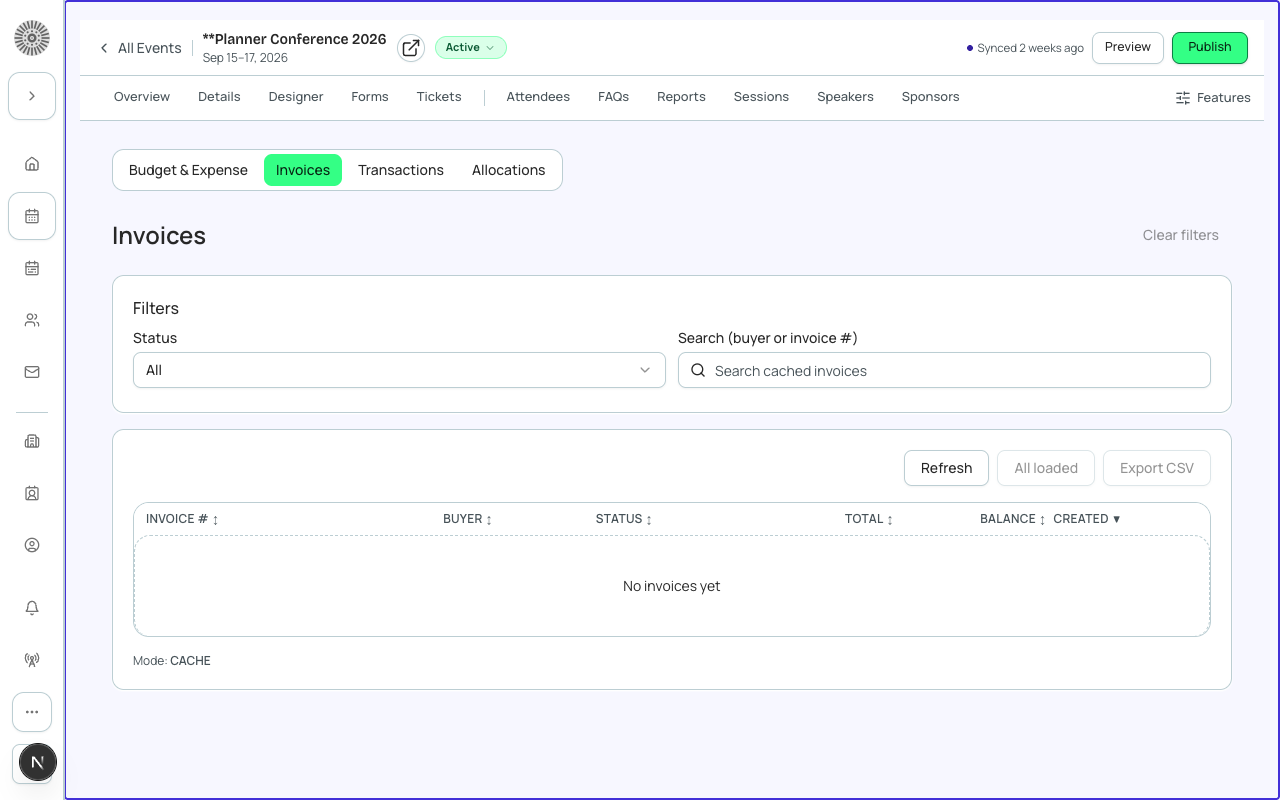
Event > Finance > Invoices list
Status pills
Above the list, six pills show how many invoices are in each state. Select a pill to filter the list to it.
| Pill | What it counts | Where the value comes from |
|---|---|---|
| Paid | Invoices whose payment is complete. | Payment Status = Paid. |
| Open | Invoices with nothing paid yet. | Payment Status = Unpaid. |
| Partially Paid | Some money received, balance outstanding. | Payment Status = Partially Paid. |
| Overdue | Past their due date and not paid. | Payment Status = Past Due, set by Salesforce's own ageing. Forge does not guess from the balance. |
| Cancelled | Invoices that were voided. | Status = Voided. |
| Refunded | Fully or partly refunded invoices. | Payment Status = Refunded or Partially Refunded. |
An invoice has two statuses. Status is the document lifecycle (Draft, Sent, Accepted, Completed, Rejected, Voided, Ready To Bill, Uncollectible). Payment Status is the money state (Unpaid, Past Due, Partially Paid, Paid, Refunded, Partially Refunded, Overpaid) and is set automatically. The pills use Payment Status, except Cancelled.
Filters and columns
| Control or column | What it does | Recommendation |
|---|---|---|
| Status filter | All, then the payment states present in your data (Open, Paid, Partially Paid, Overdue, Refunded), then any document status present (such as Draft or Sent). | Use Overdue each week to chase payments. |
| Search (buyer or invoice #) | Matches the invoice number, the buyer name or the record id. | Paste the invoice number a customer quotes. |
| Invoice # | The automatic invoice number, with a link to open it in Salesforce. | The number is assigned by Salesforce and cannot be edited. |
| Buyer | The customer name, or the customer reference when no name is available. | — |
| Status | The document status. | — |
| Total / Balance | The invoice total and what is still owed, in the invoice's currency. | Balance is what is still owed; it is zero when the invoice is paid in full. |
| Created | When the invoice was created. | The list is sorted newest first by default; select a column heading to sort. |
| Gateway badge | The payment gateway used. | Useful when you run more than one gateway. |
| Export CSV | Downloads the list as shown (after filters and sort). | See the Exports page for the columns. |
The list shows 20 invoices at a time with Show More. The footer shows the record count, the time of the last sync and a note when more pages are available. It refreshes itself every 30 seconds and loads from a cached copy so very large events stay fast. If the cache is still being built you may see "Cache refresh pending" for a moment.
Invoice detail page
Opening an invoice shows its header, line items and payments.
| Part | What it shows or does | Recommendation |
|---|---|---|
| Header | Invoice number, Status badge, Total, Balance and Created date. Syncing... or Not found appears while data is still loading or when the invoice cannot be found. | — |
| View public invoice / Open public invoice | Opens the invoice's customer-facing document page (DocumentLink) in a new tab. | Send this link to a customer who needs to see or pay their invoice. |
| Export lines | Downloads the line items as CSV (Description, Qty, Unit, Amount). | Use for the buyer's accounts team. |
| Download PDF | Opens the browser print dialog so you can save the page as a PDF. | Choose Save as PDF in the print dialog. |
| Transactions / Invoices / Budget & Expense | Shortcuts to the event's transactions, back to the invoice list and to Budget & Expense. | — |
| Line items | Description, Qty, Unit, Amount, Not Discountable (Yes or No) and Links (View attendee, View item, View ticket) for each line. | Not Discountable means a discount code cannot reduce that line. |
| Transactions table | Status, Method, Transaction, Date and Gateway for each payment on the invoice, with actions where your gateway tools are enabled. | Use it to see exactly which payment covers the invoice. |
Editing line items
| Action | What it does | Notes |
|---|---|---|
| Add line item | Adds a line. Choose an Event item to fill in the description and price automatically; you can still change them. | You can also attribute the line to a Session, a Product or an Attendee. |
| Edit | Changes the description, quantity, price and links. | Changes are written to Salesforce straight away. |
| Delete | Removes the line from the invoice in Salesforce after confirmation. | Cannot be undone. |
| Reorder | Drag a row to change the order; the order is saved to Salesforce. | Reordering changes how lines appear on the invoice, not the amount owed. |
Line-item edits change what the buyer is billed. They do not take or refund money. If you remove a line from an invoice that has already been paid, fix the difference with a refund on the Transactions tab.
Fees
Fees add a percentage to an event's orders. Salesforce Payments supports exactly two kinds, and each event can have one of each assigned.
| Fee type | How it is applied | Typical use |
|---|---|---|
| Payment Processing | A percentage added after tax is applied. | Pass a card surcharge to the buyer, for example 2.9. |
| Tax | A percentage applied to the total after discounts are calculated. | GST, VAT or sales tax. |
There is no fixed-amount fee and no separate "absorbed" fee type; every fee is a percentage. Fees are managed per event under Event > Tickets > Fees (the old Finance > Fees address redirects there).
| Field | What it does | Recommendation |
|---|---|---|
| Fee name | A label for the fee, required. | Use a plain name such as Credit Card Processing or Local Sales Tax. |
| Fee type | Payment Processing or Tax, required. | Pick the one that matches how it is applied. |
| Percent | The rate, greater than 0 and at most 100. | Enter the number only, for example 2.9. |
| Tax display setting (Tax fees only) | Tax-Inclusive Pricing: the advertised price already includes tax. Calculated at Checkout: tax is not shown until the final payment screen. Tax always appears as its own line on the final payment screen either way. | Use Tax-Inclusive Pricing where law or custom expects advertised prices to include tax; otherwise Calculated at Checkout. |
| Fees list column | What it shows |
|---|---|
| Name / Type / Percent | The fee's name, type and rate. |
| Tax display | The tax display setting, for tax fees. |
| Assignment | A badge: Payment fee or Tax fee when the fee is assigned to this event. |
Assigning a fee to an event
- Open Event > Tickets > Fees and choose Add fee, or open an existing fee.
- On the fee, choose Assign as Payment Processing Fee or Assign as Tax Fee. Only a fee of the matching type can be assigned to each slot.
- If the event already has a fee in that slot, a Replace existing assignment? dialog names the current fee and asks you to confirm.
- To stop applying a fee, choose Unassign from event. Deleting a fee removes it from Salesforce for every event, so unassign first when you only want it off one event.
Fees apply to the event they are assigned to, and the fee record itself is shared by every event that uses it. Changing a fee's percent changes it for all events using that fee. Create a separate fee when one event needs a different rate. Fees can only be saved when the Fee object is installed in your org; otherwise the page says so.
Admin > Transactions lists all fees in your org (name, type, percent) for reference. A Default Fee flag also exists on the Salesforce fee record; it is not shown in Forge.