Reporting and Finance
Transactions and Refunds
This page covers every place you view or act on payments: the event's Transactions list and detail, manual transactions, allocations, issuing refunds, the Refund Requests queue where attendee cancellation requests are reviewed, and the admin lists of gateways, fees, saved payment methods and payment schedules. Transactions are Salesforce Payments records; Forge shows and acts on them but Salesforce remains the system of record. The list and the detail page show both the payment status and the transaction status.
Quick guide: use Event > Finance > Transactions to find a payment and see its status; use Refund on a captured payment to return money through the gateway; use Admin > Refund Requests to approve or deny what attendees asked for; use Allocations only to split or record how a payment was applied to invoices.
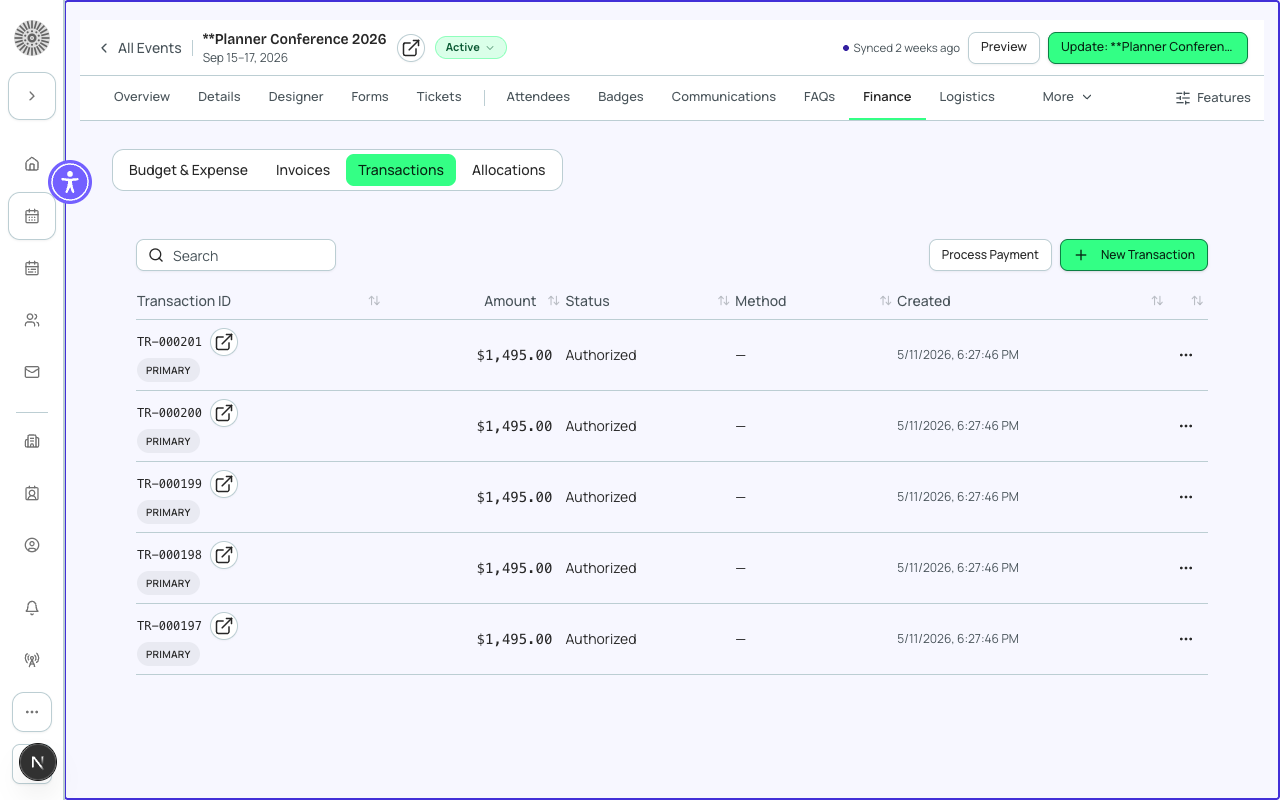
Event > Finance > Transactions
The Transactions tab (Event > Finance) lists payments for the event, 20 at a time with Show More. It is hidden when the Transactions feature is off for the event. Search matches the transaction ID or name, the status or the order (invoice) it belongs to. Select a row to open its detail page.
| Column | What it shows | Recommendation |
|---|---|---|
| Transaction ID | The gateway's transaction reference (or the record name), a Salesforce link icon and a badge naming the payment gateway. | Quote this when talking to your gateway's support. |
| Amount | The transaction amount in its own currency. | Check the currency badge if you run more than one. |
| Status | The transaction's Payment Status from Salesforce, for example Authorized, Captured, Partially Refunded, Refunded. | This is the money state. See the glossary below. |
| Method | How it was paid, for example card. | — |
| Created | When the transaction was created. | — |
Row actions (More actions menu)
| Action | What it does | When it is available |
|---|---|---|
| Capture | Collects money that was only authorized (held on the card). | Only for rows whose status is Authorized. |
| Refund | Opens a dialog to return money through the payment gateway. You choose an amount (the full original amount is pre-filled) and a reason: Requested by customer, Duplicate charge or Fraudulent. A partial amount is labelled as a partial refund. The refund is recorded as its own transaction linked to the original and the original becomes Refunded or Partially Refunded. | Disabled once the row is already Refunded. The transaction must be Captured or Partially Refunded, and the amount cannot be more than what is still refundable after earlier refunds. |
| Issue Refund via Allocation | Creates a Refund allocation record for an amount you enter. It records the refund in Salesforce but does not move money through the gateway. | Always. Use it for bookkeeping, for example refunds you paid by cheque. |
| Delete | Deletes the transaction record after a confirmation. | Only for Failed or Voided transactions, so payment history is preserved. Otherwise the item is disabled with an explanation. |
Capture, Refund and Process Payment go through Forge's payment gateway tools, which must be turned on for your organization (the Virtual Terminal feature). If it is not on, those actions are rejected with "Payment Gateways is not enabled for this tenant". Approving an attendee refund request in Admin > Refund Requests does not depend on it.
Header buttons
| Button | What it does | Notes |
|---|---|---|
| Process Payment | Opens the Virtual Terminal to charge a card manually. | Shown only when the list contains transactions from a gateway, and requires the Virtual Terminal feature. |
| New Transaction | Records a transaction by hand (see below). | For payments taken outside the checkout. |
Transaction detail
The detail page shows the transaction's Amount and Status, the fields in the layout your admin configured (Admin > Record Layouts), a link to open it in Salesforce, and Delete when allowed. Payments through Stripe Connect also show a Fee details section: Application fee, Application fee (total), Refunded application fee, Exchange rate and Payout (converted), all read-only.
New Transaction (manual entry)
| Field | What it does | Recommendation |
|---|---|---|
| Amount | The amount, greater than zero. | Enter the real amount received. |
| Currency | The currency of the payment. | Match the invoice currency. |
| Status | Open, Completed or Canceled. | Salesforce's own help text says only Open and Canceled should be set by hand and that other statuses are normally set by the payment process. Use Open or Canceled unless your finance team asks you to record Completed for an off-platform payment. |
| Customer | The contact the payment belongs to. | Choose the payer. |
| Gateway | The payment gateway it relates to. | Choose the gateway the payment relates to, if any. |
| Description | Free text. | Note the cheque number or wire reference. |
| Transaction type | Normal, Refund, Reversal or Write Off. | Use Normal for payments; use Refund, Reversal or Write Off only to mirror adjustments made elsewhere. |
| Non-Stripe / manual entry | Marks the record as off-platform, for cash, cheque, wire or other payments. | Tick it for anything not processed by your gateway, so it is clear no gateway payout is expected. |
Manual transaction entry is not available when your org's payment setup has no direct link from Transactions to the Event; the page then says so and asks you to contact support.
Allocations
An allocation applies part of one transaction to an invoice or an invoice line. This is how one payment can cover several invoices, or how a refund or write-off is recorded against an invoice. Event > Finance > Allocations lists them.
| Column / field | What it is |
|---|---|
| Name | The allocation's name. |
| Transaction | The transaction supplying the funds (required when creating). |
| Line Item | Optional invoice line the amount applies to. |
| Invoice | Optional invoice the amount applies to. |
| Type | Payment, Refund or Write Off (Salesforce default Payment). Required. |
| Amount | The amount allocated (required). |
Filter the list by Transaction or Invoice. New Allocation creates one; Delete removes the record from Salesforce after confirmation. Only this event's transactions and orders appear.
Admin > Refund Requests
Attendees ask for paid cancellations and refunds from the Attendee Portal. Those requests land in Admin > Refund Requests (/admin/refund-requests). The list shows only requests still waiting for a decision.
| Column | What it shows |
|---|---|
| Attendee | The attendee's name. |
| Event | The event. |
| Reason | The reason the attendee gave. |
| Requested Amount | The amount asked for, never more than the amount actually paid on the order. |
| Submitted | When it was filed. |
| Action | What happens | Recommendation |
|---|---|---|
| Approve | After you confirm, Forge refunds the attendee through the linked payment gateway using the same safeguards as a manual refund (no double refund, amount cap), against the most recent refundable charge on the attendee's order. Only after the refund succeeds does the request move to Completed. If it fails the request stays waiting so you can retry. | Check the attendee's order first. An order with several payments is refunded against the latest charge only. Approving does not cancel the registration; update the attendee status separately if needed. |
| Deny | Marks the request Denied with your name and the time. No money moves. | Email the attendee the reason; the portal does not do it for you. |
If the page says "Refund requests aren't available for this org yet", the org does not have the refund-request object installed, so attendees cannot file paid cancellation requests and this queue stays empty. Refunds still work from the Transactions tab.
Admin > Transactions
Admin > Transactions is a reference page, not a payment list. It shows your Gateways (name and type, with a link to each in Salesforce), your Fees (name, type and percent), and two links: Payment Methods and Payment Schedules.
| Page | What it does | Recommendation |
|---|---|---|
| Payment Methods (/admin/transactions/methods) | Lists saved payment methods (Name, Type, Brand, Last 4). You can Rename (card holder name), Delete after confirmation, or add one with New Payment Method (Type, Brand, Last 4 digits, Billing postal code). | Cards cannot be created fully here because Salesforce needs card security details; add cards through a payment form. |
| Payment Schedules (/admin/transactions/schedules) | Lists schedules with Name, Status, Interval. You can create a template, edit (Amount, Repeats, Frequency, Next Payment Date, End Date, Description), delete, or Cancel Schedule, which permanently stops future billing. | Recurring charges run on Forge's own schedule engine (payment schedules), never on Stripe Subscriptions. Cancel a schedule rather than deleting history. |
Status glossary
Two separate Salesforce fields describe a transaction. Forge's Transactions list shows Payment Status. The Reports > Finance numbers read payment statuses.
| Transaction Status (controls business logic) | Meaning |
|---|---|
| Open, Process, Pending, Pending Payment Intent | Not finished yet; the payment is being created or is waiting on the gateway or customer. |
| Completed | Finished. Payment Status then describes the money. |
| On Hold, Needs Review | Needs a person to look at it. |
| Failed | The attempt did not succeed. Can be deleted. |
| Canceled | Stopped before completion. Only Open and Canceled should be set by hand. |
| Payment Status (state of the funds) | Meaning |
|---|---|
| Authorized | Money is held on the card, not collected. Uncaptured after 7 days if not captured. |
| Captured, Partially Captured | Money collected, in full or in part. |
| Paid, In Transit, Transferred | The money has been paid out toward your bank account. |
| Refunded, Partially Refunded | All or part of the money returned to the payer. |
| Uncaptured | An authorization that expired without capture. |
| Disputed, Dispute Warning | The payer's bank has opened or is about to open a dispute. |
| Reversed, Partially Reversed | The payment was reversed. |
Payment Status only applies when Transaction Status is Completed. Refunds are recorded as their own transactions (type Refund) linked to the original through its Original Transaction field, so you keep a full audit trail.
Recurring payments
Each charge of a recurring gift or instalment plan appears as its own transaction. Schedules live on Payment Schedules in Salesforce and are executed by Salesforce, not by Stripe Subscriptions.
Refund timing depends on the gateway and the payer's bank; Forge sends the refund immediately and shows success when the gateway accepts it. A refund also sends the payer a refund receipt email.