Core Concepts
Events and the Workspace
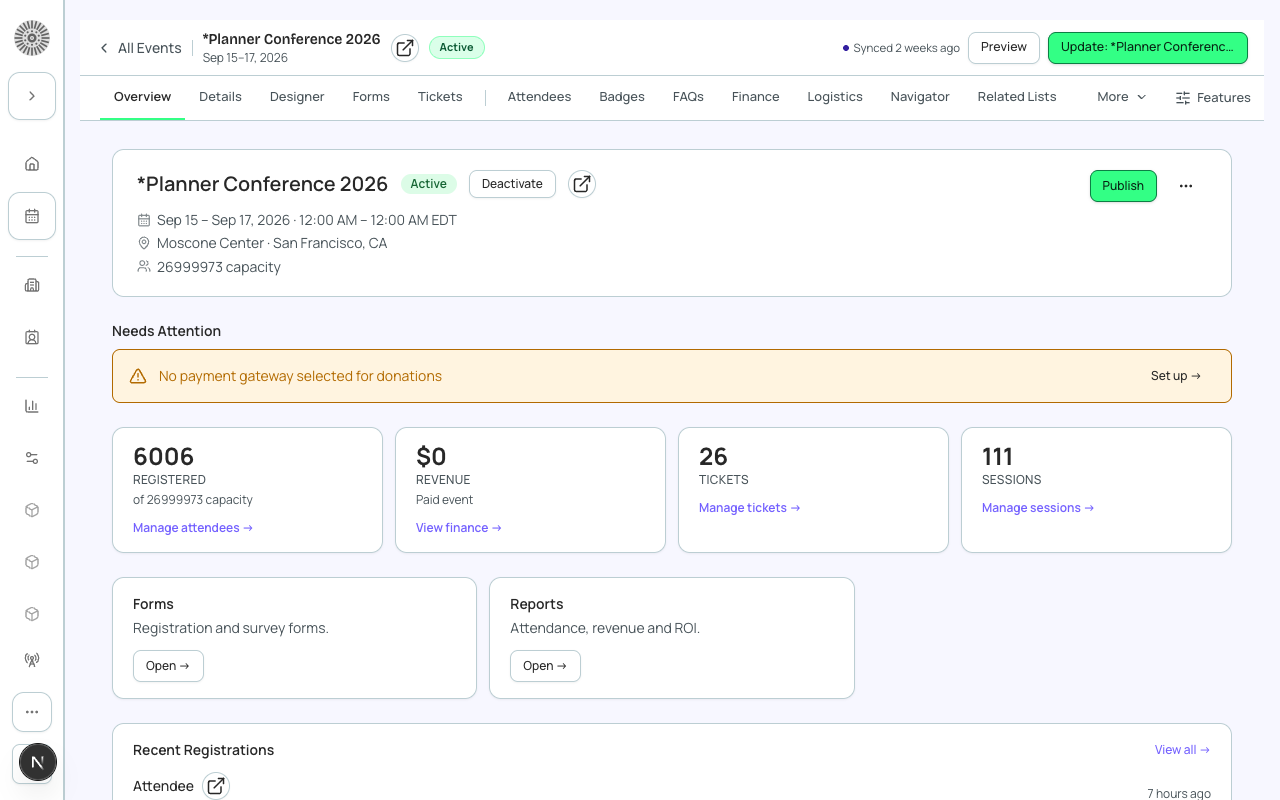
An event is the top-level record in Forge. Everything else (tickets, sessions, attendees, speakers, forms, communications, finance) belongs to an event. The event workspace is the set of pages, reached from a tab bar, where you manage all of that for one event.
Date fields accept typed entry: type the date in your org's format, or just digits (for example 10202027 becomes 10/20/2027), and type times as 9, 930, 9:30pm or 21:45. The Start calendar opens on today and the End calendar on the day after Start.
The event record
| Field | What it holds | Implication |
|---|---|---|
| Name | The event name, shown on the public page, emails and confirmations. | Forge shows an event as public name, then name, then auto-number. Raw Salesforce IDs are never shown. |
| Start / End date and time, Time Zone | When the event runs, in the event's time zone. | Ticket sales start and end times use the same time zone. |
| Status | Draft, Active, Completed or Canceled. | Controls readiness, not visibility. See Statuses and Lifecycle. |
| Publish (Visible) | Whether the event is reachable on its web address and in public lists. | Unpublished events are reachable only by preview link. |
| Venue and Webinar/Meeting fields | A venue (a lookup to an Account whose billing address fills the venue fields) for in-person events, and a Webinar/Meeting Account, ID, URL and password for virtual ones. | In-person, virtual and hybrid are inferred from which of these are filled, not chosen from one picklist. |
| Total Capacity (Attendee Limit) | Total seats. It is the sum of ticket quantities unless you enter a value directly. | Add the Attendee Limit Buffer to hold seats back. Remaining Capacity is limit minus buffer minus registered. |
| Waitlist Enabled, Waitlist Capacity | When seats run out, people can still register but join the waitlist. | Cap the waitlist so it stays manageable. |
| Hide Register Button | If Yes, the Register button is hidden on the event page. | Use it for announce-only events or ones where you add attendees yourself. |
| Forge | SF Object | SF Field |
|---|---|---|
| Event name | conference360__Event__c | Name |
| Start date | conference360__Event__c | conference360__Event_Start_Date__c |
| End date | conference360__Event__c | conference360__Event_End_Date__c |
| Time zone | conference360__Event__c | conference360__Time_Zone__c |
| Status | conference360__Event__c | conference360__Status__c |
| Publish | conference360__Event__c | conference360__Visible__c |
| Capacity | conference360__Event__c | conference360__Attendee_Limit__c |
| Hide register button | conference360__Event__c | conference360__Hide_Register_Button__c |
| Webinar account | conference360__Event__c | conference360__Webinar_Account__c |
| Venue | conference360__Event__c | conference360__Venue__c |
Activity
- The Activity card on the Overview logs calls, tasks, emails and calendar events against the event. Choose Log a call, Task, Event or Email, enter a subject and notes, then Save. A call or email is recorded as completed today unless you pick another date; a task takes an optional due date and starts as Not Started; an event takes a start time and a duration.
- Upcoming & overdue lists open tasks and future events, earliest first, with an Overdue tag on open tasks past their due date. Past lists completed tasks and earlier events, newest first.
- Each list shows 20 items; choose Show more for the next 20. With nothing logged the card says No activity.
- Activities are saved as Salesforce Tasks and Events on the event, so they also appear in Salesforce. Use the Salesforce icon on a row to open it there.
- You need Salesforce permission to create Tasks (or Events) and edit access to the event.
The event tab bar
The bar adapts to the event and your org. The first five tabs are fixed in this order: Overview, Details, Designer, Forms, Tickets. The rest follow in alphabetical order and appear only when the feature is on for your org.
| Tab | What it is for | When it appears |
|---|---|---|
| Overview | Status, publish and preview, what needs attention, headline numbers, QR codes and recent registrations. | Always |
| Details | The event record's fields, plus collapsible sections for Speakers, Sessions and Tracks, Sponsors, FAQs, Attachments and Recurring Events. | Always |
| Designer | The public event page and its look. | Always |
| Forms | Registration and survey questions. | Always |
| Tickets | Tickets, discount codes and fees. | Always |
| Communications | Automatic and one-off email for this event. | Unless an admin turned on Disable Communications |
| Reports | Registration, finance, email and capacity reports for this event. | Always |
| Finance | Budget & Expense, Invoices, Transactions and Allocations. | When at least one of the finance features is enabled |
| Attendees, Sessions, Speakers, Sponsors, FAQs, Transactions | The full list for that area. | They are sections of Details until you promote them or they grow past 10 records, then they get their own tab. |
| Hotels | Room blocks and bookings for the event. | When your Salesforce user can read hotel room blocks |
| Tables & Seating, Related Lists, Logistics, Badges, Navigator, Translations | Optional areas. | Only when the feature is on for your org |
On a phone, the first few tabs show inline and the rest are under More.
More also lists the pages that have no tab: Settings, Location, Event content, Event groups, Recurrence, Staff, Tracks, Session attendees and ROI, grouped under Setup, People and Finance. A page that needs an opt-in on Beta features, such as Tasks, is listed only after your org has turned it on. If your profile has no access to a page, it is not listed.
Visibility and registration
| Goal | Setting | Recommendation |
|---|---|---|
| Show the event publicly | Status Active, then Publish on the Overview. | Check Needs Attention on the Overview first. |
| Test before launch | Preview on the Overview (works while unpublished). | Share the preview link with reviewers only. |
| Announce without taking sign-ups | Publish with Hide Register Button on. | Add attendees yourself from the Attendees area. |
| Stop new sign-ups | Turn Hide Register Button on, and end ticket sales by setting each ticket's Sales End Date or setting its Status to Closed. | Do both when an event is full or over. |
How an event is listed in an Event Group, and which group is primary, is covered on Events and Groups in the Global Tour.
Creating an event
- Create from scratch: a guided wizard for name, dates, location, tickets and features.
- Clone existing event: copies the items you choose on the What to Copy step as new records. It does not copy attendees or transactions, and the clone is always Draft.
- Make Recurring: from the Events list, turns an event into a repeating series.
- Recurring series filter: on the Events list, the Recurring series button shows only events that belong to a series. A recurring event's row menu has View all in series, which lists every instance of that series, past and future. Click the button again to clear it. Events synced before this release appear after their next sync.
Creating an event in Forge creates a conference360__Event__c record in Salesforce. A Salesforce admin can extend event records with flows and validation rules; Forge shows Salesforce's error message when a save is refused.