Core Concepts
Tickets, Sessions, Attendees, and Registrations
These four concepts are the most commonly confused in Forge. They are related but distinct — understanding the difference is essential for building events correctly and interpreting your data. When part of an order lands on the waitlist, checkout shows the regular and waitlisted seat counts before anything is charged; Continue anyway keeps the order, Cancel returns to ticket selection.
Quick comparison
| Concept | What it is | Salesforce object | Created when |
|---|---|---|---|
| Ticket / Item | A purchasable or free item that grants access to an event or session. Has a price, quantity, and status. | conference360__Event_Item__c | Event planner adds it in Forge. |
| Session | A scheduled breakout, workshop, or track within an event. May have its own capacity and enrollment rules. | conference360__Session__c | Event planner adds it in Forge. |
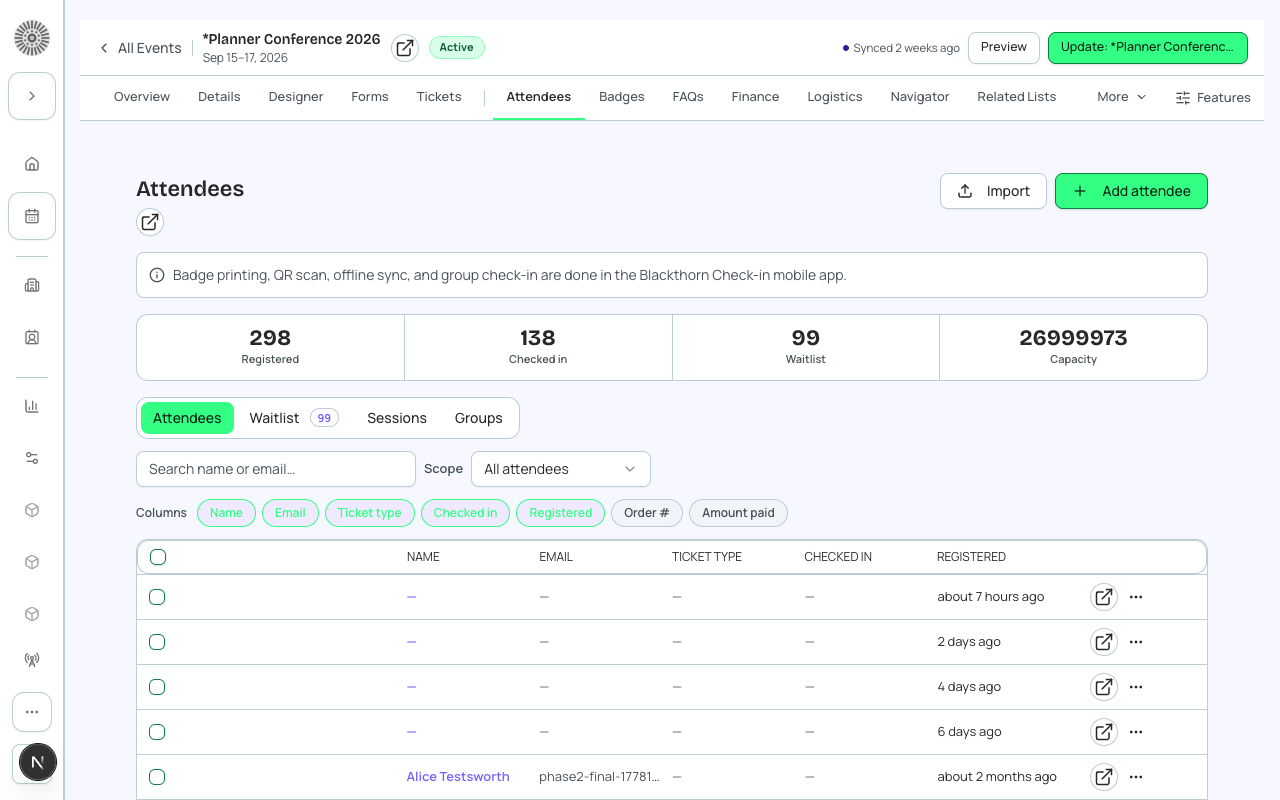
| Attendee | A person who has registered for the event. Linked to a Salesforce Contact or Lead. Holds the person's name, email, and status. | conference360__Attendee__c | Created automatically when someone completes registration. |
| Registration | The overall transaction record linking an attendee to the event, the ticket(s) purchased, and the payment (if paid). | conference360__Attendee__c (primary) + bt_stripe__Transaction__c (if paid) | Created automatically on registration completion. |
Tickets / Items in detail
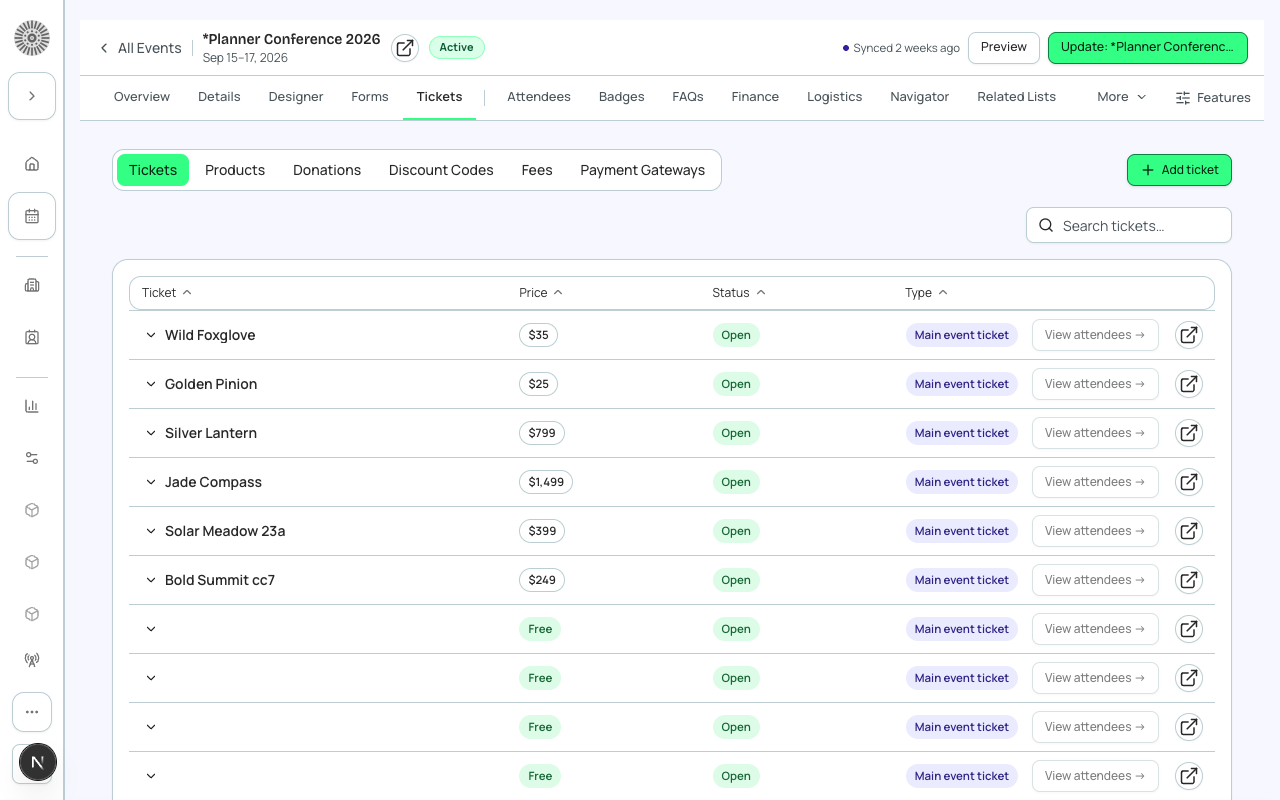
A Ticket (or Item) is the thing a registrant selects during checkout. One event can have many ticket types — general admission, VIP, early bird, donation, or product. On the checkout tickets step an order summary updates as tickets are added, showing subtotal, discount, tax, fees and total from the server's price quote; if the quote fails, a Retry button appears. Each ticket's quantity buttons are named for that ticket (for example "Increase quantity of VIP") so screen readers announce which ticket changes.
When you add or edit event content, Category is a dropdown with the same choices as Salesforce: Map, Event Document and Session Document. Leave it on None to clear it.
On the detail page of a ticket, speaker, sponsor, staff member, session, FAQ or event content item, **Save and Close** saves every section you edited before returning to the list. Creating a speaker requires a last name and creating a sponsor requires a display name, and an invalid URL blocks the create with an inline message. Attendee groups have a Delete button on their detail page, and opening a registration that does not exist shows a not-found page. If a save fails, you stay on the page with the problem fields highlighted so nothing is lost. For a table (group) ticket, turn on **Allow table splits** so several buyers can each buy some seats at one table; optionally cap **Tables available**. A purchase larger than the seats still available is declined before payment, and refunded seats reopen the table.
If adding, duplicating or deleting a ticket, or changing its quantity, makes Salesforce recalculate the event's Total Capacity, Forge shows the old and new value with a link to Details > Capacity to set a different one. On the Donations and Products sub-tabs, switch from Items to Received (donations) or Sold (products) to see the event's line items: line item, invoice, item, attendee, quantity and total, with the gift or sale count and the running total. Refunded lines carry a Refunded tag. The list shows 20 rows at a time; choose Show more for the next 20. It is read-only.
Ticket rules: a ticket needs a name; quantities are whole numbers of 0 or more; the price is 0 or more with at most two decimal places. Registered, Remaining and revenue figures are calculated by Forge and cannot be edited. If a rule is broken, the reason appears next to the field and the ticket is not saved.
Ticket fields that matter
| Ticket field | What it does | Recommendation |
|---|---|---|
| Public Item Name | The name registrants see. If a Salesforce Product is linked, the Product's name is used. | Name tickets by who they are for (Student, VIP), not by price. |
| Price / Free | The price, or Free. A linked Product's price fills Price automatically. | Do not set a price on a Free ticket. |
| Quantity Available / Registered / Quantity Remaining | Total for sale, number sold, and the difference. Remaining is calculated. | Leave blank for unlimited. Changing quantities can change the event's Total Capacity. |
| Minimum / Maximum Quantity | The fewest and most of this ticket one person can register for. | Set a maximum to stop one person buying all seats. |
| Sales Start / End Date and Time | When sales open and close, in the event's time zone. | Use them to run early-bird windows instead of editing the price by hand. |
| Status | Planned, On Sale, Sold Out, Closed, Unavailable. | Set On Sale at launch. |
| Hidden | Hides the item from event checkout. | Use for tickets sold only by link or by staff. |
| Sort Order | The order tickets appear on the registration page. | Put the most popular option first. |
| Waitlist Enabled / Waitlist Capacity | When remaining seats reach 0, people can register and are waitlisted, up to the capacity. A cart that is only partly sold out holds the available seats and waitlists the rest (once enabled for your org). Not available for products or donations. | Cap the waitlist. |
| Tax-Exempt | If checked, no tax applies to this item; otherwise the event's tax applies. | Use for donations or non-taxable items. |
| Payment Gateway | The gateway used to process this item. Blank uses the event's default gateway. | Leave blank unless one ticket must use a different gateway. |
| Form | Questions asked only of people who buy this ticket. | Use for ticket-specific questions such as a student ID. |
| Full Name, Email, Phone, Company, Address, Country, Dietary Preference, Salutation, Account Postal Code | Each is set per ticket to optional, required or hidden for the attendee. Once a street, city or state is entered, a postal code is required for the United States, Canada, Austria, Germany and Switzerland, and US and Canadian addresses use a state or province list. | Keep Full Name and Email required, as Salesforce recommends. |
| Group Size / Is Block Ticket / Block Seats | Sell a grouped package, such as a table of 8: the purchaser takes the first seat and guests are added after purchase. Block Seats must be 2 to 150. | Use for tables and team packages. |
| Require At Least One Session | Attendees must pick a session to finish registering. | Use for tickets that only make sense with a session. |
| FMV Amount / FMV Percent | Fair market value of the item, either a flat amount or a percent of price, used for receipts. | Fill in for ticketed fundraising events. |
| Forge | SF Object | SF Field |
|---|---|---|
| Ticket name | conference360__Event_Item__c | Name |
| Price | conference360__Event_Item__c | conference360__Price__c |
| Free (no charge) | conference360__Event_Item__c | conference360__Free__c |
| Type (Ticket / Donation / Product) | conference360__Event_Item__c | conference360__Type__c |
| Status (On Sale / Sold Out / etc.) | conference360__Event_Item__c | conference360__Status__c |
| Quantity available | conference360__Event_Item__c | conference360__Quantity__c |
Sessions in detail
Sessions represent specific time slots within an event — keynotes, workshops, breakout tracks, and meals. A session has a start time, end time, room, and optional capacity limit. Sessions can be linked to specific ticket types so that only certain attendees can enroll.
| Session field | What it does | Recommendation |
|---|---|---|
| Status | Draft, Active, Canceled, Postponed or Completed. Set Active for the session to be visible. | Keep Draft until the room and time are final. |
| Quantity Available | The maximum number of registered attendees for the session. | Set it to the room capacity. |
| Waitlist Enabled / Waitlist Capacity | With seats at 0, attendees can still register and are waitlisted, up to the waitlist capacity. | Enable for popular workshops. |
| Start / End, Room | When and where it runs. | Check Reports > Capacity for sessions at risk. |
| Forge | SF Object | SF Field |
|---|---|---|
| Session name | conference360__Session__c | Name |
| Parent event | conference360__Session__c | conference360__Event__c |
| Start / End time | conference360__Session__c | conference360__Session_Start__c / conference360__Session_End__c |
| Room | conference360__Session__c | conference360__Room__c |
| Capacity | conference360__Session__c | conference360__Maximum_Registrants__c |
Attendees in detail
An Attendee record is created for each person who registers. It stores the person's own name and email directly on the Attendee record, and it also holds two separate status fields — Registration Status and Attendance Status (see Statuses and Lifecycle) — that are tracked independently. The Contact, Lead, or Account lookup is optional context: attendees who have no lookup at all (including Person Account registrants) still appear in the Attendees tab with their name and email.
Attendee names and emails live on the conference360__Attendee__c record itself; the optional Contact, Lead, or Account lookup adds CRM context such as that record's own fields. Salesforce field-level security on the Attendee fields controls whether a Forge user can see an attendee's email address.
| Attendee field | What it holds | Implication |
|---|---|---|
| Name and email | Stored on the Attendee record itself. | Field-level security in Salesforce decides whether a Forge user can see them. |
| Registration Status | Where the person is in the funnel (Lead to Registered, Waitlisted, Canceled and so on). | Drives emails and the registered count. See Statuses and Lifecycle. |
| Attendance Status | Pending, Attended or No-Show. | Set automatically by mobile check-in. |
| Ticket (Event Item) | Which ticket they hold. | Used by audience filters and reports by ticket. |
| Contact / Lead / Account lookup | Optional CRM context. | Registrants with no lookup still appear. |
| Forge | SF Object | SF Field |
|---|---|---|
| Registration status (Lead / To Invite / Invited / Pending / Registered / Declined / Canceled / Waitlisted - Pending / Waitlisted - Rejected / Awaiting Approval / Rejected) | conference360__Attendee__c | conference360__Registration_Status__c |
| Attendance status (Pending / Attended / No-Show) | conference360__Attendee__c | conference360__Attendance_Status__c |
| Linked Contact | conference360__Attendee__c | conference360__Contact__c |
| Linked Lead | conference360__Attendee__c | conference360__Lead__c |
| Event | conference360__Attendee__c | conference360__Event__c |
Registrations in detail
"Registration" is not a standalone Salesforce object — it describes the combined state of an Attendee record plus any associated Transaction records. For a paid ticket, a bt_stripe__Transaction__c record is created and linked to the Attendee. Together, these records represent the complete registration — this applies to both free and paid events; a free registration simply has no linked Transaction.