Global Tour
Communications
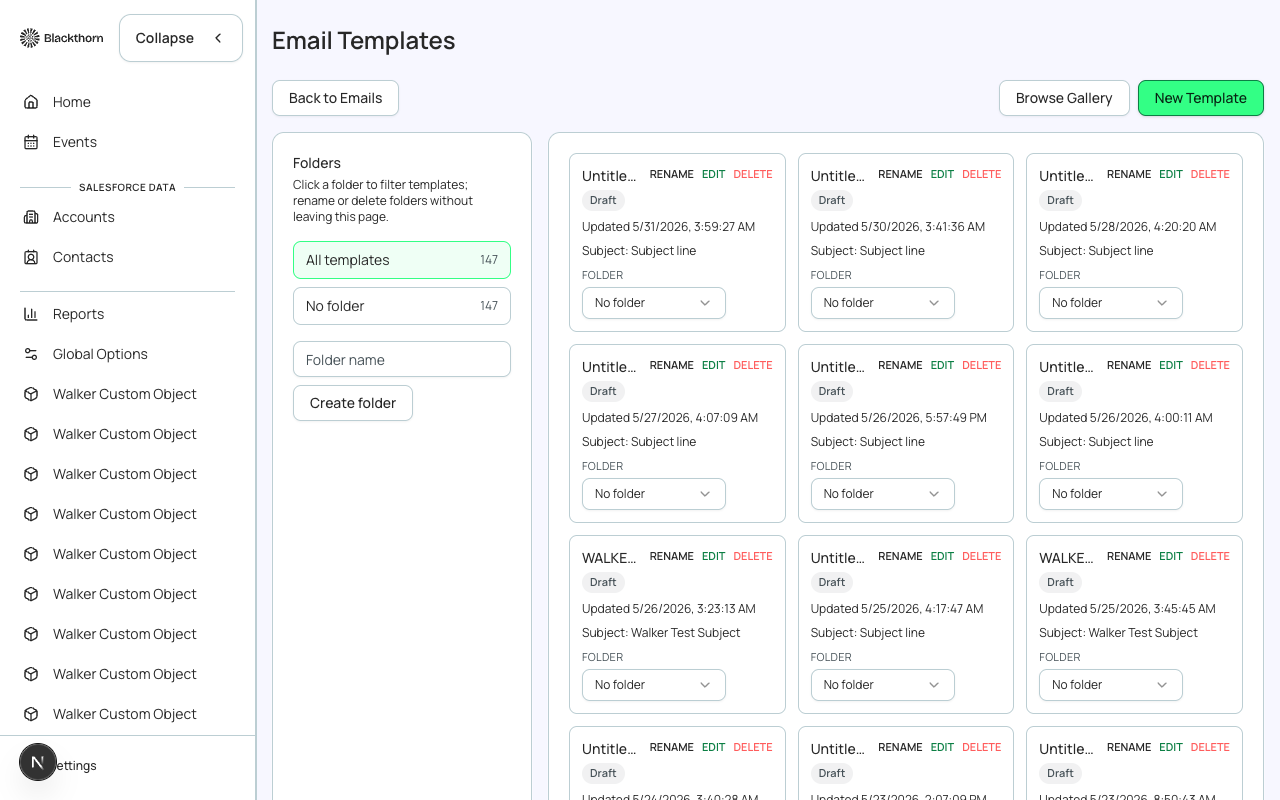
Email in Forge is sent per event, from each event's own Communications tab. A separate global Communications hub (a cross-event send and template workspace) exists in Forge, but it is still in development: it is off by default, only Blackthorn staff can switch it on for an org, and it does not appear in the sidebar otherwise. This page shows where email controls live today.
Where to do what
| To achieve this | Go to | Notes |
|---|---|---|
| Send a message to one event's attendees now or later | The event's Communications tab > Compose | Three steps: Audience, Message, Review & Send. An event's Compose only reaches that event's attendees. |
| Send confirmations, waitlist and day-of emails automatically | The event's Communications tab > Notifications | Choose an Email Sender, turn on Registration Confirmation and pick a template. Every change saves immediately. |
| See what is scheduled or already sent | The event's Communications tab > Scheduled and History | History shows delivery detail per message. |
| Check opens, clicks and bounces | The event's Reports > Email tab, or Reports > Email with one event selected | All Events shows only queued, paused and cancelled counts. |
| Set who emails come from, verify your domain, manage unsubscribes | Admin > Email Settings & Preferences | Required first: a verified sending domain and a default From address. |
| Copy a second person, such as an assistant or guardian, on attendee emails | Admin > CC Additional Emails, then the event's Notifications tab | Turn the setting on in Admin, then choose which email fields to copy. Each event can inherit, force on or turn off. |
| Automate a sequence when an event changes status | Admin > Email Journeys | Triggers: Event Activated, Event Completed, Event Canceled. |
| Send an email to a saved group | Audiences > Send | Continues into that event's Compose flow. See Audiences. |
Org-wide kill switch for the Communications tab
On the Admin page, in the Email group, the Disable Communications switch hides Communications from all event pages. Use it only when your organization sends event email from a separate system, for example Marketing Cloud. With it on, the Communications tabs disappear from every event for everyone, so turn it off again if your planners expect to send from Forge.
Disable Communications is an organization-wide switch that affects every planner. Agree it with your team before turning it on.
Important rules that apply everywhere
- Every email Forge sends includes an unsubscribe link, and people who opt out land on a suppression list that is applied to every send regardless of campaign settings.
- Forge sends through its own sending account for your org, not through Salesforce org-wide email addresses. Set up Admin > Email Settings & Preferences before the first send.
- Automatic emails are triggered by status changes on the attendee record in Salesforce. Your Salesforce admin can extend this with Flow or Apex.
Details of each tab, every field and the trigger list are on the event's Communications page in the Event tour, and sender, DNS and logging settings are on Email Settings under Admin.