Global Tour
Events and Groups
The Events list is where every event in your org lives. From here you find an event, open it, create a new one, clone one, turn one into a recurring series or delete it. Event Groups, reached from the Event Group link under Events in the sidebar, bundle related events into a series with shared branding and a public listing.
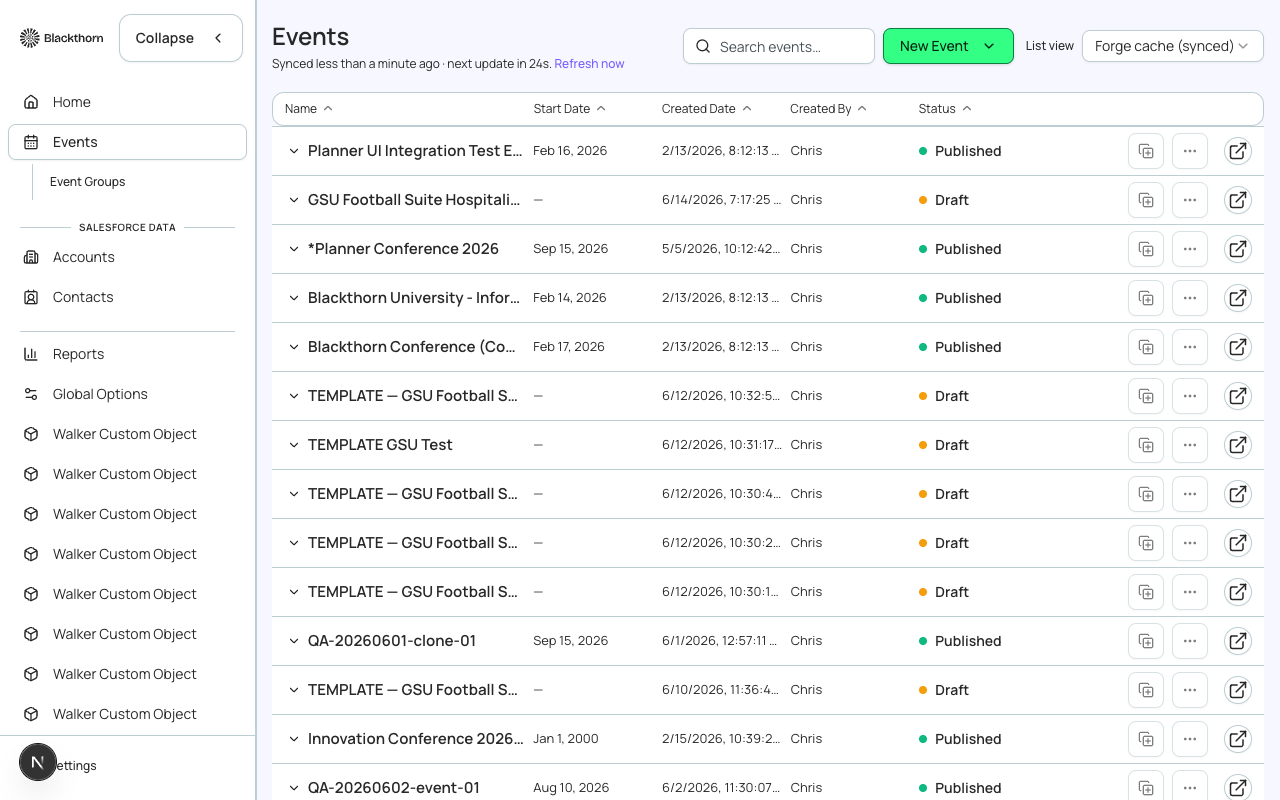
The Events list
Choosing what the list shows
The list is a view over your events. Pick the view from the List view dropdown above the table. Your choice is remembered in this browser.
| View option | What it is | Recommendation |
|---|---|---|
| Forge cache (synced) | The default. Events copied from Salesforce into Forge, so the list loads fast. Ordered by most recently modified, 20 at a time. A Synced N minutes ago label and a Refresh now link show how fresh it is, and a small amber dot means the copy is stale. | Use it for everyday work. After you create or change an event in Salesforce directly, choose Refresh now. |
| Salesforce list views | Every list view your Salesforce admin created for the Event object appears by name, and the one Salesforce marks as default is tagged (Default). Columns, filters and sort order come from Salesforce, and each row can be expanded to show more fields. Columns can be resized. | To achieve a saved slice such as Events starting this quarter, build that list view in Salesforce once and pick it here. Only list views you can see in Salesforce appear. |
| Custom Views | Forge-native saved views, listed under Custom Views. Choose + New custom view to make one. They run on the synced copy, so they show a Synced time and a Refresh now link, and say Not yet synced until the first refresh. | Use a custom view when you cannot, or do not want to, ask a Salesforce admin for a list view. |
If list views fail to load, the message tells you to open Admin > Org and choose Reconnect Org. Non-admins are told to ask a company admin.
Building a custom view
| Field | What it does | Recommendation |
|---|---|---|
| Name | How the view is named in the List view dropdown. | Name it for the question it answers, for example My Upcoming Events. |
| Columns | The fields shown as columns, up to 30. Only fields Forge actually keeps in its synced copy are offered. | Pick the few columns you scan (name, start date, status) rather than everything. |
| Filters | Up to 10 conditions on a field. Operators: Equals, Not equals, Contains, Greater than, Less than. Greater than and Less than accept numbers only. All filters must match. | To find events in one state, use Equals on Status. For text, use Contains. |
| Sort | One field and Ascending or Descending. | Sort by start date ascending to see the nearest event first. |
| Visibility | Private (only you) or Visible to other Forge users. | Keep it Private while testing, then share team views. |
If a field in a saved view is later removed, the view shows a notice naming the fields that are no longer available.
Columns and sorting
| Column | What it shows |
|---|---|
| Name | The event name. Untitled event appears if it has none. |
| Start Date | Event start, in your locale's date format. |
| Created Date | When the event record was created. |
| Created By | The first name of the user who created it, or a dash if it cannot be resolved. |
| Status | A colored dot and the status. Active events show as Published, with the tooltip This event is live and accepting registrations. Draft, Completed and Canceled show as they are. |
Click a column heading to sort, and click again to reverse. Sorting by Name, Created, Created By, Start Date or Status loads the whole list first (it shows Loading all N events to sort by ...). Sorting covers at most the 2,000 most recently modified events; beyond that a notice says so and recommends a Salesforce list view for a complete sort.
Searching
The search box (Search events...) matches the event name, status and start date text. It also works when you arrive from the global search See all event results row. Search applies to whichever view is selected.
Row actions
| Control | What it does | Recommendation |
|---|---|---|
| Click the row | Opens the event workspace on its Overview. Hold Ctrl, Cmd or Shift to open in a new tab. | Use Ctrl+click to line up several events in tabs. |
| Salesforce link icon | Opens the event record in Salesforce. | Use it when you need a Salesforce report or a field Forge does not show. |
| Clone (copy icon) | Opens the Clone wizard for that event. Step 1, Event Fields, lets you edit the new event's basics (the name defaults to Copy of <name>). Step 2, What to Copy, lists what carries over: Sessions, Speakers, Sponsors, Tickets, Forms, Email Templates, FAQs, Staff, Tracks, Fees (Codes) and more. Select All is available, and you can ask for a new Zoom webinar for the clone. The clone is always created as Draft. | To run the same event again, clone it and change only dates, venue and prices. Attendees and orders are never copied. Which fields appear on the clone form is set in Admin > Clone Field Configuration. |
| More actions > Make Recurring | Opens the event's recurrence page to generate a repeating series from it. | Use it for weekly or monthly sessions instead of cloning the same event by hand. |
| More actions > Delete | Permanently deletes the event record from Salesforce after you confirm. In a production org you must also type the event name to confirm; Salesforce keeps deleted records in its Recycle Bin for 15 days, where a Salesforce admin can restore them. | To retire an event you might need again, set its Status to Canceled or Completed instead. In some production orgs Delete is disabled until an admin turns on Allow deletes in this production org in Admin > Forge Access. |
There are no bulk actions on this list: each action is per event.
Creating an event
Choose New Event at the top right. The menu has two choices.
- Create from scratch: the step-by-step wizard for name, dates, location, tickets and features.
- Clone existing event: pick a source event first, then choose what to copy in the clone wizard.
If the org has no events yet, the empty state offers Create Event.
Event status and publishing
| Status | Meaning | Notes |
|---|---|---|
| Draft | Being built. | A cloned event always starts here. Saved to the Salesforce Status field as Draft. |
| Active | Ready to sell. The Events list shows it as Published. | The Active value is the Salesforce default for new events. The event still has to be published from its Overview before the public page is live. |
| Completed | Over. | Use after the event so it stops looking upcoming. |
| Canceled | Called off. | Tell registrants and handle refunds yourself. |
See Statuses and Lifecycle for how status, publishing and registration windows work together.
Event Groups
An Event Group (called a series on these pages) bundles related events, such as a conference series or a regional tour, under shared branding and a public listing with its own web address. An event can belong to several groups but has exactly one primary group, which drives default navigation and SEO details on public pages. Setting the primary group here also updates the Event Group lookup on the Salesforce Event record. The Event Groups page covers every group field, button and the per-event Event Group page in full.
The Event Group page
| Control | What it does | Recommendation |
|---|---|---|
| Event Groups (N) list | All groups with a search box (Search series...), a count of events in each, a Default badge on the org default, and an Open button. Choose a group to see its events on the right. On small screens the two lists become two tabs. | Search by name when you have many series. |
| Events in this series (N) | The events in the selected group with columns Event and Primary Series. A group name with Primary beside it means this group is that event's primary. Each row has View (opens the event) and Remove from series. | Use Remove from series to take an event out of one group without touching its other groups. |
| New series | Creates a group. Enter a Name, and a Record type if your org uses several; the group then opens for editing. | Create the group first, then attach events from each event's Event Group page. |
The group with the Default flag is the org default. If you do not assign an event to a specific group it is added to the default group so every event can appear in the public listing. The default group can be removed from an event, but Salesforce or Forge may add it back. If no default exists, mark one group as Default on its own page.
Opening a group
A group opens as an editable record: click any field to edit it, with a Preview tab that shows a sample public listing. Refresh Cache re-reads it from Salesforce and Clear Cache drops the stored copy. Related events lists each associated event with Remove, and Associate with an event lets you search events (type at least 2 characters) or pick a recent one. The fields you see depend on your Salesforce field access; the internal Key is hidden.
| Field | What it does | Recommendation |
|---|---|---|
| Name / Description | The group's name and an HTML description shown on its listing. If a featured event is chosen, it overrides the description. | Write one sentence describing the series. |
| Default | Marks this group as the org default. Its settings (branding, filters, logo) apply to the main event listing page. | Turn it on for exactly one group, your main listing. |
| Logo URL | Full web address of the logo shown on the listing and registration pages. Use a public PNG or JPG, ideally no larger than 400 x 200 pixels and under 1 MB. | Host the logo on a stable public URL. |
| Alternative Text for Visual Impairment | Descriptive text that accompanies the logo for screen readers. | Always fill it in. |
| Primary Color (#) | A hex color for the group's pages, entered without the # symbol. | Use your brand color, for example 7360FF. |
| Custom CSS Url | Web address of your own stylesheet for the listing. | Leave blank unless a web developer supplies one. |
| UI Experience | The layout attendees see. Values: List, Calendar, Aspen, Maple. | Use List for many events, Calendar when dates matter most. |
| Filter Fields | Which filter options appear on the public listing. Values: Category, Keywords, Distance, No Filters. | Choose No Filters to hide the filter bar for a small series. |
| Combine Keyword Filters with AND Logic | With it on, each extra keyword narrows the results. With it off, each extra keyword widens them (OR). | Turn it on when visitors should find events that match every keyword. |
| Settings | Extra behaviors. Value: Hide Full Events Without Waitlisting. | Use it to stop sold-out events from cluttering the listing. |
| Event Settings | A shared Event Settings record that overrides each event's own settings (such as time zone, currency, registration rules) for every event in the group. | Use it to enforce one set of rules across a series. Leave blank to let each event keep its own. |
| Data Dictionary Group | Links the group to a Data Dictionary group so labels and picklist values can be translated. | Set it only if you translate public content. |
| Event Group URL | The public address where the group's upcoming events are listed. | Share this link to promote the series. |
| Embed Event List View / Embed Event Calendar View | HTML snippets that embed the event list or calendar on your own website. | Paste them into your website's HTML block. |
| Last Publish To Platform Requested At / Completed At | When changes were sent and when they became visible to attendees. | If Completed is older than Requested, changes are still on their way. |
Attaching events to groups
- Open the event and go to its Event Group page.
- Search for a group by name, then choose Add.
- In Selected Series & Primary, mark one group as Primary. Use Remove to drop a group.
- Choose Save changes. Reset discards your edits.
Common goals
| To achieve this | Do this |
|---|---|
| Find an event fast | Type in the search box, or press Ctrl+K (Cmd+K on Mac) and type the name. |
| See only your events from this quarter | Create a custom view with a Start Date filter, or ask your Salesforce admin for a list view. |
| Repeat last year's event | Clone it, keep Tickets, Forms and Email Templates ticked, change the dates, then activate and publish. |
| Run a weekly series | Choose More actions > Make Recurring on the first event. |
| Show several events on one public page | Create an Event Group, attach each event, then share the group's public address. |
Each Forge event is one conference360__Event__c record. A group is a conference360__Event_Group__c record, linked to events through conference360__Event_Group_Association__c records.
| Forge | SF Object | SF Field |
|---|---|---|
| Event name | conference360__Event__c | Name |
| Start date | conference360__Event__c | conference360__Event_Start_Date__c |
| End date | conference360__Event__c | conference360__Event_End_Date__c |
| Status | conference360__Event__c | conference360__Status__c |
| Capacity | conference360__Event__c | conference360__Attendee_Limit__c |