Global Tour
Global Options
Global Options (Global Options in the left sidebar, Admin users only) is a page of cards for settings and libraries that apply across all events rather than to one. Choose a card to open it. The search box (Search global options...) filters the cards by title and description.
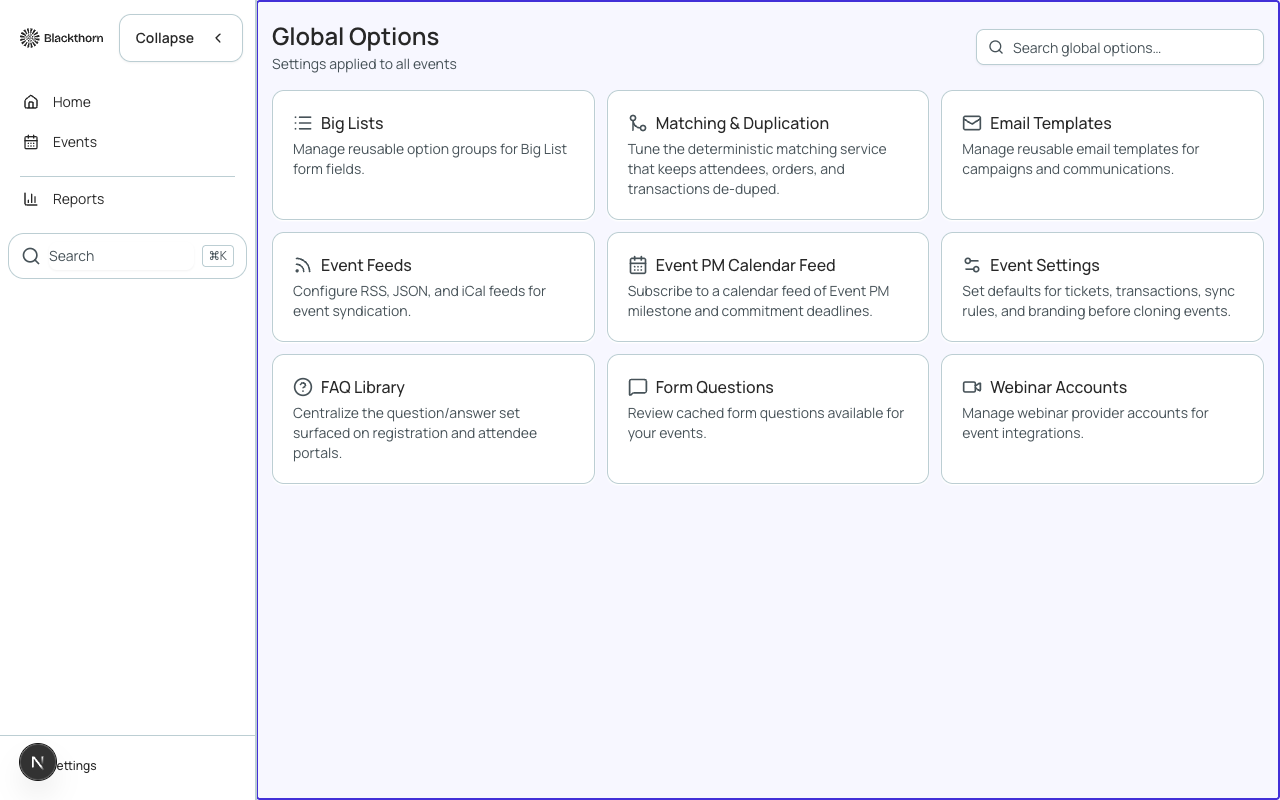
The cards
| Card | What it manages | When to use it |
|---|---|---|
| Big Lists | Reusable option groups for Big List form fields, such as a list of countries or states, with options you paste or import from CSV. | Use it when a form question has too many choices to maintain by hand, and you want one list shared by many forms. |
| Matching & Duplication | The rules that keep attendees, orders and transactions de-duplicated and linked to the right Salesforce Contacts and Leads. Opens at Admin > Duplicate Matching. | Open it when registrations create duplicate Contacts or attach to the wrong record. |
| Email Templates | The shared library of reusable email templates. It belongs to the global Communications area, so it opens only where that feature is switched on for your org. | If the card does not open for your org, use the template picker on the event's Communications tab instead. |
| Event Feeds | RSS, JSON and iCal feeds of your events for websites and calendar apps. Opens at Admin > Event Feeds. | Use it to show upcoming events on your own website without re-typing them. |
| Event Settings | The shared Event Settings records that hold defaults such as ticketing, sync rules and branding. Many events can point at one record. | Use it to define a standard configuration once, then clone it for events that need a variation. |
| FAQ Library | FAQ categories and questions that appear on event pages and portals. | Use it to answer the same attendee questions across every event. |
| Form Questions | The cached list of form questions across your events, which you can search, filter by type and edit. | Use it to review or fix one question that is reused in several forms. |
| Webinar Accounts | Your Zoom or other webinar provider accounts for virtual and hybrid events. Opens at Admin > Integrations > Webinar Accounts. | Use it to connect a Zoom login once, then link events to real meetings. |
Event PM Calendar Feed appears on this page only for Blackthorn staff, and Translations appears only when an admin turns the Translations feature on from the Beta features page.
Detailed field-by-field guidance for Big Lists, FAQ Library, Form Questions and Event Settings is on the Global Options Reference page. Matching, feeds and webinar accounts have their own pages under Admin. The Keywords library has no card on this page; it is covered on the Keywords page.
Common goals
| To achieve this | Do this |
|---|---|
| Change a default for every event at once | Edit the shared Event Settings record that those events use. Check which events point at it first, because the change applies to all of them. |
| Change one event only | Clone the Event Settings record, edit the clone and select it on that event. |
| Stop duplicate Contacts | Review Matching & Duplication and the Relationship Settings the event's Event Settings points to. |
| Reuse a long dropdown on many forms | Create a Big List group and use it in each form. |
| Publish events on your website | Create a feed in Event Feeds and paste its address into your site or calendar app. |
These cards edit Salesforce records: conference360__Event_Settings__c, form question and Big List objects, FAQ records and webinar accounts. Changes take effect for every event that uses them.