Recipes
Cloning and Groups
When you run the same event again or manage a family of related events, cloning and Event Groups save hours. Cloning copies an event's structure (tickets, forms, sessions and more) into a new Draft event. An Event Group lists related events together on one public page.
Before you start
- Pick the source event. It can be in any Status.
- Decide what should carry forward. Attendees and orders are never copied.
- For groups, choose a series name such as Annual Leadership Summit, and know which event is each event's primary group.
Settings at a glance
| To achieve | Set this | To this value |
|---|---|---|
| The same event, next year | Start Date and End Date (Clone step 1, Event Fields) | The new dates. Sessions and ticket sale windows move by the same number of days as the change in start date, and times of day follow any change in start time. |
| A recognizable new name | Event Name (Clone step 1) | Replace the default Copy of <name>. |
| Reuse your setup | What to Copy (Clone step 2) | Keep Tickets, Forms, Email Templates, FAQs, Staff, Tracks and Fees (Codes) ticked; add Sessions, Speakers and Sponsors if they repeat. |
| A fresh start for pricing | Fees (Codes) (Clone step 2) | Untick it for no codes. Then open Tickets > Discount Codes on the clone and check what is there. |
| A new meeting, not the old one | Create a new Zoom webinar for the clone (Clone step 2) | On, for a virtual or hybrid event. The source event's join link is never copied. |
| The new event is not live until you say so | Status | Nothing to set. A clone is always created as Draft, so publish it yourself from Overview. |
| Several events on one listing | Primary Event Group and the event's groups (event's Event Group page) | Add the group, mark exactly one as Primary, Save changes. |
| Your series has one look | Logo URL, Primary Color (#), Event Settings (on the Event Group) | A logo no larger than 400 x 200 pixels and under 1 MB; your brand color as hex without the # sign; one shared Event Settings record if rules must match. |
Steps: clone an event
- Find the event in Events and choose the Clone (copy) icon on its row, or open the event and choose More options (...) > Duplicate event.
- Step 1, Event Fields: change Event Name, Start Date, End Date and any other field that differs. Which fields appear is set by an admin in Admin > Clone Field Configuration. Choose Next.
- Step 2, What to Copy: use Select All, or tick the records to carry forward (Sessions, Speakers, Sponsors, Tickets, Forms, Email Templates, FAQs, Staff, Tracks, Fees (Codes) and more). Each tile lets you search and pick individual records.
- If you cloned a virtual or hybrid event, turn on Create a new Zoom webinar for the clone.
- Choose Preview to see what will be created, then Clone Event.
- Open the clone. Check dates, the venue, ticket prices and sale dates, speakers and form questions.
- Set Status to Active and choose Publish on Overview when you are ready to sell.
Steps: create an Event Group
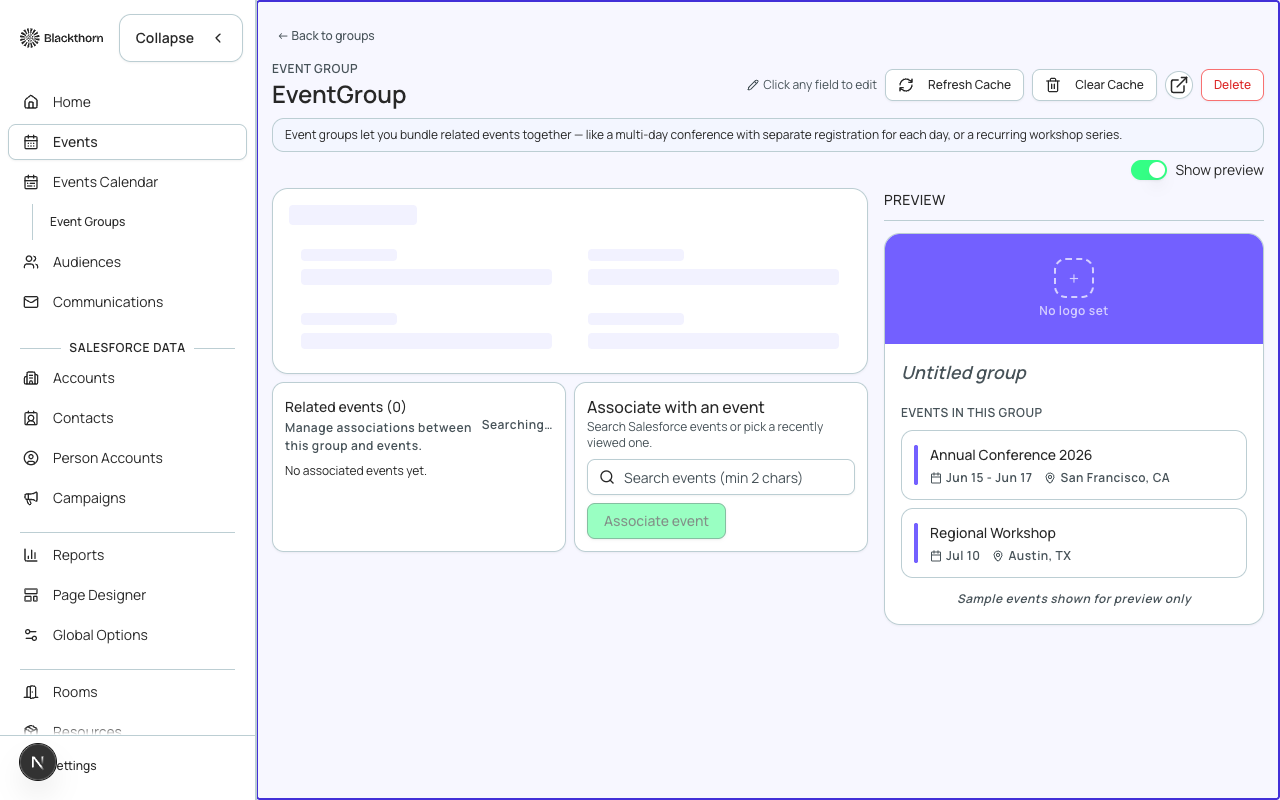
- Open Events in the sidebar and choose Event Group. Choose New series, enter a Name (and a Record type if your org uses several). The group opens for editing.
- Set the Default switch on exactly one group, your main listing. Add a Logo URL and its Alternative Text, a Primary Color (#) such as 7360FF, and choose a UI Experience (List, Calendar, Aspen or Maple).
- Open each event and go to its Event Group page. Search for the group, choose Add, and in Selected Series & Primary mark one group as Primary. Choose Save changes.
- Share the group's Event Group URL, which lists its upcoming events publicly.
What cloning does not copy
Cloning does not copy attendee registrations, orders and transactions, check-in data, form submissions, hotel bookings, recurring-series links, a Parent Event link or the Event Group membership records. The Fees (Codes) tile controls whether discount codes are copied, so always check Tickets > Discount Codes on the clone.
Default group
A new event is added to the default Event Group automatically, so it can show on your public listing as soon as it is published. Turn on Disable Auto-Add to Default Event Group in the event's Event Settings (Advanced) if you manage groups by hand.
What this creates in Salesforce
| Forge | SF Object | SF Field |
|---|---|---|
| Cloned event | conference360__Event__c | Name / conference360__Status__c = Draft |
| Cloned tickets | conference360__Event_Item__c | New records linked to the new event, sale dates shifted |
| Cloned sessions | conference360__Session__c | New records linked to the new event, dates shifted |
| Cloned forms | conference360__Form__c | Form records and their questions, linked to the new event |
| Primary group | conference360__Event__c | conference360__Event_Group__c |
| Group membership | conference360__Event_Group_Association__c | One record per event and group pair |
Verify
- The clone appears in the Events list with the new name and Status Draft.
- The ticket, form and session sections you ticked are present on the clone.
- The clone's dates are the new ones, and sessions moved with them.
- No attendees were carried over from the source event.
- The event shows in the right groups on its Event Group page, with one primary.
- In Salesforce a report on Event Group Association lists every event in the series.