Recipes
Multi-Session Conference
A multi-session conference lets attendees choose which sessions (breakouts, workshops, keynotes) to attend within one event. In Salesforce, sessions are conference360__Session__c records under the parent event, each with its own time, room, capacity, waitlist, speakers, tracks and ticket links.
Before you start
- Draft the agenda: session names, start and end times, rooms or tracks, and capacity for each.
- Decide whether every ticket includes every session (the default) or whether some sessions are restricted to certain tickets.
- Create speakers first if sessions will have them (Speakers tab, or the Sessions & speakers step in the create wizard).
About the demo event
In the Planner Conference 2026 demo org, sessions are modeled as separate child event records, a quirk of that org's history. In your own events use Sessions under a single event, as this recipe does.
Settings at a glance
| To achieve | Set this | To this value |
|---|---|---|
| A session can be filled to its room | Capacity (on the session; Salesforce calls it Quantity Available) | The room headcount. Blank means unlimited. |
| Extra people wait instead of being turned away | Waitlist and Max Waitlist Size (on the session) | On; a size such as 20, or blank for unlimited. |
| Attendees cannot book overlapping sessions | Prevent session overlaps (Sessions > Configuration) | On. |
| A session only for VIP tickets | Eligible Tickets when you create the session (or Assign Sessions on the ticket later) | Specific tickets, then pick the VIP tickets. |
| A session everyone must take | Required, per ticket and session (ticket's Assign Sessions card, or Sessions > Configuration > Required Sessions) | On for that pair. |
| A paid workshop | Paid session and Session Fee (create mode) | On, and the fee. |
| Spot-count nudge | Capacity thresholds (Sessions > Configuration) | On, with a number of about 10. |
| A speaker shown on the agenda | Speaker Visibility and Hide On Event Page (on the speaker) | Featured or Shown on Listing; Hide On Event Page unticked. |
| Sessions that appear on the public agenda | Start Date on every session | Fill it in. Sessions without a start date are not shown. |
Steps
- Create the event (any Event Type). On the Components step turn on Sessions & speakers, or later open the event's Sessions tab.
- In the wizard's Sessions step, optionally add Tracks first (Add Track, Track Name, Color), then choose Add Session for each session: Session Name, Start Date, Start Time, Duration (the end time is filled from it), Location / address, Capacity, Waitlist, Description, Assign Tracks, Assign Speakers, and Visibility (Open to all or Ticket holders only).
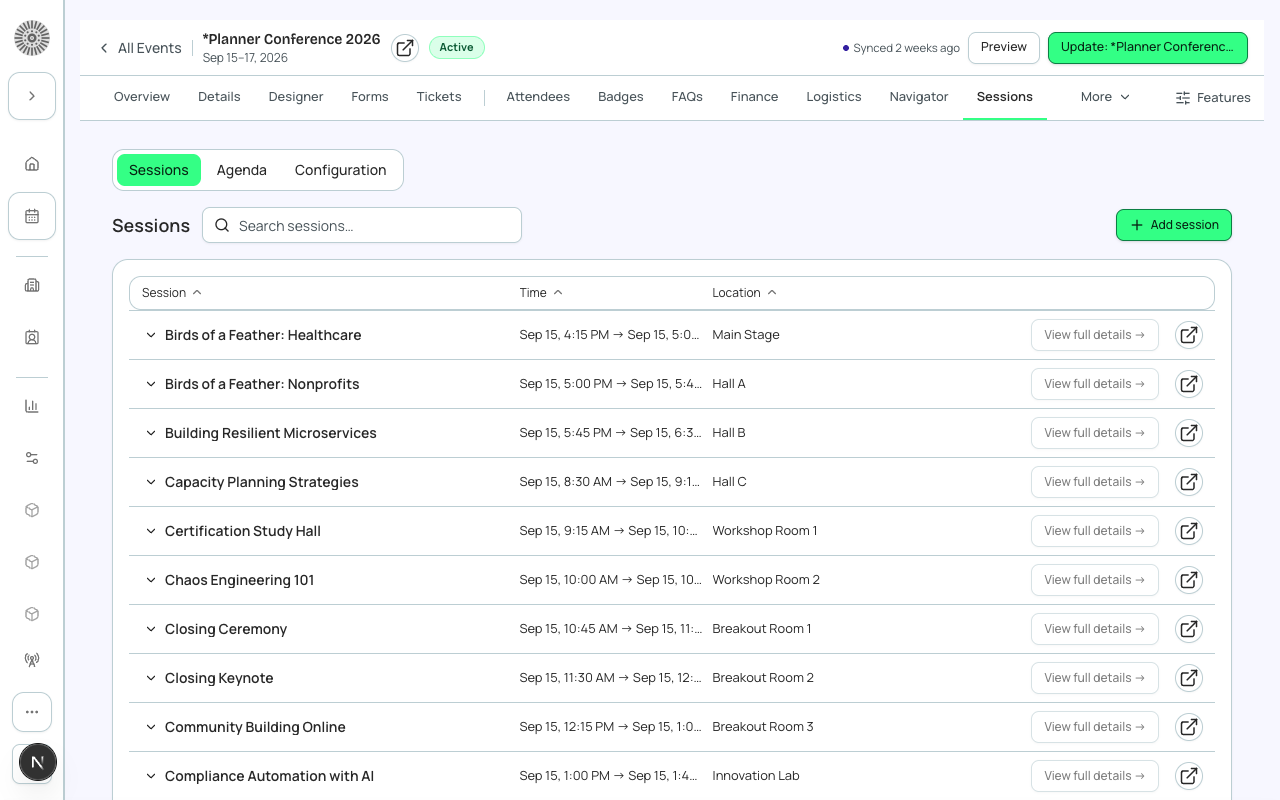
- In an existing event, open Sessions and choose Add session. Enter the session name, start and end (End is required and must be after Start), Location / Room, Capacity, Waitlist, speakers, tracks and description. Choose Save Session.
- For each session choose Eligible Tickets. All tickets is the default. Choose Specific tickets for VIP-only or add-on sessions.
- To add speakers, open the Speakers tab and choose Add Speaker. Search an existing Contact, or Add New with First Name, Last Name, Title, Company, Email and Bio. Set the speaker's Status to Confirmed when you are ready to announce them, and Speaker Visibility to Featured or Shown on Listing.
- Link speakers to sessions with the Session Speakers field on the session, or from the Speakers tab's By Session view.
- Open Sessions > Configuration. Turn on Prevent session overlaps if attendees cannot be in two places (checkout then locks overlapping sessions and refuses them at submit). When session filters are on, attendees can also narrow the list by search, day and track, and check Session coverage shows Healthy. Use Assign All once for a simple event, then fix exceptions by hand. Paid sessions are priced in checkout (one price line each, included in the total) once your Forge contact enables session pricing.
- Check the Agenda view: drag unscheduled sessions onto a day, resolve any Conflict badge, then choose Publish so attendees see the agenda.
- In Page Designer, confirm the Sessions Schedule block is on the page. Set Status to Active and choose Publish on Overview.
Session waitlists
When a session's capacity is reached and its waitlist is on, further session registrations are waitlisted independently of the event. A person can be registered for the event and waitlisted for one session.
Deleting a session
Deleting a session also deletes its session registrations and speaker links, because those links are Master-Detail children of the session. If people have registered, set the session to Canceled and tell them instead of deleting it.
What this creates in Salesforce
| Forge | SF Object | SF Field |
|---|---|---|
| Session | conference360__Session__c | Name |
| Parent event | conference360__Session__c | conference360__Event__c |
| Session start / end | conference360__Session__c | conference360__Start_Date__c / conference360__Start_Time__c / conference360__End_Date__c / conference360__End_Time__c |
| Room | conference360__Session__c | conference360__Room_Text__c (Location) / conference360__Room_Lookup__c (Room) |
| Session capacity | conference360__Session__c | conference360__Maximum_Registrants__c (Quantity Available) |
| Session waitlist | conference360__Session__c | conference360__Waitlist_Enabled__c / conference360__Waitlist_Capacity__c |
| Speaker on session | conference360__Session_Speaker__c | conference360__Session__c / conference360__Speaker__c |
| Ticket to session link | conference360__Event_Item_Session__c | conference360__Event_Item__c / conference360__Session__c / conference360__Required__c |
| Session registration | conference360__Session_Attendee__c | conference360__Session__c / conference360__Attendee__c |
Verify
- The Sessions tab lists every session with the right time, room and capacity, and no Conflict badge you did not expect.
- The public page's Sessions Schedule block shows the agenda in the event's time zone.
- A registrant who picks a full session is waitlisted for it when its waitlist is on.
- Speakers appear on session cards when their visibility allows it.
- In Salesforce each session is linked to the parent event.