Reference
Form Element Types Reference
Registration and survey forms are built from questions (form elements). Each question has a type that decides how it looks to the attendee and what answer it accepts, plus optional rules for when it is shown and which Salesforce field it fills. Questions are stored as `conference360__Form_Element__c` records on a `conference360__Form__c` form.
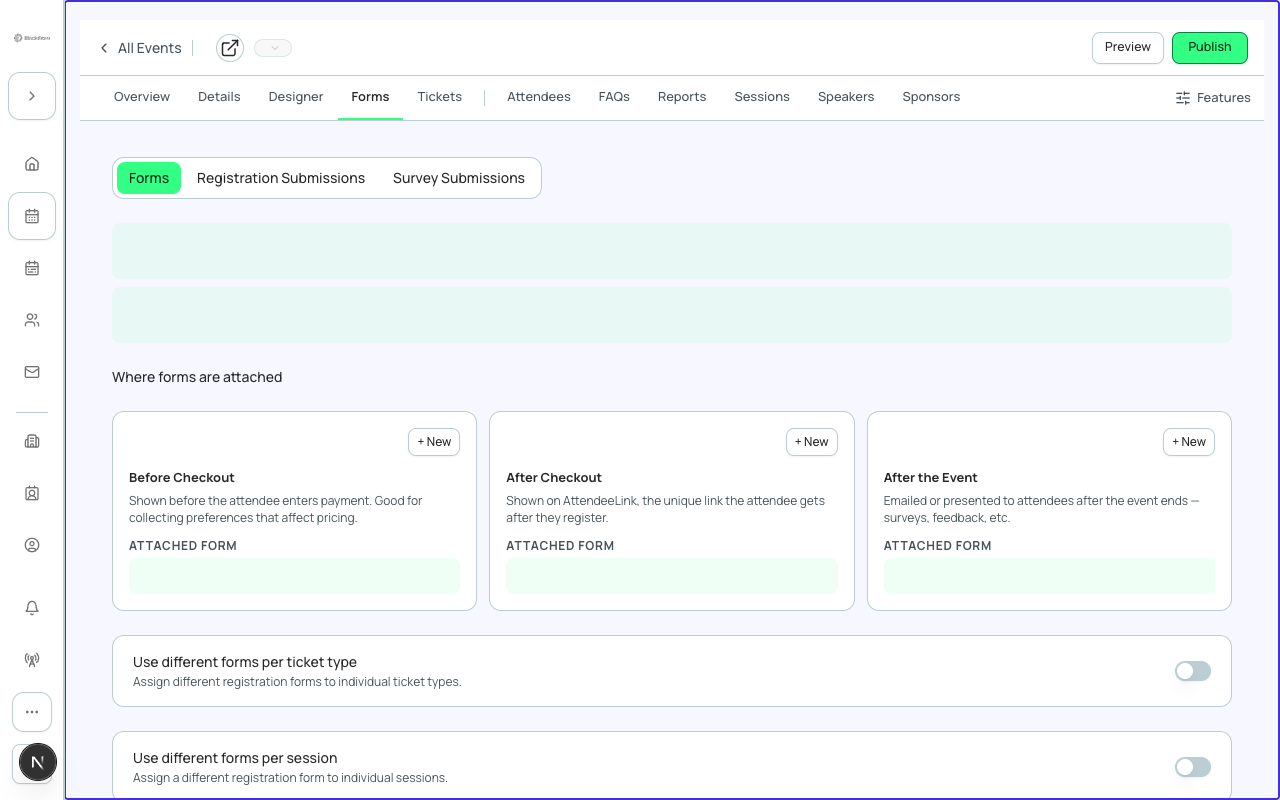
Form kinds
A form is attached to an event at a specific point. Pick the kind that matches when you want to ask the questions.
| Form kind | When attendees see it | Recommendation |
|---|---|---|
| Registration (precheckout) | On the event page before payment, for every registrant. Answers create an Attendee and a Form Submission. | Use for questions every attendee must answer. |
| Ticket form | At checkout, only for buyers of the ticket it is linked to. | Use for ticket-specific questions, such as a workshop topic. Link it from the ticket editor or the Forms tab. |
| Post-checkout (Attendee Link) | On the Attendee Link, the personal link attendees get after registering. | Use to collect details after the sale, such as travel or dietary needs. |
| Survey (post-event) | Sent after the event ends; answers attach to the attendee record. | Use for feedback. Start from the Post-event Feedback preset. |
A Session form kind is shown in the app marked Soon and is not yet available.
Attendee name, email, phone, company, title, salutation, address, country, postal code, and dietary preference are collected on each ticket (Hide, Optional, Required), so the form builder does not offer them as questions. Use the ticket's attendee information settings for those.
Question types
These are the types offered when you add a new question.
| Type | What the attendee sees | Typical use | Can map to these Salesforce field types | Recommendation |
|---|---|---|---|---|
| Text | A single-line text box. | Badge name, company role, short answers. | Text, Long Text, Phone. | Use for short free text. Map to a Phone field to collect a phone number. |
| Long Text | A multi-line text area. | Accessibility needs, bio, comments. | Long Text only. | Use when answers may run longer than one line. |
| A text box that expects an email address. | Alternate email, company email for receipts. | Text, Email. | Do not use it for the attendee's own email; that is collected on the ticket. | |
| Number | A number box. | Guest count, years of experience. | Number, Currency, Percent, Text, Long Text. | Use only for numeric answers so reports can sum them. |
| URL | A link box. | LinkedIn, portfolio, company site. | URL, Text, Long Text. | Ask for the full address including https://. |
| Date | A date picker. | Arrival date, date of birth. | Date, Text. | Use a Date field in Salesforce to keep it sortable. |
| Picklist | A dropdown of the options you list. | T-shirt size, meal choice, track. | Picklist, Multi-select Picklist, Text, Long Text. | Use for a single choice from a fixed list. Set a Default value from the options if one answer is most common. |
| Multi-Select Picklist | A list where several options can be selected. | Session interests, dietary restrictions. | Multi-select Picklist, Text, Long Text. | Use when more than one answer is valid. |
| Checkbox | A single tick box. | Consent to recording, accept terms, subscribe. | Checkbox, Text. | Mark Required for must-accept terms. Set Default Checked only where opt-out is appropriate. |
| Big list | A searchable list backed by a Big List Group, for very long option sets. | Country, company, state. | Text, Long Text, Lookup, Picklist, Multi-select Picklist. | Use for long lists that would make a dropdown unwieldy. Build the list under Global Options > Big Lists, or enter options one per line. On a Big List Group page, Import CSV reads the option column by its header (Name, Option, Label), skips duplicates and reports how many, and Download template gives a starter file. |
| File Upload | A file picker. | Headshot, certification. | Maps to an object only (no field). | Keep the form short; ask for a file only if you need it. |
| Divider | A visual break that starts a new section of the form. It has a section name and optional description. | Group related questions. | Not mapped. | Use dividers to break up long forms. |
| Hidden | Not shown to the attendee; carries a fixed value you set. | Tag the source of a registration, record an internal code. | Text, Long Text, Picklist, Multi-select Picklist, Phone, Checkbox, Number, Percent, Currency. | Use to stamp every response with a known value. |
| UTM | Not shown; reads a value from the page URL. The question label must be the exact URL parameter name, for example utm_source. | Marketing attribution. | Text, Long Text, Picklist, Multi-select Picklist. | Set one UTM question per parameter you track and name the label exactly. |
Phone, Consent, and Signature types are not offered for new questions. Questions that already use them keep rendering and stay editable. To collect a phone number on a new question use Text mapped to a Phone field.
Settings available per type
The editor only shows the settings a type supports, and changing the type clears settings the new type cannot use.
| Type | Required | Help text | Default | Options list | Salesforce mapping |
|---|---|---|---|---|---|
| Text, Long Text, Email, Number, URL, Date, Big list | Yes | Yes | Free-text default | Big list: options list | Object and field |
| Picklist, Multi-Select Picklist | Yes | Yes | Default chosen from the options | Yes | Object and field |
| Checkbox | Yes | Yes | Default Checked yes or no | No | Object and field |
| File Upload | Yes | No | None | No | Object only |
| Hidden | No | No | Free-text default (the value that is carried) | No | Object and field |
| UTM | No | No | Free-text default | No | Object and field |
| Divider | No | No | None | No | None |
Question settings
| Setting | What it does | Recommendation |
|---|---|---|
| Question label | The text of the question. For UTM questions it must be the URL parameter name. | Write it as a plain question. Keep it short. |
| Type | The question type; see the table above. | Pick the narrowest type that fits, so answers are consistent. |
| Required | The form cannot be submitted without an answer. | Mark only what you truly need. Every required field lowers completion. |
| Help text | Explanatory text shown under the question. | Say why you ask, especially for sensitive questions. |
| Default value or Default Checked | The answer pre-filled for the attendee. | Pre-fill only when most people give the same answer. |
| Options | The choices for Picklist, Multi-Select, and Big list questions. | Enter each choice as asked in the editor; the list order is the order attendees see. |
| Map To Object and Map To Field | Which Salesforce record and field receives the answer. Objects are Attendee, Contact, Account, and Lead. Only fields the builder can edit and whose type fits the question type are offered. An object your organization has not mapped is disabled until your administrator maps it. | Map when you want the answer on a record, for example a Contact field for company. Mapping is optional; an unmapped answer is still saved with the submission. Do not map to Attendee First Name, Last Name, or Email; map to Contact instead, because mapping those directly can leave the resulting Contact and Account fields empty. |
| Standard mapping | Recognized standard questions use a fixed mapping that cannot be changed. Use standard mapping or Keep custom appears if a question looks standard. | Accept the standard mapping unless you have a specific reason not to. |
| Show when (conditions) | Show the question only when an earlier question has a certain answer. Operators are Equals, Contains, and Not contains. With more than one condition choose All of these are true or Any of these is true. | Use for follow-ups, such as asking for meal notes only when someone picks a special diet. A condition can only depend on a question above it. |
| Add conditional question | A guided way to add a follow-up question with its trigger answer. | Use it instead of building the condition by hand. |
| Make top-level | Removes the conditions that control when a question appears. Conditions that this question controls for others are kept. | Use when a follow-up should always be shown. |
| Duplicate or Clone | Copies a question, optionally with its conditional follow-ups or without translations. The question must be saved first. | Use to build similar questions quickly. |
| Translate | Adds translations of the question and help text per language. Translate All opens a mass editor; translations can also be imported from a CSV or Excel file. | Translate every question on forms shown to multilingual audiences. |
Form builder features
- Auto-save: changes save automatically. Auto-save pauses while validation errors exist or while another user is editing the same form; fix the error or use Save now. Done — back to forms saves pending changes first and stays open if they cannot be saved.
- Preview: switch between Registration, Attendee Link, and Post-event previews and between desktop and mobile. The Attendee Link preview never prefills answers.
- Presets: Quick RSVP (name and email), Standard Registration (adds company and dietary), VIP Intake, Speaker Intake, and Post-event Feedback. You can pin up to five, hide the ones you do not use, and save your own. Questions the ticket already collects are removed from presets.
- Live forms: deleting questions from a form that attendees can currently register with also deletes the answers already collected for them, and the builder asks you to confirm.
Answers to personal-data questions are stored in Salesforce, not in Forge's own database. Do not echo personal data back in confirmation text.