Reference
Global Options Reference
Global Options holds the settings and libraries that apply across all events. It opens as a grid of cards with a search box (search matches card titles and descriptions). The cards are Big Lists, Matching & Duplication, Email Templates, Event Feeds, Event Settings, FAQ Library, Form Questions, and Webinar Accounts. An Event PM Calendar Feed card appears for Blackthorn-internal organizations only. Forms are managed from the Forms page rather than from this grid.
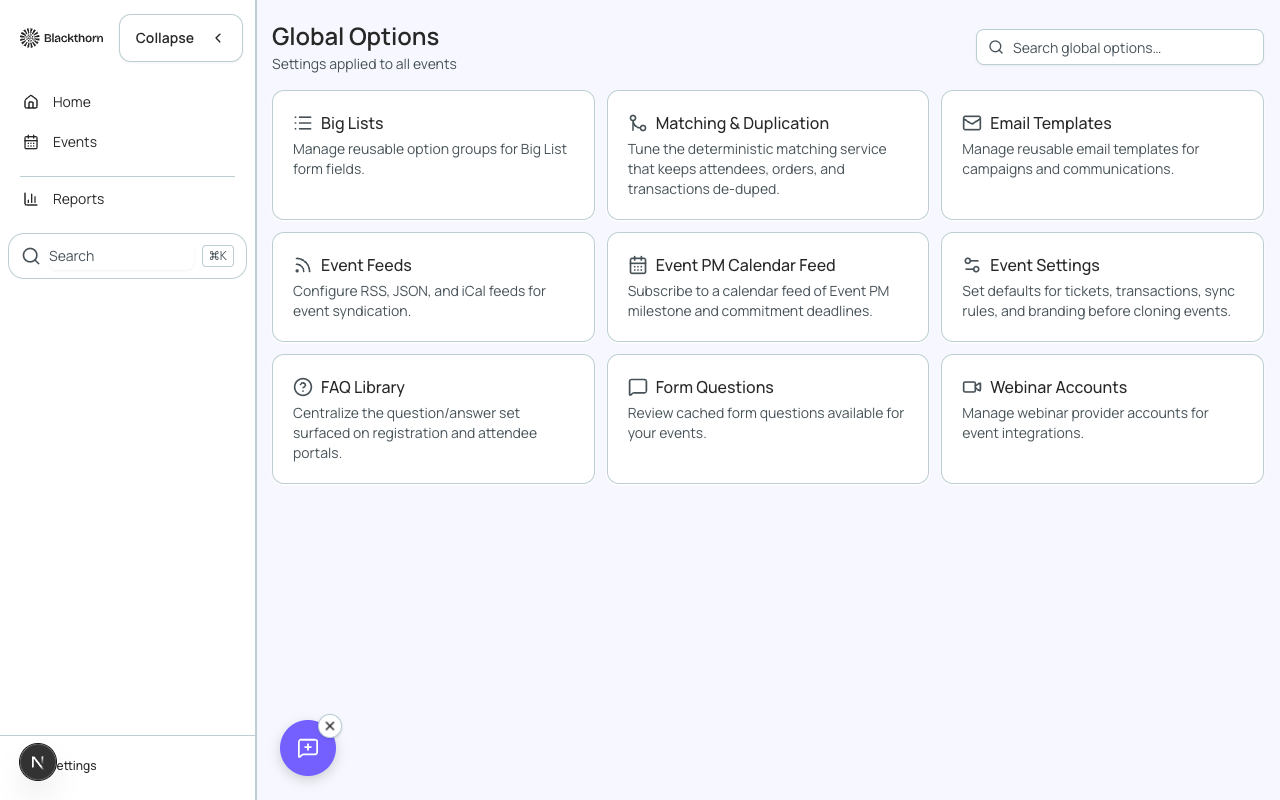
| Card | What it manages | Open it when |
|---|---|---|
| Big Lists | Reusable option groups for Big list form questions. | A form question needs a very long list, such as states or countries. |
| Matching & Duplication | A read-only view of the Salesforce duplicate and matching rules for Account, Contact, and Lead. | You want to check how duplicate people are detected during registration. |
| Email Templates | The library of email templates (Communications > Templates). | You are creating or organizing templates. |
| Event Feeds | Public RSS, JSON, and iCal feeds of your published events. | A website or calendar app needs to pull your events. |
| Event Settings | The Event Settings records that events point to. | You want a reusable set of registration, ticketing, and display defaults. |
| FAQ Library | FAQ categories that feed event FAQ tabs, and Salesforce FAQ Question records. | You are sharing the same FAQs across events. |
| Form Questions | The reusable question library for forms. Use Add to library on a form's own question to copy it here. | You are building standard questions once for many forms. |
| Webinar Accounts | Connected webinar provider accounts. Opens Admin > Integrations > Webinar Accounts. | You are linking an event to Zoom or another provider. |
Event Settings
The Event Settings page lists every Event Settings record. A badge marks the default record. Each event uses one record; changing a record changes every event that uses it, and a record applied at the Event Group level overrides the event's own. Event Settings records have the same fields as the event's Configuration page, which are explained in Event Settings Reference.
| Action | What it does | Recommendation |
|---|---|---|
| Create New | Starts a new record. Name is required (for example Public Events or VIP Experience), then the field sections are filled in. A search box filters the many fields. | Create one record per experience (public, VIP, internal) rather than one record with exceptions. |
| Edit | Opens the record's fields to change. Fields that are read-only in this view are marked. | Make changes here only when every event on the record should change. |
| Clone | Copies a record so you can rename and edit the copy. A success message tells you the copy is ready. | Clone the default or a similar record, then change only what is different, then select the clone on the event. |
| Default | The default record applies to events that do not choose one. Only one record can be default at a time; remove the flag from the current default before setting another. | Make your most common configuration the default. |
Big Lists
Big List Groups are the option sets behind Big list questions in forms. Choose Add Group, enter a Group Name (for example US States) and an optional Description, then Save Group. Each group shows how many options it has, and has Edit, Delete, and View in Salesforce actions.
| Setting | What it does | Recommendation |
|---|---|---|
| Group Name | The name you pick when attaching the group to a question. | Use a plain, specific name such as US States. |
| Description | Optional note about what the group is for. | Say who uses it so the group is not deleted by mistake. |
| Paste Options | Add options by pasting them, one per line. Use a tab or comma to separate the name and value when they differ. Then choose Add Options. | Paste from a spreadsheet column for fast loading. |
| Import CSV | Loads options from a CSV file. | Use for lists with hundreds of rows. |
| Delete option | Removes one option from the group. | Check which forms use the group before removing options. |
| Duplicates | Options already in the group are skipped and the page lists their names. Options that fail to add are also listed. | Review the message after every import. |
On a form question of type Big list, the Option Source can be Use existing group (pick a group, or Choose a different group) or Inline options (one per line, stored with the question). Use a group for lists shared by several forms and inline options for a one-off list.
FAQ Library
FAQ Library manages FAQ categories that feed the event FAQ tabs. Enter a name and choose Add to create a category. Expand a category to see the forms mapped to it and their cached questions. Each category shows its number of forms and questions.
| Control | What it does | Recommendation |
|---|---|---|
| New category name and Add | Creates a global FAQ category. | Name categories by topic, such as Registration or Parking. |
| Refresh caches | Re-reads form and question data from Salesforce in the background. The page shows when each cache was last refreshed and says when a refresh is recommended. | Refresh after you change forms in Salesforce, then wait a few minutes. |
| Reload | Fetches the latest data from Forge's local database and updates the page immediately. | Use Reload after a cache refresh finishes; Reload alone does not show Salesforce changes. |
| Salesforce FAQ Questions | Creates a traditional FAQ Question record with Question, Answer, and Category, used by the event FAQ related lists. | Use for extra answers that are not driven by forms. |
If your profile cannot create the record, the page asks you to have your Salesforce admin check field-level security.
Form Questions
Form Questions lists the questions across your forms with columns for Question, Form, Type, and Last Synced. Search by question or form, filter by Type, and choose Clear filters to reset. Click a row to open the question editor. A question that is not linked to a form cannot be edited here. The page shows when the cache was refreshed and says when a refresh is recommended; questions appear only after the form cache has synced.
| Field in New Question | What it does | Recommendation |
|---|---|---|
| Label | The question text. | Write it as a plain question. |
| Type | The question type; see Form Element Types Reference. | Pick the narrowest fitting type. |
| Required | Whether the question must be answered. | Mark only essential questions. |
| Maps To Object and Maps To Field | The Salesforce record and field that receives the answer. The field list shows only fields compatible with the type; it is empty until you choose a type and object. | Map only when the answer should land on a record. |
| Options, Big List Options, Placeholder Text, Default Checked | Type-specific settings for picklists, Big lists, text boxes, and checkboxes. | Fill the ones shown for the chosen type. |
| Translations | Add translations for the question. | Translate library questions once so every form that uses them benefits. |
Delete asks you to confirm. Make sure the question is not part of a form that is live or about to go live.
Other cards
- Matching & Duplication: lists the Salesforce Duplicate Rules and Matching Rules for Account, Contact, and Lead with Active or Inactive status. They are read-only in Forge; manage them in Salesforce. Configure Duplicate Rules to line up with Relationship Settings, and make sure matching covers Person Accounts if you use them. If the page cannot load the rules, reconnect Salesforce or confirm the integration user has the View Setup and Configuration permission. In some orgs Duplicate Rules are unavailable because Duplicate Management is not enabled in Salesforce Setup.
- Event Feeds: turn on Enable public feeds to get RSS, JSON, and iCal URLs with Copy URL buttons and a Preview. Settings are Maximum events, Include past events, and Feed title. Create a feed token with a label; the token is shown once, so copy it immediately. Revoke a token to cut off access. Recommendation: share the iCal link with calendar apps and leave Include past events off for a clean upcoming list.
- Email Templates: opens the template library; see Email Templates.
- Webinar Accounts: opens Admin > Integrations > Webinar Accounts, where you connect and manage provider accounts; see the Webinar Accounts admin page.