Reference
Ticket and Item Settings Reference
Tickets, donations, and add-on products are all Event Items, stored as `conference360__Event_Item__c` records in Salesforce. The event's Tickets tab groups them into Tickets, Donations, and Products, and each group has its own Add button. This page lists every setting on an item and what to set to get a particular result.
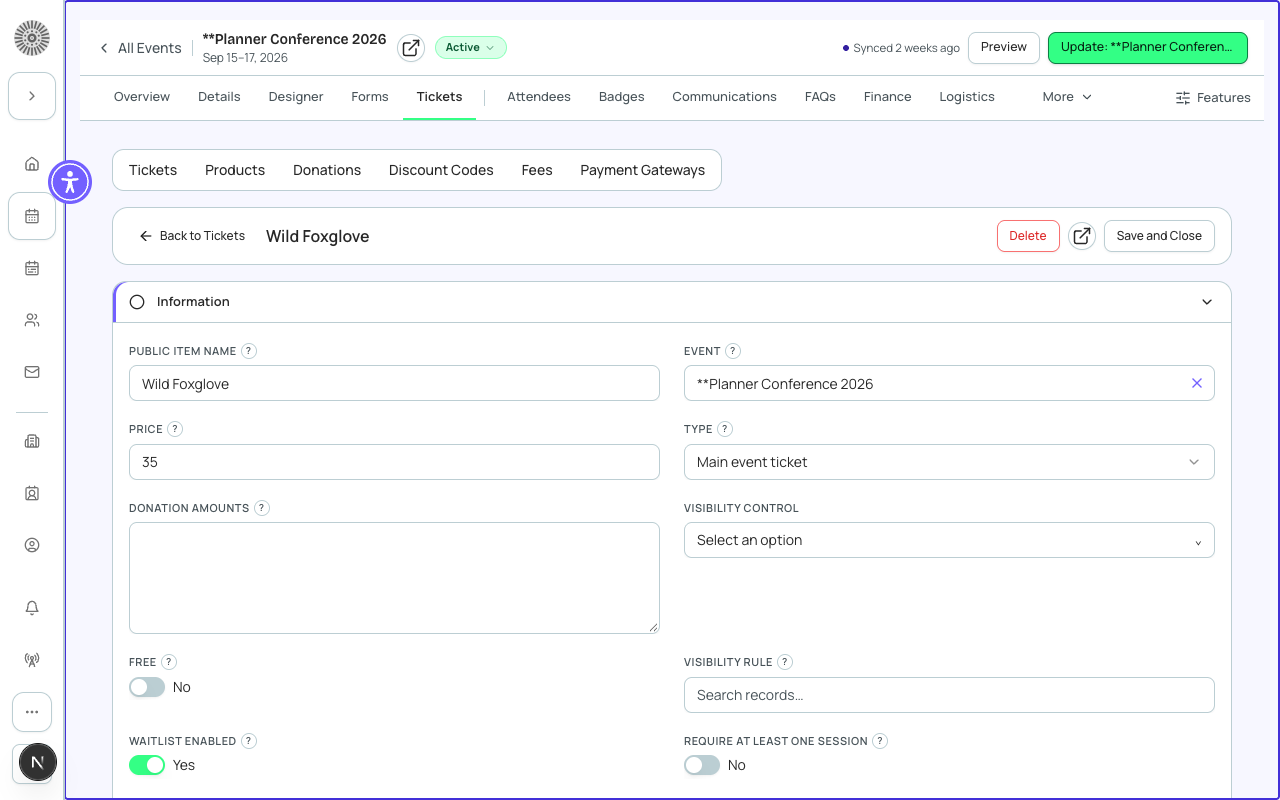
Where item settings live
- Tickets tab: create, edit, and open each item. Items open in a detail editor with the core fields, an Assign Form card, an Assign Sessions card, and (for tickets and products) a Discount codes card.
- Tickets > Configuration: choose the event's payment gateways.
- Tickets > Fees: create and manage event fees (Payment Processing and Tax).
- Tickets > Discount codes: manage promo codes and which items they apply to.
- The fields shown in the item editor follow the Ticket layout your admin configured (Admin > Record Layouts). The default layout shows the fields in the Core fields table; any other Salesforce field on the item can be added to the layout.
The Tickets list
Each Tickets, Donations, and Products group lists its items with Price (or Free or No price), a sold and capacity pill such as 12 / 50 sold, a status pill (Open, Sold out, Closed), the sale window (From or Until a date), Waitlist (Off, or On with a cap or Unlimited), and an editable Sort order. Row actions are Duplicate and Delete (Delete asks for confirmation and cannot be undone). View attendees opens the attendee list filtered to that ticket.
Paid items need a payment gateway. If none is set, the list shows a notice linking to Tickets > Configuration.
Item types
The Type field decides how an item behaves at checkout. The type is set by the group you add the item from (Tickets, Donations, Products) and is stored as the Salesforce Type value.
| Type | Use it for | Set from | Salesforce value |
|---|---|---|---|
| Ticket | Event admission: general admission, VIP, early bird, member price. | Tickets group | Main event ticket |
| Donation | An optional contribution at checkout. Supports suggested amounts and an image. | Donations group | Donation |
| Guest | An additional attendee registered with the main registrant. | Ticket Type picker (Main Event Ticket or Guest) in the create-event wizard | Guest |
| Product | Add-on items such as merchandise, parking, or meal upgrades. Supports an image and an attached form. | Products group | Other |
Only Ticket-type items count toward the publish rule "at least one ticket" when Require At Least One Ticket To Publish is on. An event with only Donations or Products cannot be published under that rule.
Core fields
| Field | What it controls | Values | Recommendation |
|---|---|---|---|
| Name | The record name used inside Forge and Salesforce. | Text. | Use a clear internal name such as GA - Early Bird. |
| Public Item Name | The name attendees see. If a related Product is set it takes the Product's name. | Text, for example General Admission. | Keep it short; long names are hard to read on phones. |
| Short Description | A line of text shown with the item. | Text. | Say what the ticket includes, for example Access to all sessions. |
| Description | Longer description for the item. | Rich text. | Use for details that do not fit in the short description. |
| Type | See Item types. | Main event ticket, Donation, Guest, Other. | Set by the group you add from. |
| Price | What the buyer pays per unit. If a related Product is set its price is used. | Number. | Enter the pre-tax price. Taxes and processing fees are added by the event's fees. |
| Free | Marks the ticket free; no payment is collected and no price is needed. | On or off. | Tick Free for free tickets instead of entering 0, so no payment step is shown for it. |
| Quantity Available | The number of this item that can be sold. The event's Total Capacity is recalculated from the sum of these by default. | Whole number. | Set per ticket. Quantity Remaining is Quantity Available minus Registered. |
| Registered | Read-only count of this item sold. | Calculated. | Use to monitor sales. |
| Sales Start Date and Time, Sales End Date and Time | When the item can be bought. Times use the event's timezone. | Date and time; blank means no limit on that side. | Use for early-bird and last-chance windows. Tickets past their end are hidden unless the event's Show Expired Tickets is on. |
| Minimum Quantity | The least a person can add when they add the item to the cart. | Whole number. | Use 1 for most tickets; raise it for packages that must be bought in multiples. |
| Maximum Quantity | The most one person can register for in one checkout. | Whole number. | Cap bulk buying, for example 10 per order. |
| Default Quantity Selection | The quantity already in the cart when checkout opens. Buyers can change it. | Whole number (default 0). | Set to 1 on your main ticket to speed up checkout. |
| Sort Order | The order items appear on the registration page. | Number; lower shows first. | Number items 10, 20, 30 so you can insert one later. |
| Hidden | Hides the item from event checkout. | On or off. | Use to keep an item for admin or invite-only use without showing it to the public. |
| Status | Where the item is in its lifecycle. Set On Sale when you are ready for people to buy. | Planned, On Sale, Sold Out, Closed, Unavailable. | Leave as Planned while you set up; switch to On Sale at launch. Shown only if your layout includes it. |
| Payment Gateway (override) | A gateway for this item only. If blank, the event's gateway is used. | A connected gateway, or No override. | Leave blank unless one item must settle into a different account. |
| Visibility Control and Price Control | Member and role based visibility or dynamic pricing. Values must match the Contact's Events Price Control field. | Visibility: Member, Non-Member, VIP, Press. Price: Member, Non-member. | Use only if you have set matching values on your Contacts; otherwise leave empty. |
Capacity, waitlist, and limits
| Field | What it controls | Values | Recommendation |
|---|---|---|---|
| Waitlist Enabled | When no seats remain, people can still register but are waitlisted. Not available for products or donations. | On or off. | Turn on per ticket so one sold-out ticket can waitlist while others stay open. |
| Waitlist Capacity | How many attendees may wait for this item. Remaining Waitlist Capacity and Waitlisted show the live counts. | Whole number. | Leave blank for no limit, or set a limit you can realistically serve. |
| Capacity Threshold Enabled and Capacity Threshold Limit | Tells buyers at checkout how few tickets are left once the remaining quantity drops to the limit. | Yes or No; whole number. | Turn on with a limit such as 10 to create urgency. |
| Sell as a group (Group Size) | Sells one purchase as a package of seats, for example a table of 8. Checkout increases the quantity by the group size and shows one cart line. Quantity Available still counts individual seats. | Whole number of 2 or more. | Use for tables or teams. A ticket cannot be both a group ticket and a waitlisted ticket; turn one off. |
| Require At Least One Session | Attendees must select at least one session to finish registration. | On or off. | Turn on for tickets that only make sense with sessions, such as workshop passes. |
Attendee information collected per ticket
Each ticket decides which attendee details are asked for. Name, email, phone, company, title, salutation, address, country, postal code, and dietary preference are collected here, not in the registration form, so the form builder does not offer them as questions. First and last names must be 2 to 50 characters (letters, spaces, hyphens, apostrophes, periods; any script); names with digits or symbols are rejected.
| Field | What it controls | Values | Recommendation |
|---|---|---|---|
| Full Name, Email | Whether to ask for the attendee's name or email. | Hide, Optional, Required. New items start with both Required. | Keep both Required. Make Email Optional or Hide only for tickets for people who may not have an email address, such as children. |
| Phone | Whether to ask for a phone number. Registrants pick a country calling code and the number is checked for that country. | Hide, Optional, Required. New items start as Hide. | Make Phone Required only if you will call or text attendees; an invalid number blocks the registrant from continuing. |
| Company, Title, Salutation, Address, Country, Postal Code, Dietary Preference | Whether to ask for each detail. When the attendee extra fields are enabled for your account, registrants see a salutation list, text boxes, a street address and a country list. The country list skips any countries you exclude on the event and shows only your include list when you set one. | Hide, Optional, Required. New items start as Hide. | Ask only for what you will use. Required fields reduce completed registrations. |
| Billing contact | When the billing-contact step is on, the person paying confirms their name, email, phone and address before payment, and can copy them from an attendee. | Off by default. | Turn it on when the payer is often not an attendee. A new billing contact is created in Salesforce; an existing one is never overwritten. |
Forms and sessions
| Field | What it controls | Values | Recommendation |
|---|---|---|---|
| Assign Form (Form) | Attaches a form of custom questions to this item. Use the search to pick a form, or Clear form to remove it. | A form. | Use for questions that apply only to this ticket, such as a workshop topic. |
| Make this form required | Required forms must be completed before registration completes. | Required or Optional. | Make it required only for information you cannot proceed without. |
| Collect additional info (products and donations) | Attaches a form that is shown when that product or donation is bought. | On or off, then pick a form. | Use to collect size, dedication, or similar details. |
| Assign Sessions | Links the item to sessions. Existing links stay unless you uncheck them. Grant all N sessions links every session at once. A Ticket coverage panel shows the link state. | Sessions from this event. | Link workshop or day passes to the sessions they cover so coverage is correct. |
Donations and products
| Field | What it controls | Values | Recommendation |
|---|---|---|---|
| Donation Amounts | The suggested amounts offered at checkout. | Numbers and decimal points separated by commas, with no spaces. | Offer three to five amounts. Leave empty to let attendees enter their own. |
| Image and Alt Text (donations and products) | A picture shown with the item. Alt text is required when an image is set. | JPG or PNG, up to 2 MB. | Write alt text that describes the image for screen readers. |
| Tax-Exempt | If on, no tax applies to this item; if off the event's tax applies. | On or off. | Turn on for donations or items that are not taxable. |
| FMV Amount, FMV %, FMV Computed | Fair market value of the item for receipts. Use a flat amount or a percent of price. FMV Computed is calculated. | Currency; percent. | Fill one, not both, for items with a benefit that must be disclosed on receipts. |
Fees
Event fees are separate records managed under Tickets > Fees and added on top of the ticket price. There are exactly two types, and both are a percentage.
| Field | What it controls | Values | Recommendation |
|---|---|---|---|
| Type | Which kind of fee it is. Each type has its own lookup on the event. Tax is applied to the total after discounts; payment processing fees are applied after tax. | Payment Processing, Tax. | The event uses one fee of each type, because it has one lookup per type. |
| Fee Percentage | The percent charged. | Percent. | Enter your processor's surcharge or your local tax rate. |
| Tax Display Setting (Tax fees) | How tax is shown. Taxes are always shown separately on the final payment screen. | Calculated at Checkout, Tax Inclusive Pricing. | Use Tax Inclusive Pricing when advertised prices must include tax; otherwise Calculated at Checkout. |
| Default Fee | Defaults this fee for events. If another default exists it is unchecked. | On or off. | Turn on for the fee most events use. |
Payment gateways for the event
| Field | What it controls | Values | Recommendation |
|---|---|---|---|
| Tickets and Products gateway | The gateway used for tickets, sessions and add-on products. | A connected gateway. | Set before a paid event goes live. Not connected gateways are labeled and cannot be selected. |
| Donation gateway | A separate gateway for donations. Empty means donations use the primary gateway. | A connected gateway or none. | Leave empty unless donations must go to a separate account. |
Discount codes on an item
The Discount codes card on a ticket or product shows which promo codes can be used on it, with each code's validity window and active flag. You can link an existing code or create a new one. It is not shown on donations.
Early-bird pricing: create two tickets, give the early one a Sales End Date at your cutoff, and give the regular one a Sales Start Date at the same moment. Only one is on sale at a time. Turn on Show Expired Tickets only if you want the early tier to stay visible after it ends.
| Forge | SF Object | SF Field |
|---|---|---|
| Ticket or item record | conference360__Event_Item__c | Name, Item_Name__c, Price__c, Type__c, Free__c, Status__c |
| Quantity and waitlist | conference360__Event_Item__c | Quantity_Made_Available__c, Sold_Quantity__c, Waitlist_Enabled__c, Waitlist_Capacity__c |
| Order limits | conference360__Event_Item__c | Minimum_Quantity__c, Maximum_Quantity__c, Default_Quantity_Selection__c |
| Sale window | conference360__Event_Item__c | Sales_Start_Date__c, Sales_Start_Time__c, Sales_End_Date__c, Sales_End_Time__c |
| Forms | conference360__Event_Item__c | Form__c (lookup) |
| Fees | bt_stripe__Fee__c | Type__c (Payment Processing, Tax), Fee_Percentage__c, TaxDisplaySetting__c, Default_Fee__c |