Admin
Logs
Admin > Logs is the activity log Forge keeps for debugging and system monitoring. It is the first place to look when something fails, such as a Salesforce write that did not save or an integration that stopped working. Only admins can open it. You see entries for your own org plus system entries (background jobs and sign-in steps that happen before Forge knows which org a person belongs to), never another customer's entries.
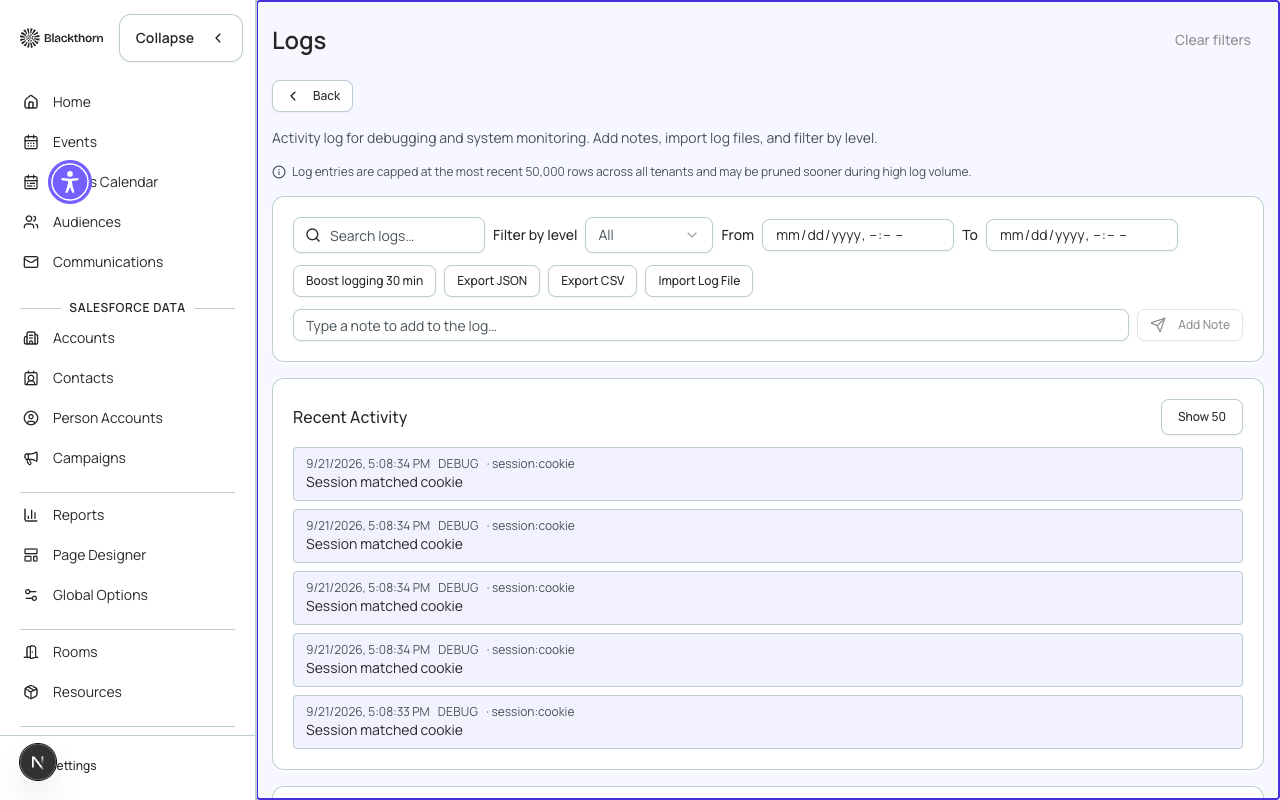
This page is a technical log, not a per-user audit trail. It does not record every action each user takes, and it is not an immutable compliance record. Use it to diagnose problems.
Filters and tools
| Control | What it does | Recommendation |
|---|---|---|
| Search logs | Free-text search across the whole log, not only the rows on screen. | Search for an error word, an object name, or part of an ID you saw in a toast message. |
| Filter by level | All, Debug, Info, Warn or Error. Error means something failed; Warn means something unusual but recoverable; Info is normal activity; Debug is extra detail. | To find what broke, choose Error. If the problem is intermittent, then choose Warn to see what led up to it. |
| From / To | Limits entries to a date and time range. | Set a window around the time the problem happened so older noise drops out. |
| Boost logging 30 min | Temporarily records more detail (Debug and Info) for your org only. While active the button is replaced by a Boosted countdown showing minutes left. It switches itself off after 30 minutes and cannot be turned off early. | Press it, then reproduce the problem right away, then read the extra detail. Use it only while troubleshooting; every boosted line counts against the shared log capacity. |
| Export JSON / Export CSV | Downloads the entries that match your current search, level and dates. Pagination does not limit it. A very large result is capped at 50,000 rows and the file says so. | Export to attach evidence to a support ticket. Apply your filters first so the file contains only what is relevant. |
| Import Log File | Uploads a text log file as entries in your org's log. Limited to 2,000 lines and 2 MB per file; longer lines are shortened. | Rarely needed. Use it only to put an outside log next to Forge's entries while troubleshooting. |
| Add Note | Adds your own line to the log, for example Started re-sync after fixing gateway key. | Leave a note before and after a change so the timeline is easy to read later. |
Reading the list
- Recent Activity shows the latest 5 entries; Show 50 expands it to 50.
- The table below lists Time, Level, Source (the part of Forge that wrote the entry), Message and Meta (extra detail). Click a row to expand its full record.
- Level is color coded: red for Error, yellow for Warn, blue for Info, grey for Debug.
- The list refreshes by itself every 5 seconds. Show More loads the next 20 older entries.
- Copy link on a row copies a link straight to that entry, handy for pasting into a ticket. If the entry has since been removed, the page says Entry no longer available.
Error groups
Repeated errors with the same cause are grouped. Rows that belong to a group show a View group button. The group page shows how many times it happened (Occurrences), First seen, Last seen, Tenants affected and the most recent entries. A group keeps its counts even after the individual entries have been cleaned up, so Recent entries can be empty for an old group.
The group page also has Status (Open, Muted, Known issue), a Jira key and an Assignee, then Save triage. Muting only stops alerting for that error; Forge keeps recording it.
Retention
The log keeps only the most recent 50,000 entries across all customers and may drop older ones sooner when volume is high. Export anything you need to keep. A message can echo text a user typed or an error returned by Salesforce, so be careful about who you share exports with.