Admin
Record Layouts
Record Layouts (Admin > Record Layouts) decide which fields people see for events and for the records inside an event, and where that list of fields comes from. For each area you choose a layout source: Salesforce (Forge mirrors your Salesforce page layout) or Forge (you pick the fields yourself). Layouts only change what Forge shows. They do not change Salesforce page layouts, validation rules or field-level security.
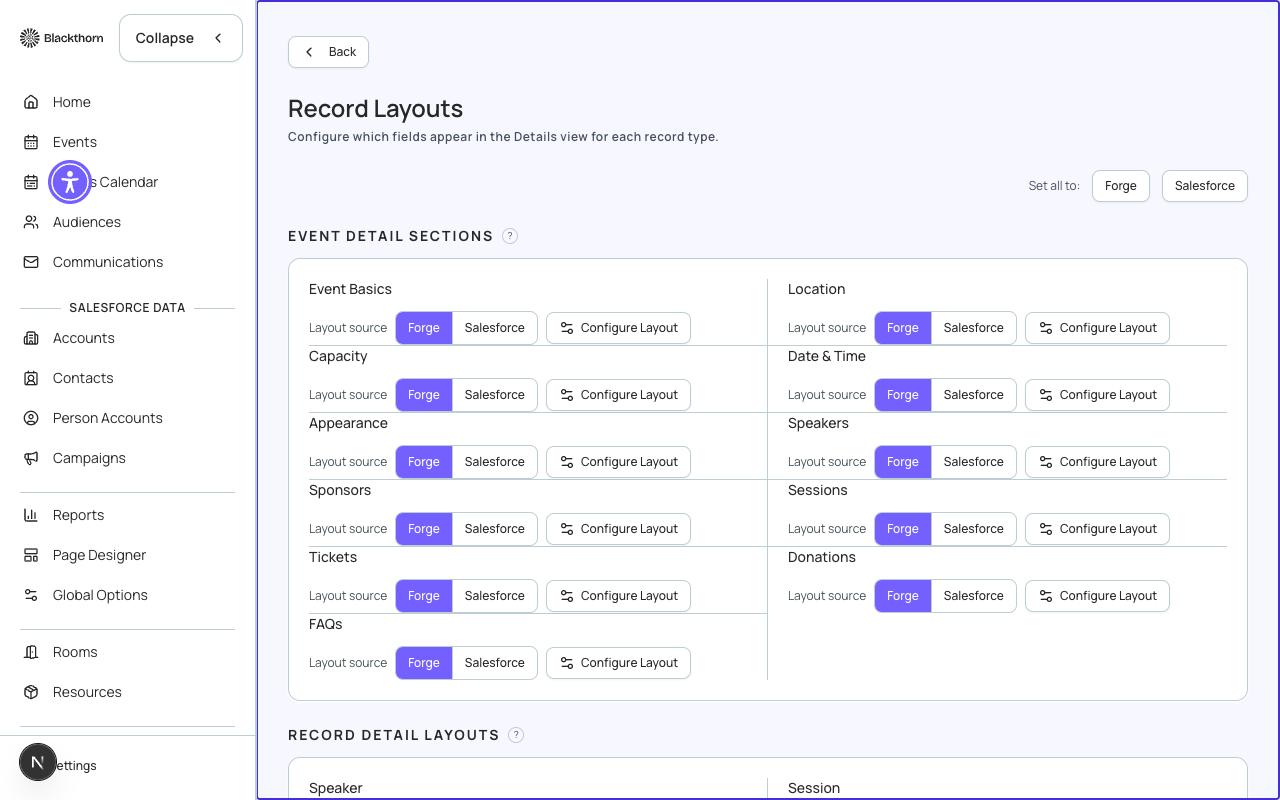
To keep Forge in step with the layouts your Salesforce admin already maintains, leave an area on Salesforce. To show a short, curated list that differs from Salesforce, switch it to Forge and use Customize in Forge so you start from the Salesforce layout instead of an empty list.
Layout source: Forge vs Salesforce
| Source | What people see | Choose it when |
|---|---|---|
| Salesforce | The fields on the Salesforce page layout assigned to the viewer's profile and the record's record type. Read-only fields are left out, and fields the viewer cannot access are dropped. Layouts are fetched the first time they are used and then cached. | You want one place to maintain layouts (Salesforce Setup), or different profiles or record types should see different fields. |
| Forge | Only the fields you choose with Configure Layout. Nothing is read from the Salesforce page layout. | You want every Forge user to see the same fields, or you want a simpler list than the Salesforce page layout has. |
After you change a page layout in Salesforce, go to Admin > Salesforce Caching and use Refresh layouts to pick up the change.
Page controls
| Control | What it does | Recommendation |
|---|---|---|
| Set all to: Forge / Salesforce | Switches every layout source on the page at once: the Event Overview, the wizard steps that have a Salesforce layout, and all Record Detail Layouts. It changes each row's source setting only. It does not edit any layout. | Use Salesforce to reset everything to mirror Salesforce, or Forge when you manage every list yourself. Check the rows afterwards. |
| Saving... status | Shows while a source change is saving. Source changes save automatically; there is no Save button on the page. | Wait for it to clear before leaving the page. |
| Layout source toggle (per row) | Forge / Salesforce choice for that row. | See the table above. |
| Configure Layout | Opens the field editor. Shown for rows set to Forge and for rows that have no Salesforce layout. | Use it after switching a row to Forge. |
| Customize in Forge | Shown for a Salesforce row that has a layout. It copies the Salesforce layout once, switches the row to Forge, and opens the editor. It never overwrites a Forge layout you already saved. | The best starting point when you want Forge to look like Salesforce minus a few fields. |
| View Salesforce layout | Opens that object's page layouts in Salesforce Setup in a new tab. Shown for Salesforce rows. | Use it to see what Salesforce currently shows before you decide. |
Under each row a note shows the Salesforce layout name and section count, for example Session layout and a number of sections. No Salesforce layout means that area has none (Appearance, FAQs, Donations and the Communications wizard step). Couldn't load the Salesforce layout means the lookup failed; try again later.
The three groups on the page
Event
The Event Overview Layout row sets the source for every Salesforce-backed event section at once: Basics, Location, Capacity, Date & Time, Speakers, Sponsors, Sessions and Tickets. If older settings disagree, the row shows Mixed and neither choice is highlighted until you pick one. Appearance, FAQs and Donations have no Salesforce layout, so they are always Forge-configured and only offer Configure Layout.
Event Creation Wizard
One row per wizard step: Details, Tickets, Sessions, Speakers, Sponsors, Donations, Registration forms, Event content and Communications. For each step you choose whether its fields come from the Salesforce layout or from Forge. Until you pick Salesforce, a step stays on Forge and uses your wizard field choices. Configure opens Admin > Event Creation Fields rather than the layout editor.
Record Detail Layouts
The field lists shown when you open an individual record inside an event: Speaker, Session, Sponsor, Attendee, Ticket, Invoice, Transaction, Budget & Expense and Hotel. These default to Salesforce.
The layout editor (Configure Layout)
Configure Layout opens a side panel titled Customize Detail Layout. Make your changes, then choose Save, or Cancel to discard them.
| Control | What it does | Recommendation |
|---|---|---|
| Section name | The heading shown above a group of fields. Edit it directly. | Use short, plain names such as Venue or Billing. |
| Drag handle, up and down arrows | Reorder sections. Fields can also be dragged to reorder inside a section. | Put the fields people need most in the first section. |
| Collapse / expand | Shows or hides a section's fields inside the editor only. | Collapse sections you are done with. |
| Remove section (red X) | Removes the section from the layout. The Salesforce fields themselves are untouched. | Remove sections nobody uses. |
| Required switch (per field) | Marks the field with a red star as required in Forge's form for that record. It is separate from Salesforce's own required setting. | Mark a field Required when your team must always fill it in, such as a venue name. Salesforce's validation rules still apply either way. |
| Remove field (small X) | Takes the field out of the section. | Remove fields that clutter the page. |
| Add Field | Opens a searchable list of the fields on that Salesforce object. Choose one to add it to the end of the section. Labels come from Salesforce, so renamed fields show the new name. | Search by label. If a field is missing, check that it exists on the Salesforce object and that your connected Salesforce user can read it. |
| Add Section | Adds an empty section named New Section. | Add one when you want to group fields differently from Salesforce. |
| Suggested layouts: Baseline | Replaces the sections with Forge's shipped default layout for that object. You still need to Save. | Use it to start over from a sensible default. |
| Suggested layouts: Compact | Merges every field into one section, keeping order and dropping duplicates. You still need to Save. | Use it for a short, flat list on small objects. |
Switching a row back to Salesforce does not delete your Forge layout, but people stop seeing it until you switch to Forge again.
Record Layouts affect only what Forge shows. Salesforce field-level security still applies: a field the viewer cannot access in Salesforce is not shown or editable in Forge, even if it is in the layout.
Refreshing layouts: the Salesforce Caching page
Forge keeps a copy of Salesforce setup information (field definitions, page layouts, record types and a few setup records) so pages load fast and make fewer Salesforce API calls. When a layout row is set to Salesforce, Forge shows what is in that copy. After you change something in Salesforce, such as a new field or an edited page layout, refresh the copy on Admin > Salesforce > Salesforce Caching.
If a change you made in Salesforce is not showing in Forge, choose Refresh All Caches. If only layouts look out of date, use Refresh layouts & record types.
The page opens on one tab, Layouts, under a Refresh All Caches button. A blue note repeats the purpose of the page, and a second note explains permissions: some refresh actions need Salesforce admin permissions, so if one fails with a permission error, ask your Salesforce admin for View All Data or Modify All Data, or use a connected user that has them.
| Control | What it does | Recommendation |
|---|---|---|
| Refresh All Caches | Runs every refresh in one go: the full re-cache, the field-definition (describe) cache, the object map, list views, layouts and record types, related lists, and global setup objects. If some fail, a message says how many of the total failed. | Use it as your first move after a Salesforce release, package upgrade or big configuration change. |
| Sync setup objects from Salesforce | Pulls every payment gateway, webinar account, campaign, contact, data dictionary entry and event setting from Salesforce into Forge. | Use it when a gateway, webinar account or campaign you just created in Salesforce is not showing in Forge. |
| Refresh layouts & record types | Clears the record type cache and re-fetches the Salesforce page layouts, both Edit and View, for the default objects, so fields stay in sync after layout edits. A progress line shows how many objects are done, and the result lists which were Refreshed and which were Skipped with a reason. | Use it after you add or move a field on a Salesforce page layout and want a Salesforce-sourced row on this page to show it. |
| Last successful run | Under each card, the time that refresh last worked. | Check it to see whether a refresh really ran. |
Related lists visibility
A panel at the bottom of the Layouts tab controls which related lists appear on record detail pages. Pick an Object from the dropdown, then use the switch beside each related list to show or hide it. Hidden lists are not shown to any user. Choose Refresh to reload the list.
- The Object dropdown is filled from your cached layouts. If it says No Objects Available, run Refresh layouts & record types first.
- Hiding a related list only hides it in Forge. Nothing is deleted in Salesforce.