Admin
Users and Accounts
Admin > Users is where an admin decides who can use Forge and how much they can do. Team members appear here the first time they sign in to Forge with their own Salesforce login; there is no separate invite step on this page. From here you can change a person's role, turn Admin (wrench) access on or off, remove a person, and review or revoke personal Salesforce sign-in tokens.
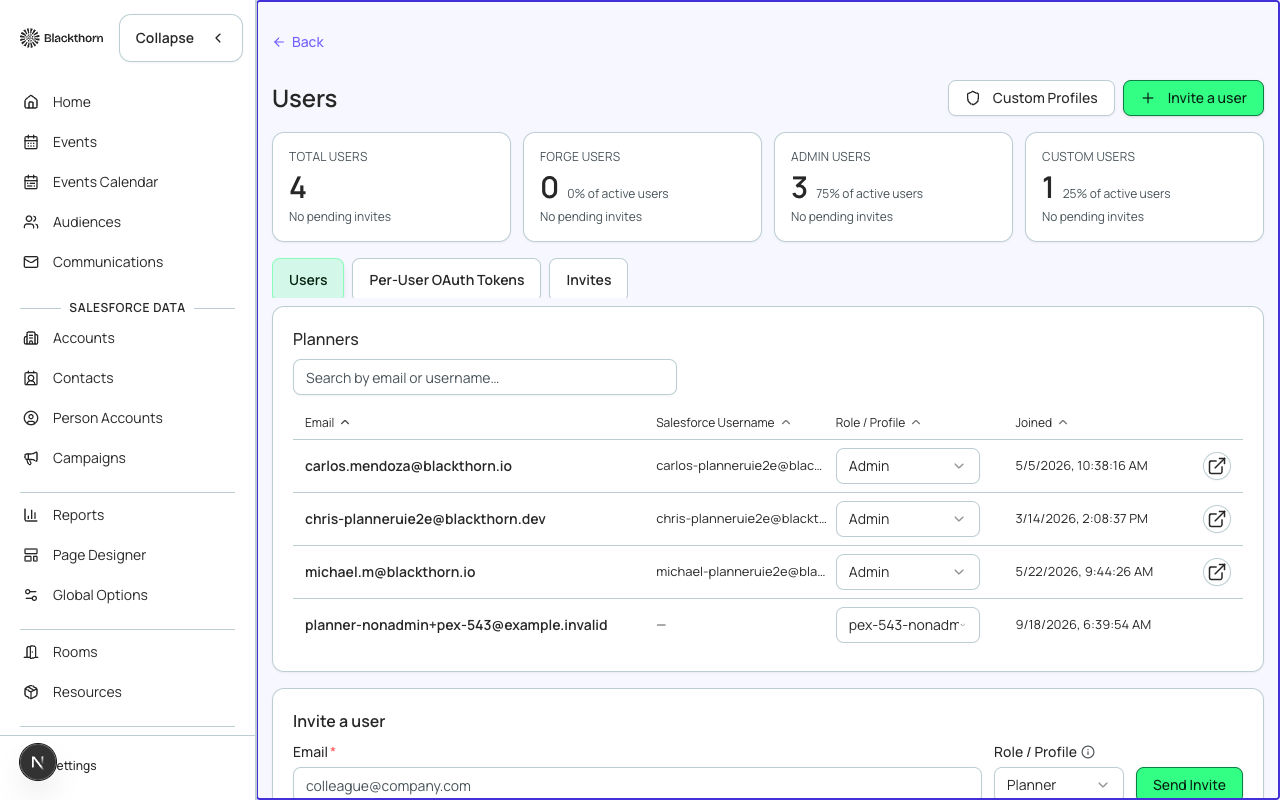
Short version: keep most people as Planner, give Admin access only to the few people who configure Forge, and never remove yourself or the last admin. Forge blocks both.
Summary cards
Four cards sit above the list: Total users, Forge users (people with the Planner role), Admin users, and Custom users. Each role card also shows its share of all users. The Custom users card only appears once at least one person is assigned a custom profile.
Users tab: columns and controls
| Column / control | What it does | Recommendation |
|---|---|---|
| Search by email or username | Filters the list by email or Salesforce username. It searches every user, not just the 20 currently shown. | Use it to jump to one person in a large team instead of scrolling Show more. |
| Email and Salesforce Username | Who the person is. A link opens that person's Salesforce User record. | Use the Salesforce Username to tell apart two people with similar emails. |
| Role / Profile | A dropdown with Planner and Admin. Choosing a new value asks you to confirm, then takes effect immediately. Planner is for day-to-day event work. Admin has everything Planner has, plus full access to every configurable part of Forge. | To let someone run events but not change org-wide setup, choose Planner. To let someone configure payments, layouts, users and email, choose Admin. Review Admin users regularly. |
| Admin access | A checkbox that controls whether the person sees the Admin (wrench) area. It starts on for people whose role is Admin, and an admin can turn it on or off for anyone except custom-profile users. The role label itself does not change, but access follows this box: ticking it gives Admin-level access even if the role still reads Planner, and clearing it removes Admin-level access even if the role reads Admin. | To give a Planner Admin access without relabeling them, tick the box. To keep an Admin out of the Admin area, clear it. You cannot clear it on your own row, and you cannot clear the last person who has it. |
| Joined | The date the person first signed in to Forge. | Sort by this to spot recent sign-ins you did not expect. |
| Remove | Deletes the user from your Forge org after a confirmation. They lose access immediately and any active sessions are ended. | Remove people who have left the team. You cannot remove yourself, and you cannot remove the last remaining admin. |
How roles are first assigned
When someone signs in for the first time, Forge looks at their Salesforce permissions. A person who has Modify All Data, Manage Users or Customize Application starts as Admin; everyone else starts as Planner. A role you set by hand afterwards is respected. If the very first person in a new org cannot be checked, that first user starts as Admin so the org is never left without one.
A Forge role controls what people can see and do inside Forge. It does not replace Salesforce permissions. Someone still needs the right Blackthorn permission sets in Salesforce to read or write the underlying records, whatever their Forge role. Removing a person in Forge does not deactivate their Salesforce user, and the reverse is also true.
Per-User OAuth Tokens tab
This tab lists people who have signed in with a personal Salesforce authorization instead of the shared org connection. The tab badge shows how many. If nobody has one, the tab says users will use the shared org token.
| Column | What it shows |
|---|---|
| Email, Salesforce Username | The person the token belongs to. |
| Status | Active (green) when the token last refreshed cleanly. Needs re-auth (red) when the last refresh failed; hover the status to see the error and time. |
| Last Refreshed | The last time Forge successfully refreshed the token. |
| Issued | When the token was first granted. |
| Revoke | Deletes the personal token after a confirmation. That person falls back to the shared org token. |
- To fix a Needs re-auth row: ask the person to sign in to Forge again, or revoke the token so they fall back to the shared org connection.
- Revoke a token when someone's Salesforce access changes and you want their next request to use the shared connection.
Both lists show 20 rows at a time with a Show more button.