Admin
Webinar Accounts
Webinar Accounts connect Forge to the video platform you use for virtual and hybrid events, so an event can be linked to a real Zoom meeting or webinar instead of someone pasting join links by hand. You manage them at Admin > Integrations > Webinar Accounts, and they are also reachable from Global Options. Each account is a Salesforce Webinar Account record, so anything you create here also appears in Salesforce.
Short version: create one account per Zoom login, authorize it from its Salesforce record, mark the one you use most as the default, and keep Disable Personal Meeting ID on for Zoom.
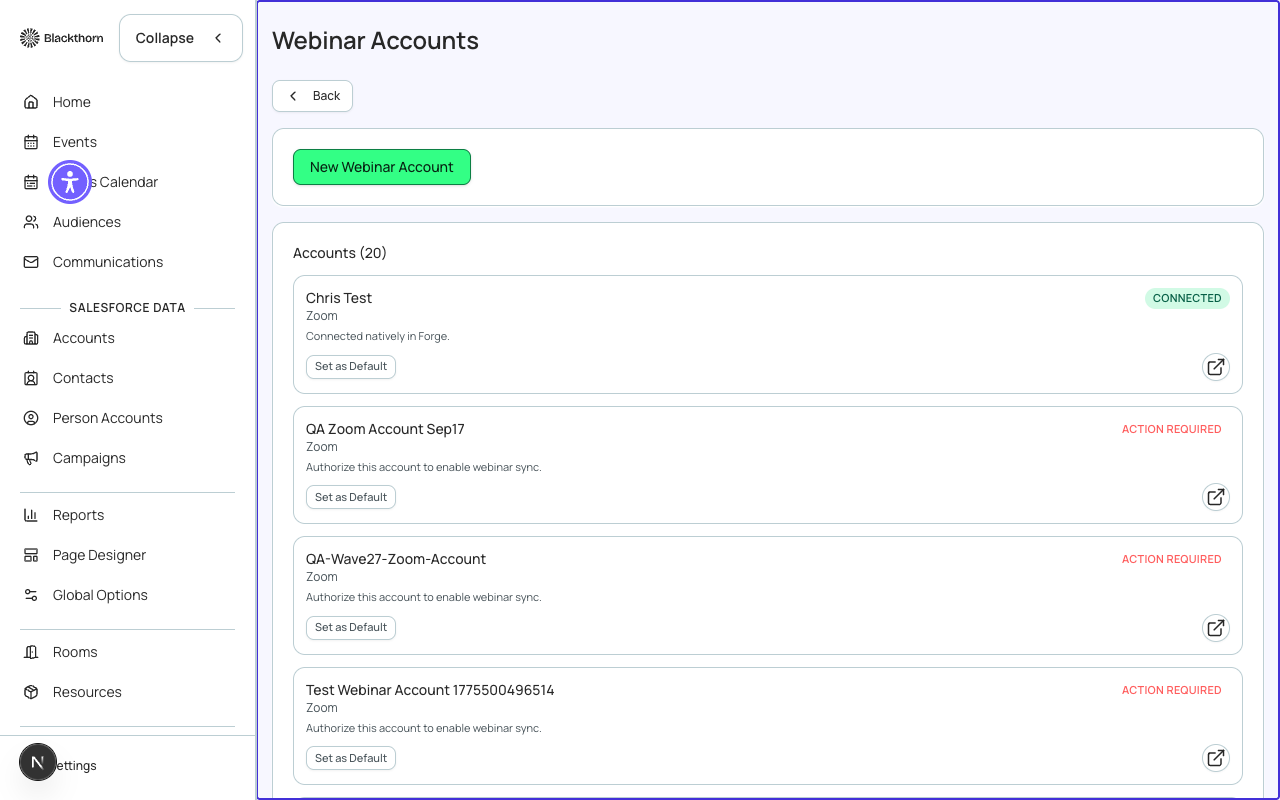
The Webinar Accounts list
| Item | What it does | Recommendation |
|---|---|---|
| New Webinar Account | Opens a form to create an account. After you create it, Forge opens that account's page. | Create one account per platform login, for example Zoom - Marketing Team. |
| Accounts (n) | One card per account: name, provider, contact email, a status badge, and a status detail line. Click a card to open it. The list shows 20 at a time with Show more. | Scan the badges after any password or admin change on the platform side. |
| Default account badge / Set as Default | Marks one account as the default. Set as Default makes that account the default and shows the badge on it. | Make your most-used account the default. |
| View in SF | Opens the Webinar Account record in Salesforce. | Use it to authorize, edit extra fields or delete the account. |
New Webinar Account form
| Field | What it does | Recommendation |
|---|---|---|
| Name | How the account is listed, for example My Zoom Account. Required. | Name it for the team and platform so planners pick the right one. |
| Provider | Zoom, GoToWebinar or Webex. Zoom shows an extra Disable Personal Meeting ID setting. | Choose the platform where you actually host the sessions. |
| Contact email (optional) | The owner's email, shown on the account card. | Use a shared mailbox, not one person, so it survives staff changes. |
| Disable Personal Meeting ID (Zoom only, default Yes) | When Zoom's Personal Meeting ID setting is on, Yes makes every meeting get its own unique Meeting ID instead of reusing the host's personal one. | Leave on Yes. A reused personal ID means one join link works for several events and can leak to the wrong audience. |
Account page
Open an account to see its status, Provider, Email, whether it is the Default, Last authorized and Token valid until. Below that, a Fields section shows the record's other Salesforce fields, and an Authorization section explains how to connect it.
| Status | What it means | What to do |
|---|---|---|
| Connected (green) | The account has valid credentials. | Nothing. |
| Expires soon (amber) | The authorization expires within 3 days. | Re-authorize before it lapses so sessions keep syncing. |
| Expired (red) | The authorization has run out. | Re-authorize the account. |
| Action required (red) | The account has not been authorized yet, or the last connection attempt failed (the detail line shows why). | Authorize the account. |
| Unknown (amber) | Forge cannot tell when the authorization expires. | Re-authorize to refresh the dates. |
Authorizing an account
- Open the account and choose Open in Salesforce to Authorize.
- On the Salesforce record, click the Authorize button. You are sent to the provider's own sign-in to approve access for Blackthorn Events.
- After you approve, return to Forge. The account status changes to Connected and Last authorized fills in.
Authorization happens in Salesforce today. A native connect from inside Forge is still in preview and is not available to every org.
Using an account on an event
On an event, open Settings and use the Webinar account linking card, or Manage > Location. Choose the account in the Webinar Account dropdown. If you have none, Manage accounts lets you create or authorize one. Once an account is linked you can choose Zoom Type and Create Webcast.
| Field | What it does | Recommendation |
|---|---|---|
| Webinar Account | The account used for this event. | Pick the account whose Zoom login should host the event. |
| Zoom Type | Meeting or Webinar. | Use Webinar for large audiences with panelists and attendees. Use Meeting for small interactive sessions. |
| Create Webcast | Registers the event as a webcast on the linked platform. If one already exists, Forge asks Create New Webcast? before making another. Once active it shows Webcast active with the ID, plus a count of registered and failed attendee syncs. | Use it once per event, after the dates are final. Do not create a second one unless you really need a new link. |
| Webinar / Meeting URL, ID and Password | Filled in automatically by the connected platform. The URL is shown to registered attendees only. The password is managed automatically. | Do not edit by hand. |
| Zoom Email Notifications | Whether Zoom emails registrants: Use Zoom Account Settings, Send Zoom Emails or Do not send Zoom Emails. Only applies to Zoom. | Choose Do not send Zoom Emails if Forge's own confirmation and reminder emails already tell people how to join. Choose Send Zoom Emails if you want Zoom's own reminders. |
| Include Zoom URL in Calendar | Adds the Zoom link to the description of the calendar invite. | Turn on so attendees can join straight from their calendar. |
Removing an account
There is no delete button on the Forge page. Open the account in Salesforce (View in SF) to delete or change it.
Removing an account does not clear meeting details already written to events. It only stops that account being used for new ones.