Admin
Payment Gateways
Payment gateways connect Forge to your payment processor so attendees can pay online. Admin > Payment Gateways lists every gateway record in your Salesforce org, lets you create a new one, and opens each gateway's settings. Forge creates one-time charges through the gateway and records the result as a Transaction in Salesforce. Recurring payments use Blackthorn's own payment schedules, not the processor's subscription billing.
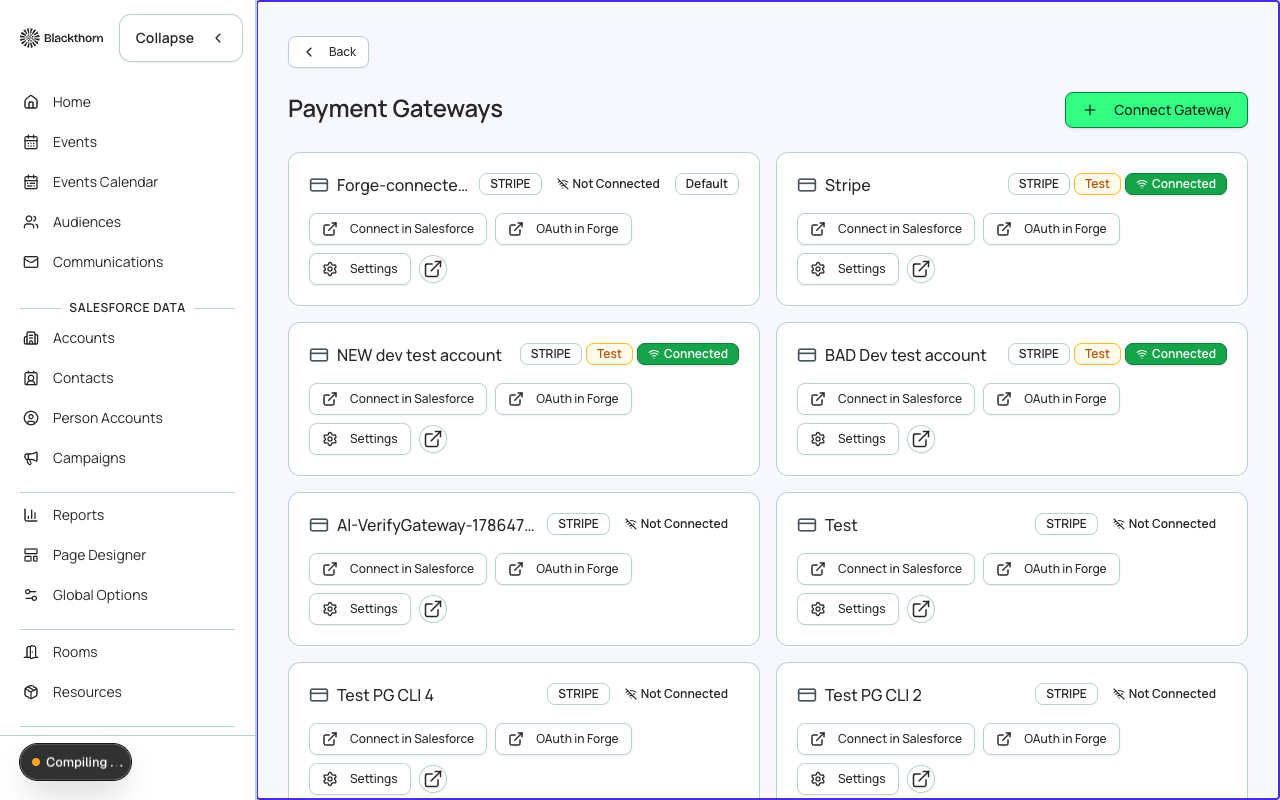
Short version: create the gateway here, finish connecting it in Salesforce, confirm it shows Connected, then pick it on your event. Use a separate gateway marked Test for rehearsals and never point a live event at it.
The Payment Gateways page
| Item | What it does | Recommendation |
|---|---|---|
| Connect Gateway | Opens a form to create a gateway record in Salesforce: Gateway Name, Provider and Test Mode. It creates the record only; you finish connecting it in Salesforce. | Create one record per processor account. Use Stripe Live and Stripe Test as separate records. |
| Sync from Salesforce | Re-reads gateways, and their linked Relationship Settings, from Salesforce so changes made there show up in Forge. | Press it after you add or edit a gateway directly in Salesforce and it is not showing here. |
| Gateway card | One card per gateway with its name, provider, mode, connection state and a Default badge if it is the default. The name opens the gateway's settings. | Check cards here first when a checkout fails; a gateway that is Not Connected will fail every payment routed to it. |
| Connect in Salesforce | Opens the gateway record in Salesforce, where you enter or authorize the provider credentials. | Use it right after creating a gateway, or later to reconnect. |
| Settings | Opens the gateway's page in Forge, showing the fields on the Salesforce gateway layout. You can edit them there. | Use it to set defaults and gateway behavior without leaving Forge. |
| Salesforce link icon | Opens the record in Salesforce. | Use it when you need a Salesforce-only button, such as syncing balances. |
Create form fields
| Field | What it does | Recommendation |
|---|---|---|
| Gateway Name | The name people see when choosing a gateway on an event, such as Stripe Live. Required. | Put the provider and the mode in the name so nobody picks Test by mistake. |
| Provider | Stripe, Authorize.net, Other (via Spreedly), TouchNet or CashNet. Other (via Spreedly) is for processors Forge does not connect to directly, such as PayPal's PayFlow Pro. | Choose the processor you hold the merchant account with. If it is not listed, use Other (via Spreedly). |
| Test Mode | Marks the gateway as a test or sandbox account. Turn it on before you connect, because the connection must be made in the same mode. Do not change it after the gateway is connected. | Turn on only when the credentials come from your processor's test or sandbox account. Leave off for real money. |
Badges on a gateway
- Provider: the processor, such as Stripe.
- Test or Live: shown once the gateway is connected. Test means no real money moves.
- Connected: Forge found stored credentials on the Salesforce record. Not Connected means they are missing.
- Default: this gateway is the org's default gateway.
Connect a gateway
- Go to Admin > Payment Gateways and choose Connect Gateway.
- Enter a recognizable Gateway Name, choose the Provider, and turn on Test Mode only for a test or sandbox account. Choose Create.
- Choose Connect in Salesforce. The gateway record opens in Salesforce.
- Connect the account on that record. For Stripe, if this is a test account, tick Test Mode first and then use the Connect to Gateway button; the Stripe user email and ID fill in on their own afterward. For Authorize.net, enter the transaction key in Authorize.Net Transaction Key (it is encrypted after saving). For Other (via Spreedly), enter the Spreedly Environment Key or use Create Spreedly Gateway.
- Return to Forge, choose Sync from Salesforce, and confirm the card shows Connected.
If connecting a gateway fails, the page shows an OAuth error and a Connection diagnostics panel listing the Stage, Details, any Provider error, and whether the platform secret is Not configured in this environment, for the wrong mode, or rejected by the provider. Send those details to Blackthorn support.
Forge never stores card numbers, CVV codes or full card data. The card is tokenized in the buyer's browser by the processor's secure script before anything reaches Forge.
Gateway settings page
Open Settings on a gateway to edit it. The page shows the fields on your Salesforce Payment Gateway page layout, so the exact list can differ if your Salesforce admin changed the layout. These are the main fields and what they do.
| Field | What it does | Recommendation |
|---|---|---|
| Default | Payment methods created without a gateway automatically use the default gateway. Only one gateway can be the default. | Make your main live gateway the default. Never make a Test gateway the default. |
| Default Donation Gateway | Used as the donation gateway for events when Split Donation Payments is on. Only one gateway can hold it. | Set it only if donations go to a different account than tickets. It should be the same processor as your ticket gateway. |
| Test Mode | Runs the gateway in test mode. | Leave as connected. Do not untick it after Stripe is connected. |
| Default Currency | The currency used when only the gateway is chosen on a transaction. Set automatically. | Leave the automatic value unless your processor account handles several currencies. |
| Default Country | The country preselected on the Country field in PayLink or Events. Blank means no default. | Set it to where most of your attendees live to save a click at checkout. |
| Accepted Checkout Payment Methods | Which payment method types are allowed in Stripe Checkout. | Allow only the methods you want to support and reconcile, such as Card, or Card and ACH. |
| Accepted Payment Methods | Used by the mobile app to decide which kinds of payment methods are accepted. | Match it to Accepted Checkout Payment Methods so staff and attendees see the same options. |
| Block Amex Transactions In Rest API | Blocks every American Express charge from any app that uses Blackthorn's Payments REST API. | Turn on if your processor surcharges Amex or you do not accept it. |
| Enable Authorize.Net CCV Filter | For Authorize.net gateways, asks the buyer to re-enter the card's CVV. | Turn on to reduce fraud on card-not-present payments. |
| Live Validation Mode (Authorize.Net) | Checks a new card with a zero-dollar or one-cent transaction to confirm it belongs to an active account. Unchecked uses a lighter test check. | Turn on if you want stronger card verification when saving cards. |
| Stripe MOTO Enabled | If MOTO is enabled on your Stripe account, Forge sets the MOTO flag on charges. | Turn on only if Stripe confirmed MOTO is enabled on your account. |
| Level 3 | Fills in Level 3 data on Stripe authorizations and captures. | Turn on only if your processor or card program asks you to send Level 3 data. |
| Require Existing Transaction for Mobile | Only lets the Mobile Pay app collect payment against an existing transaction. | Turn on to stop staff taking ad-hoc payments in the field. |
| Relationship Settings | Which Relationship Settings apply to transactions, payment methods and customers for this gateway. | Leave it unless your Salesforce admin has set up separate relationship rules. |
| Webhook Label | Names the gateway's webhook. No spaces or special characters except an underscore. | Use something like Stripe_Live. |
Balance fields, tokens and other technical fields on the record are filled in by Salesforce or the processor. Leave them alone.
Choosing a gateway for an event
The gateway an event uses is set on the event, under Tickets > Configuration > Payment configuration. Tickets & Products gateway is used for tickets, sessions and add-ons. Donation gateway is used for donations; leaving it as No gateway (uses primary) sends donations to the primary gateway. A warning appears if the chosen gateway is not connected in Salesforce, because payments routed there will fail. When creating an event, the Tickets step has a Payment Gateway section for the same choice, and gateways that are not connected cannot be selected.
Never run a live event on a gateway marked Test, and never use test credentials on a live gateway. Test payments are not real, and a live gateway with test keys declines every charge.
Recurring payments
Forge never uses Stripe Subscriptions, Stripe Billing or the bt_stripe__Subscription2__c object. Recurring payments run on bt_stripe__Payment_Schedule__c and scheduled Apex, so they behave the same on Stripe, Authorize.Net and other gateways. A payment schedule still has to be configured on the Salesforce side today; Forge does not automate that setup.
| Forge | SF Object | SF Field |
|---|---|---|
| Gateway record | bt_stripe__Payment_Gateway__c | Name, bt_stripe__Provider__c |
| Transaction | bt_stripe__Transaction__c | bt_stripe__Amount__c, bt_stripe__Status__c (Completed/Refunded) |
| Order/Invoice | bt_stripe__Sales_Document__c | bt_stripe__Status__c, bt_stripe__Total__c |
| Payment Schedule | bt_stripe__Payment_Schedule__c | cadence, next run date (recurring only) |
Other payment records in Admin
Besides the gateways list, the Admin area has pages for the money records behind your gateways: Transactions (with saved payment methods and payment schedules) and DocumentLink Templates for invoices and receipts. They read and write the Blackthorn Payments records in your Salesforce org, so every change is subject to Salesforce validation rules and permissions. Open them from the Admin home page under Payments.
If you only want attendees to pay for tickets, you do not need these pages. They are for fixing or setting up payment records that already exist.
Transactions (Admin)
Open it from Admin > Transactions. It is the hub page, with the subtitle Payment gateways and fee configuration. It shows two read-only lists and two links.
| Item | What it shows | Recommendation |
|---|---|---|
| Gateways | Each gateway's name and type, with an Open in Salesforce icon. If there are none it says No gateways. | To change a gateway, use Admin > Payment Gateways. |
| Fees | Each fee's name, type and percentage where one is set, with an Open in Salesforce icon. If there are none it says No fees. | Fees are edited in Salesforce; use the icon to jump to the record. |
| Payment Methods link | Manage saved payment methods. | See below. |
| Payment Schedules link | Manage payment schedule templates. | See below. |
Each list shows 20 rows at a time with a Show More button.
Payment Methods
The Transaction Methods page lists saved payment methods under the heading Methods with a count. Columns are Name, Type (for example card), Brand (Visa, MasterCard and so on) and Last4 (the last four digits).
| Action | What it does | Recommendation |
|---|---|---|
| Open a row | Shows the method's details: Name, Type, Brand, Last 4 and Status, a Default badge if it is the default, and a Mandate section with Mandate Reference, Mandate Status and Mandate Accepted At for bank debits. | Use it to confirm a method is active before blaming a failed payment on the gateway. |
| Edit | Lets you change only the Card Holder Name. Card details cannot be changed. | Fix a misspelled name. For a new or replaced card, add it through the payment form. |
| New Payment Method | Creates a record with Type, Brand, Last 4 digits and Billing postal code. Card numbers and security codes are never collected here, so if Salesforce rejects the save because it needs card security details, the page tells you to add the card through the payment form instead. | Use only for record-keeping. To store a real card, use the payment form. |
| Delete | Removes the record after a confirmation. This cannot be undone. | Delete duplicates or test methods. Check that no active schedule uses the method first. |
Payment Schedules
The Transaction Schedules page lists payment schedules (the records that bill someone repeatedly) with Name, Status and Interval. Because every gateway is charged one payment at a time, a schedule is how repeat billing works for Stripe, Authorize.net and the others alike.
| Field on Edit | What it does | Recommendation |
|---|---|---|
| Amount | The amount charged each time. If the schedule also has a Total Amount in Salesforce and this is blank, Salesforce works it out. | Set it for a fixed payment such as 50 per month. |
| Repeats | Daily, Weekly, Monthly or Yearly. | Pick the unit of the cycle. |
| Frequency | The number of those units between payments. Monthly with a Frequency of 2 means every 2 months; Daily with 45 means every 45 days. | Use 1 for every cycle; use a larger number for quarterly (Monthly, 3) or similar. |
| Next Payment Date | The date of the next scheduled charge. | Change it to move the date of the next scheduled charge. |
| End Date | The date from which the series stops being calculated. | Leave blank for an open-ended series, or set it to stop after a chosen date. |
| Description | A free-text note. | Say who it is for and why. |
- Create Template: type a Description and choose Create to add a new schedule record. Further settings are filled in on Edit or in Salesforce.
- Cancel Schedule appears only for schedules with a status of Future or Active.
- Delete removes the schedule record after a confirmation and cannot be undone.
Cancel Schedule permanently stops future billing for that schedule and cannot be undone. There is no way to resume it; create a new schedule instead. Recurrence runs on Blackthorn's own payment schedule records, not on gateway subscriptions.
Schedule statuses in Salesforce are Draft, Generate, Future, Active, Completed, Canceled, Failed and Canceled and Refunded. Apart from Draft, they are set automatically.
DocumentLink Templates
A DocumentLink template controls how invoice and receipt pages look and which payment gateway they use. The list shows Name, Payment Gateway, Currency and Display Language, with a View in Salesforce link on each row.
| Item | What it does | Recommendation |
|---|---|---|
| New Template | Opens a form asking for a Template Name (for example Invoice Template) and creates the template in Salesforce. | Create one template per gateway or language you invoice in, then finish it in Salesforce. |
| Template Name | The name staff see when picking a template on a Sales Document. | Include the audience or currency, for example Invoice - EUR. |
| Payment Gateway column | The gateway an invoice using this template is paid through. | Match it to the gateway for the same currency. |
| Currency column | The currency of the invoice. | Keep one currency per template. |
| Display Language column | The language of the page the customer sees. English unless you choose otherwise. | Create a template per language you send invoices in. |
| Delete | Removes the template from Salesforce after a confirmation. Sales Documents that used it lose the template link. | Delete only unused templates. |
| View in Salesforce | Opens the template record, where you set the footer, extra DocumentLink fields and their labels, Terms and Conditions URL (shown on the ACH acceptance screen), card and ACH acceptance language, company and location. | Add your Terms and Conditions URL and acceptance language here if you accept ACH. |