Beta & Experimental Features
Register an Attendee
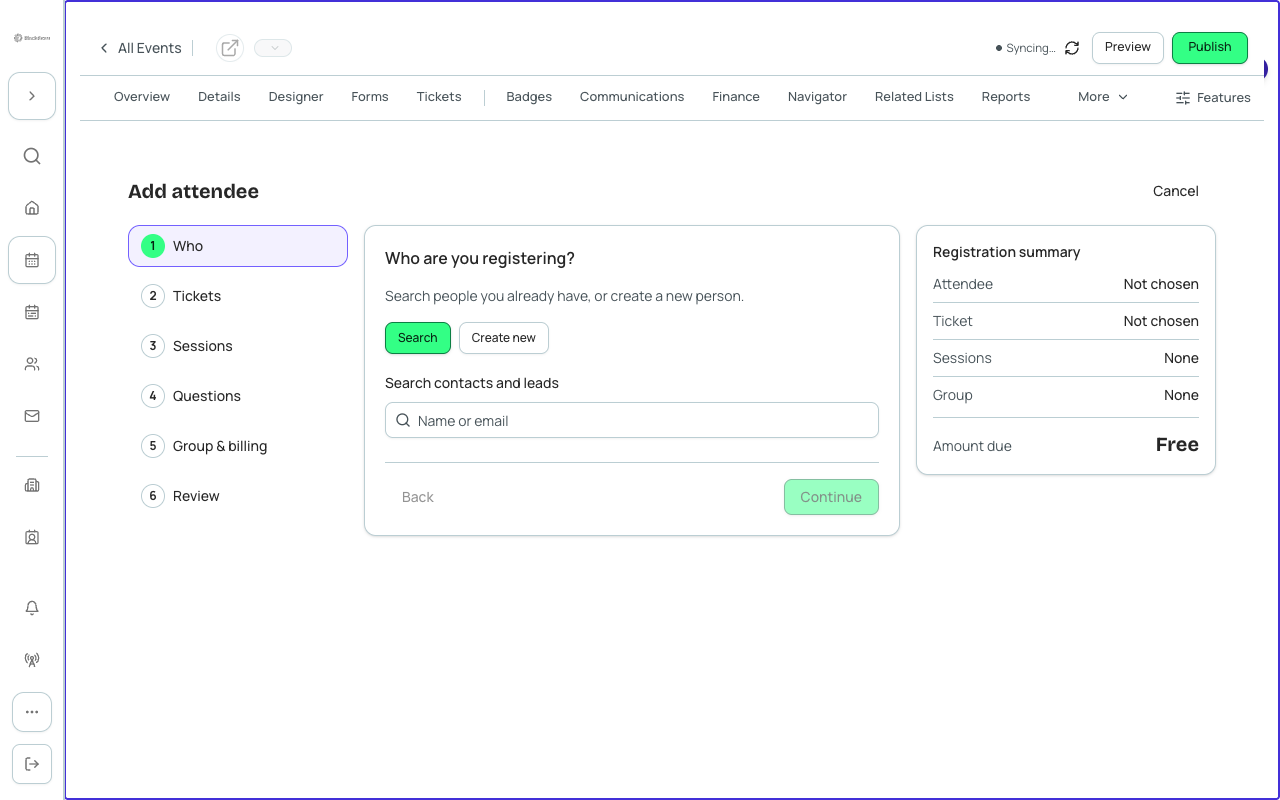
Register an Attendee (the Attendee Builder) lets a planner register one attendee in a single guided flow: who they are, their ticket, sessions, registration questions, group and billing, and how it is paid. Use it for phone-in registrations, VIPs, comps and sponsor seats, instead of sending the person through the public page.
Generally available
Register an Attendee is on for every organization; there is no switch. Start from the event's Overview: the Available tickets card lists every ticket you can sell, with its price and how many remain. Select opens Register attendee on that ticket. Register attendee also appears on the event's Attendees page. Donation and product items are not listed, a ticket whose sales window has ended is hidden, and a ticket with no seats left shows a disabled Sold out button.
The steps
A step rail (Registration steps) tracks progress and a Registration summary on the side shows the attendee, ticket, selected sessions, group and Amount due as you go. Continue stays disabled until the step's required choices are made; Back returns to the previous step.
| Step | What you do | Required to continue | Recommendation |
|---|---|---|---|
| Who | Search tab: search contacts and leads by name or email (results are badged Contact or Lead), then Change to pick someone else. Create new tab: enter First name, Last name, Email, Phone and Company. | First name, Last name and Email. | Search first so you do not create a duplicate Contact. |
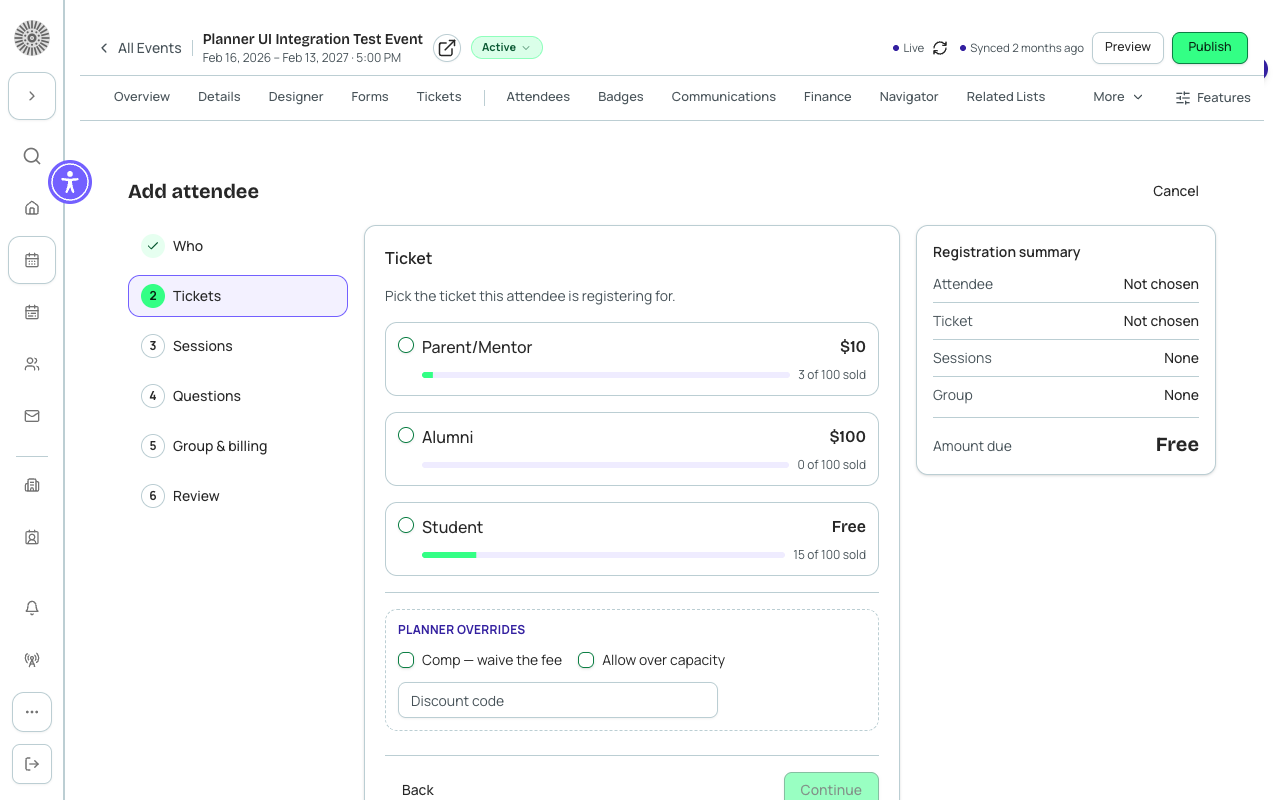
| Ticket | Pick one ticket. Each shows its price (or Free) and "N of M sold"; sold-out tickets are marked Sold out and guest tickets are marked Guest. Selecting from Overview preselects the ticket here. | A ticket. A sold-out ticket also needs Allow over capacity plus a reason. | Register a guest on a Guest ticket and join the main attendee's group in Group & billing so they share one group. |
| Sessions | Choose sessions available for the ticket. Rows show Unscheduled, Full, "N seats left" and Time clash warnings, with Join waitlist for full sessions, and day tabs for multi-day events. | Nothing; sessions are optional. | Resolve time clashes before the review step; the review shows how many are still selected. |
| Questions | Answer the registration form attached to the ticket, the same form the public page shows. Questions with a show-when rule appear only when it applies. | Required visible questions. A hidden required question never blocks you; the step warns "Some required questions are still blank." | Fill in accessibility and dietary answers here so they reach the attendee record. |
| Group & billing | Choose No group, an existing group (shows member count) or Create a new group with a Group name. Then choose how it is paid. | A Group name when creating a new group. | Use a group to keep a company's registrations together. |
| Review | A plain-English summary of attendee, ticket, sessions, group and payment. Nothing is saved until you confirm. | None. | Check the Amount due. All records are created together; if any part fails none is saved. |
Two refusals stop a registration and create nothing. Registering the same email on a ticket it already holds shows Already registered. If the ticket sells out between choosing it and submitting, you see a capacity error and no attendee is created.
Planner overrides (Ticket step)
| Control | What it does | Recommendation |
|---|---|---|
| Comp — waive the fee | Registers the person at no charge. | Use for speakers, staff and guests. The summary then shows Free and the payment step says there is nothing to collect. |
| Discount code | Applies a code when the registration is created. There is no live preview: the code is checked at creation. | Type the code exactly; confirm the Amount due on the review. |
| Allow over capacity + Reason for exceeding capacity | Lets you register on a sold-out ticket. A reason is required, for example "Sponsor contract guarantees an extra seat", and is recorded with the registration. | Use sparingly and write a reason an auditor would understand. |
How the registration is paid
| Option | What happens | Recommendation |
|---|---|---|
| Take payment now | Creates the registration with an open invoice, then opens the card terminal for that invoice. | Use when the attendee is with you or on the phone with a card. |
| Create an invoice | The registration is confirmed and the invoice stays open until paid. | Use for purchase-order or pay-later attendees. |
| Email a payment link | Holds the seat and gives you a secure payment link to copy or email yourself (Copy link, Email this link). Forge does not email it automatically. | Use when the attendee will pay later by card. If the link is not ready, share the invoice from the attendee record. |
Finishing
Choose Create registration, or Create & add another to stay on the same event for the next attendee. The result says "{name} is registered for this event."
Limits to know about
- One person and one ticket per registration. There is no bulk roster or multi-ticket mode.
- The registration path is not chosen: planner registrations bypass the public path rules by design.
- Who search covers contacts and leads only.
- Registering someone who already holds the same ticket is refused with a clear message; a different ticket for the same person is allowed.