Beta & Experimental Features
Audiences
BetaAudiences is generally available: the Audiences item is always in the main sidebar navigation, with saved recipient lists for targeting email and SMS sends. Optional controls are grouped under Audiences Enhancements, a separate staff-only set of switches (see Audiences: Optional Controls).
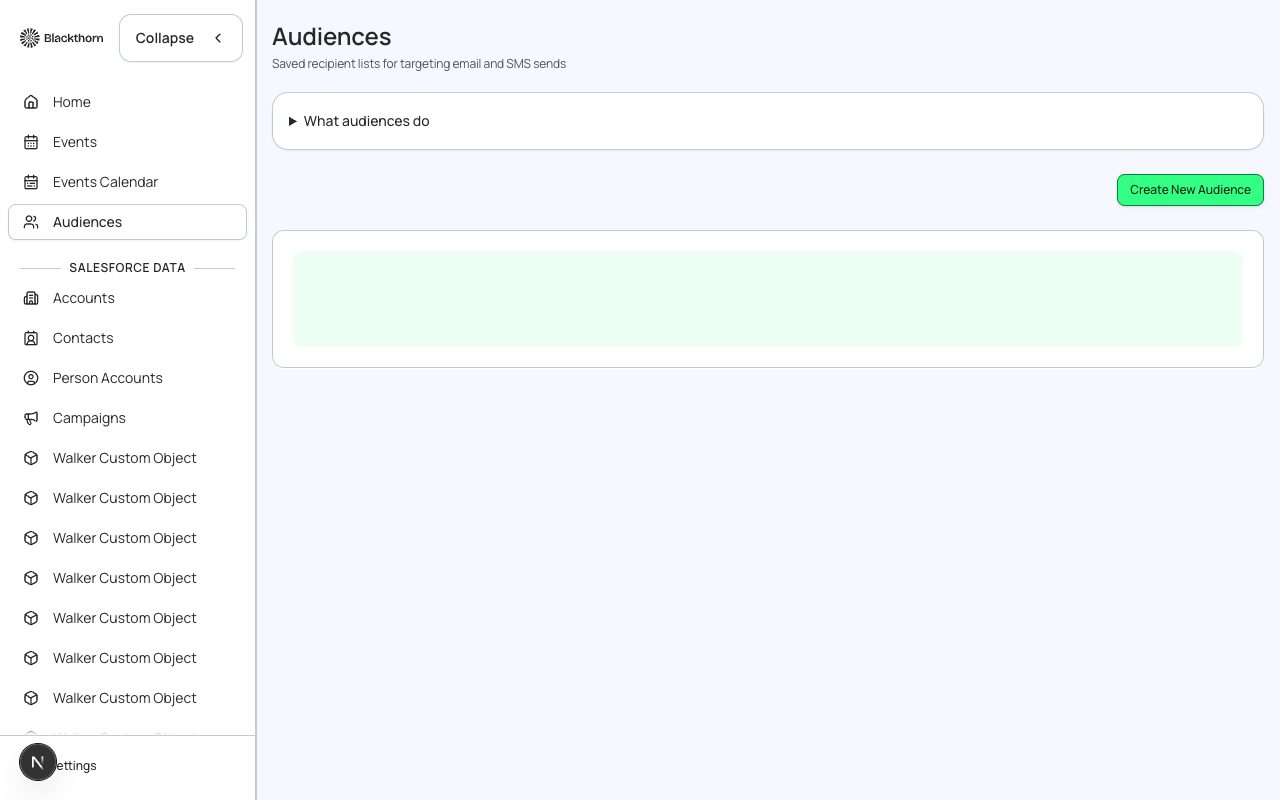
What an audience is
- A Live (Dynamic) audience stores a set of rules. Forge re-reads Salesforce to find who matches, so the list changes as your data changes.
- A Snapshot (Static) audience is a fixed list of people captured at one moment. It does not change until you Rebuild it.
- Global audiences can be used for any event's communications. Event-specific audiences belong to one event and are only available in that event's communications.
The Audiences list
| Item | What it does | Recommendation |
|---|---|---|
| Create New Audience | Opens the audience builder (three steps: Source, Filters, Review). | Name audiences after the group, such as VIP registrants. |
| Refresh audiences | Reloads the list. | Use it after an audience was created or synced elsewhere. |
| Search audiences | Filters the list by name as you type. Clear filters resets everything. | Not applicable. |
| Sort audiences | Newest first, Oldest first, Name A to Z, Name Z to A, Recipient count high to low or low to high. | Sort by recipient count to find the biggest audiences before a send. |
| Row | Shows the name, the size, the sync status and (when set) the event or Global scope. A sync error shows the reason. Select a row for the detail page. | Open a row with a Sync error to read the reason before trying again. |
| Send | Opens a dialog to pick the event (when the audience needs one) and an optional template, then opens Communications with the audience preselected. | Use it for the quickest path from list to send. |
| Edit | Opens the builder with the audience's saved rules. | Editing changes who matches next time; it does not alter messages already sent. |
| Resync (Live audiences) | Queues an immediate re-read of Salesforce for this audience. | Use it right after you add or change Salesforce data the audience relies on. |
| Rebuild (Snapshot audiences) | Queues a rebuild of the fixed list. | Use it when you want the fixed list refreshed with current data. |
| Export CSV, Delete | Export CSV only appears when the staff-only Audiences: CSV export switch is on. The file has the columns Id, Kind, Name and Email, in that order for every audience type, and is available to planners only. Names and emails are read live from Salesforce and are not stored. Delete asks for confirmation. A confirmed delete is blocked while a scheduled send still uses the audience; cancel or finish the send first. | Check Communications for scheduled sends before deleting. |
Audiences are listed 20 at a time with Show more.
Sync status
| Status | Meaning |
|---|---|
| Ready | Synced and ready to use. This is the only status from which a Live audience can be sent. |
| Draft or Pending | Created but not yet synced. |
| Syncing | A sync is running. Wait for it to finish. |
| Failed | The last sync failed. Check the job log or the sync error, fix the cause, then Resync. |
Send is disabled for a Live audience until it is Ready. If you click Send on one that is still syncing you get: This audience is still syncing. Try again after it completes.
Create an audience: step 1, Source and basics
| Field | What it does | Recommendation |
|---|---|---|
| Audience name | Required. Must be unique; a duplicate shows An audience with this name already exists. | Describe the group, not the campaign, so you can reuse it. |
| Description | Optional note shown on the audience. | Record how it was built, such as All VIPs who declined last year. |
| Scope | Global (available to all events) or Event-specific. Event-specific audiences are locked to one event once saved. | Choose Global for lists you will reuse across events. Choose Event-specific for lists that only make sense for one event. |
| Event | Required for Event-specific scope. Search events by name. | Pick carefully; it cannot be changed after saving. |
| Source | How people are found. See the table below. | Use Event attendees for most event sends. |
| Source | What it finds | Needs an event to send? |
|---|---|---|
| Event attendees | People registered for or attending a specific event, filtered by status, ticket type and fields. Always event-specific. | Yes |
| Salesforce list view | A saved list view from Salesforce on Event Attendees, Contacts, Leads or Campaign Members. Pick the object, then the list view. | No |
| Campaign members | People in a Salesforce campaign, optionally limited to certain member statuses. | No |
| Contact query | Contacts matching conditions you add on Contact fields. | No |
| Salesforce report | Rows from a Salesforce report you have already built. Staff-only switch; not shown to most orgs. | No |
| Form answers | People who gave specific answers on a registration form. Staff-only switch; not shown to most orgs. | Yes |
To reach attendees across every event, use the Salesforce list view source, because Event attendee audiences are always tied to one event.
Step 2, Filters
Event attendees
| Filter | What it does | Recommendation |
|---|---|---|
| Registration statuses | Include people with any selected status: Lead, To Invite, Invited, Pending, Registered, Declined, Canceled, Waitlisted - Pending, Waitlisted - Rejected, Awaiting Approval, Rejected. The list follows your Salesforce picklist when available. All registration statuses means no restriction. | To email confirmed guests choose Registered. To chase people who have not replied choose Invited or Pending. |
| Attendance statuses | Pending, Attended or No-Show. All attendance statuses means no restriction. | Use Attended for thank-you mail and No-Show for follow-up after the event. |
| Ticket type | Limits to attendees holding selected ticket types. Selecting several is combined with AND, so only attendees matching all selected types are included. | Select one type for a targeted note, such as VIP. |
| Field filters | Extra conditions on attendee fields. All conditions are combined with AND. | Add conditions to narrow further, not to widen; use a second audience for an OR. |
You must select at least one registration or attendance status, or add a field filter, to continue.
Other sources
- Salesforce list view: choose the object (Event Attendees, Contacts, Leads, Campaign Members), then Select list view.
- Campaign members: search for a campaign (the first 20 cached campaigns load on click) and optionally pick Member statuses; leave blank to include everyone. The campaign's members are counted.
- Contact query: add Contact field filters, all combined with AND.
- Form answers: choose a form, then add answer filters on a question using equals, contains or does not equal. Shows answers for the selected event, or across all events for a Global audience.
- Salesforce report: search by report name (at least two characters), optionally narrow by folder, or paste the 15 or 18 character report ID if it does not appear. Choose the Primary record type the report rows represent, and an optional nickname.
Step 3, Review and save
- Review shows the criteria, a preview of up to a page of sample rows and the count. For Global audiences preview is not available; use Send and pick an event.
- Save audience creates it, or Update audience when editing. A draft is kept automatically: next time you can Resume draft or Start fresh.
- Leaving with unsaved changes asks whether to discard.
- Not every audience type can be edited yet. If so you see: This audience type can't be edited yet. Go back to the Audiences list.
Audience detail page
| Section | What it does | Recommendation |
|---|---|---|
| Rename | Edit the name inline and Save. | Rename instead of creating a duplicate. |
| Audience size | Cached count of people. Refresh size re-counts from Salesforce; the size shows how long ago it was cached. | Refresh size right before a send for an accurate count. |
| Criteria | Shows the rules the audience uses. | Check it before reusing an old audience. |
| Members | Cached list of members with Name, Account and Auto #. Search members to find someone. If none show, refresh to sync. | Use it to confirm a specific person is included. |
| Sample records | Load Preview shows up to 10 sample records with name, email and type. Not available for Global audiences. | Use it as a sanity check before sending. |
| Edit criteria, Send, Delete | Same as the list actions. | Not applicable. |
People come from Salesforce. The size and member list shown in Forge are cached, so use Refresh size, Resync or Rebuild after your Salesforce data changes.