Beta & Experimental Features
Scheduled Email Sending
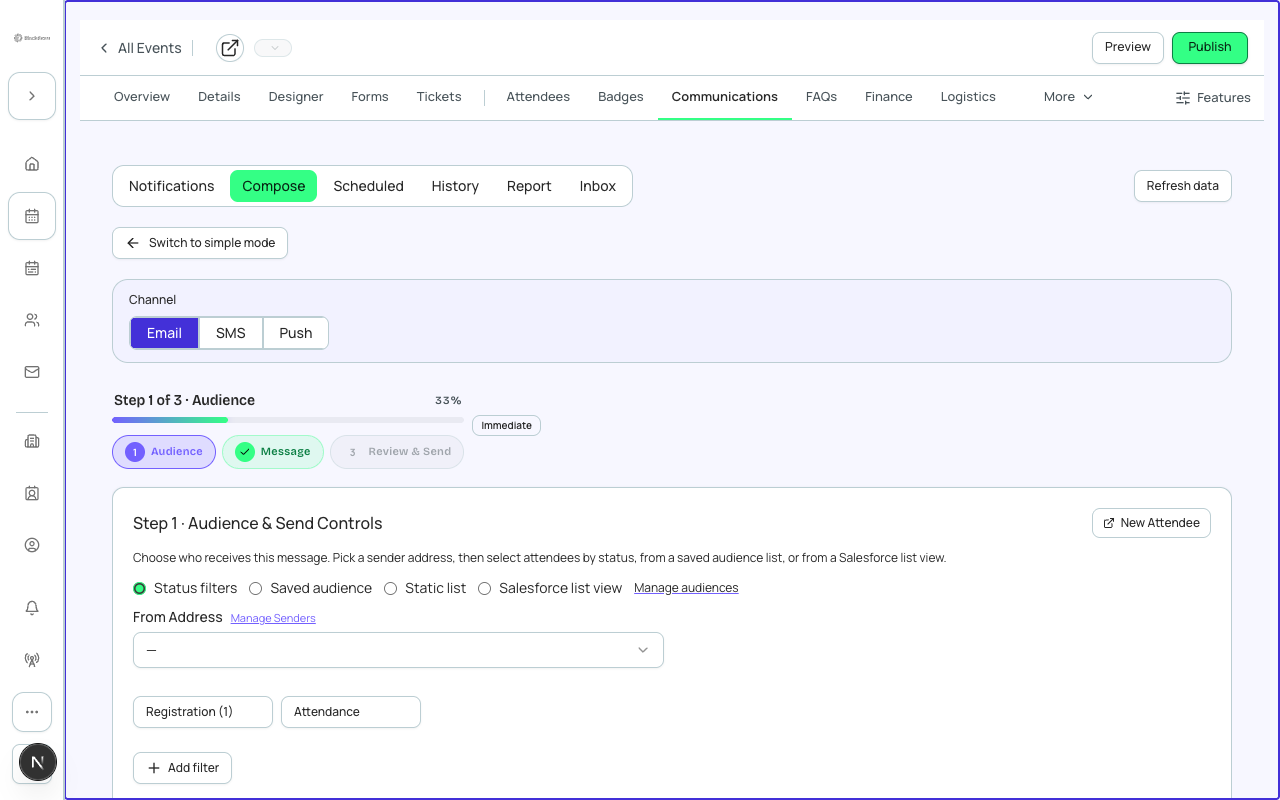
BetaScheduled Email Sending lets you send an event email at a future date, at an offset from the event start, on a repeating cadence, or automatically when something happens in registration, such as a new registration or a cancellation. You schedule from the event's Communications tab; automatic sends are switched on from its Notifications section.
Stage: Included in GA
Scheduled Email Sending is included in GA and on for every organization.
Two ways to send automatically
| Kind | When it sends | Where you set it up |
|---|---|---|
| Scheduled send | At a time you choose: now, a specific date and time, a number of minutes, hours or days before or after the event start, or on a repeat. | Communications > New Email, on the Review & Send step. |
| Triggered send (automatic) | The moment a registration change happens, to the person it happened to. | Communications > Notifications: switch on the trigger and pick a template. |
Scheduling an email
- Open the event and go to Communications.
- Choose New Email, then pick a template, audience and message.
- On the Review & Send step open When to Send and choose a schedule tab, set its timing, and optionally open Next: Delivery Options.
- Choose Schedule. Check the summary (email, when, From, recipients) and confirm. The email appears in the queued list until it sends.
- With no timing set the same button reads Send Now and sends immediately after you confirm the summary. From starts as the event's sender, or your organization's default sender, and is the address recipients see.
Schedules created in Salesforce for this event, including by the Salesforce Scheduler, also appear in the Scheduled list, labelled Salesforce Scheduler. They are read-only here: use the Open in Salesforce link to change one. When the event has any, a Source filter (All, Forge, Salesforce) appears above the list.
When to Send tabs
| Tab | What you set | Recommendation |
|---|---|---|
| One-off | Send now, or a Date and a Time in your local time zone. A date and time in the past is refused. | Use for announcements and one-time updates. |
| Relative | Direction (Before or After), Amount and Unit (minutes, hours or days) measured from the event start. Presets: 1 Week Before, 24 Hours Before, 1 Hour Before, Day-After Thank You. | Use for reminders and thank-yous so they follow the event if its date changes. |
| Recurring | Frequency (Daily, Weekly, Monthly), Interval (every N), Day of Week, and an End of Never, On Date, or After a Count. | Use for a weekly digest during registration. Always set an end. |
| Field-based | An object, a date and time field on it, a direction, an amount and a unit. The email sends that long before or after the field's value. | Use when the trigger date is a Salesforce field other than the event start, such as a payment due date. |
Advanced tabs
Only One-off and Relative are shown by default. Recurring and Field-based, and the delivery controls below, appear when the separate Communications advanced delivery setting is on.
Delivery options (advanced)
| Option | What it does | Default and recommendation |
|---|---|---|
| Smart Send (On or Off) | Applies the quiet-hours, weekday and rate rules below to this send. | Off in the wizard until you turn it on. Turn on for large audiences. |
| Timezone: Recipient, Event or UTC | Whose clock the send time and quiet hours follow. | Recipient, so everyone gets the email at a sensible local time. |
| Weekdays Only | Limits sends to weekdays (Monday to Friday). | Yes for business events. |
| Avoid Weekends | Pushes a send that would land on a Saturday or Sunday to the next weekday. | Yes unless your audience is consumers. It overlaps with Weekdays Only. |
| Quiet Hours Start / End | A window when nothing is sent. A send scheduled inside it moves to when the window ends. | 21:00 to 08:00. |
| Throttle | Maximum sending rate, such as 120/m (120 a minute). | Lower it if your website cannot take a surge of clicks. |
| Frequency Cap | Maximum emails per person in a period, such as 3/7d (3 per 7 days). People over the cap are skipped and recorded as skipped. | 3/7d keeps repeat reminders from becoming spam. |
| Attach ICS | Adds a calendar invite file. | Yes for reminders. |
Optional PDF attachments: Invoice receipt PDF (the checkout receipt per attendee group) and Attendee itinerary PDF (sessions, tickets and VIP perks per recipient). Leave unchecked if you do not need attachments.
Automatic triggered sends
Under Communications > Notifications, each automatic email has a switch and a template. Turning a switch on saves immediately; there is no separate Save button.
| Trigger | Sends when | Recommendation |
|---|---|---|
| Registration Confirmation | Someone registers (status moves to Registered from a non-waitlist status). | Always on. Use a template that includes an Attendee Link merge field; templates without one are hidden. |
| Waitlist Confirmation | Someone is added to the waitlist. | On whenever you use a waitlist. |
| Spot Available Notification | A waitlisted attendee's spot opens (waitlist to Registered). | On whenever you use a waitlist. |
| Day-Of Welcome Message | The morning of the event, with agenda and links. | On for events with arrival information to share. |
The Communications hub's Automation area also offers Cancellation (status moves to cancelled, declined or rejected), Attendance update and Receipt triggers where that area is available.
Sender required
Triggers need a sender. If the organization has no sender yet, a trigger is saved switched off. Set up your sending domain and sender in Admin > Email first.
Queued schedules
Where the Queued schedules table is shown, each job lists Name, Type, Status, When, Smart and Template. Jobs can be paused and resumed. A job that fails is retried and then shown as Failed after retries.
Reliability
A future send dispatches at its real scheduled time. A job that missed its window, for example during an outage, dispatches automatically when service resumes.