Beta & Experimental Features
Payment Gateways
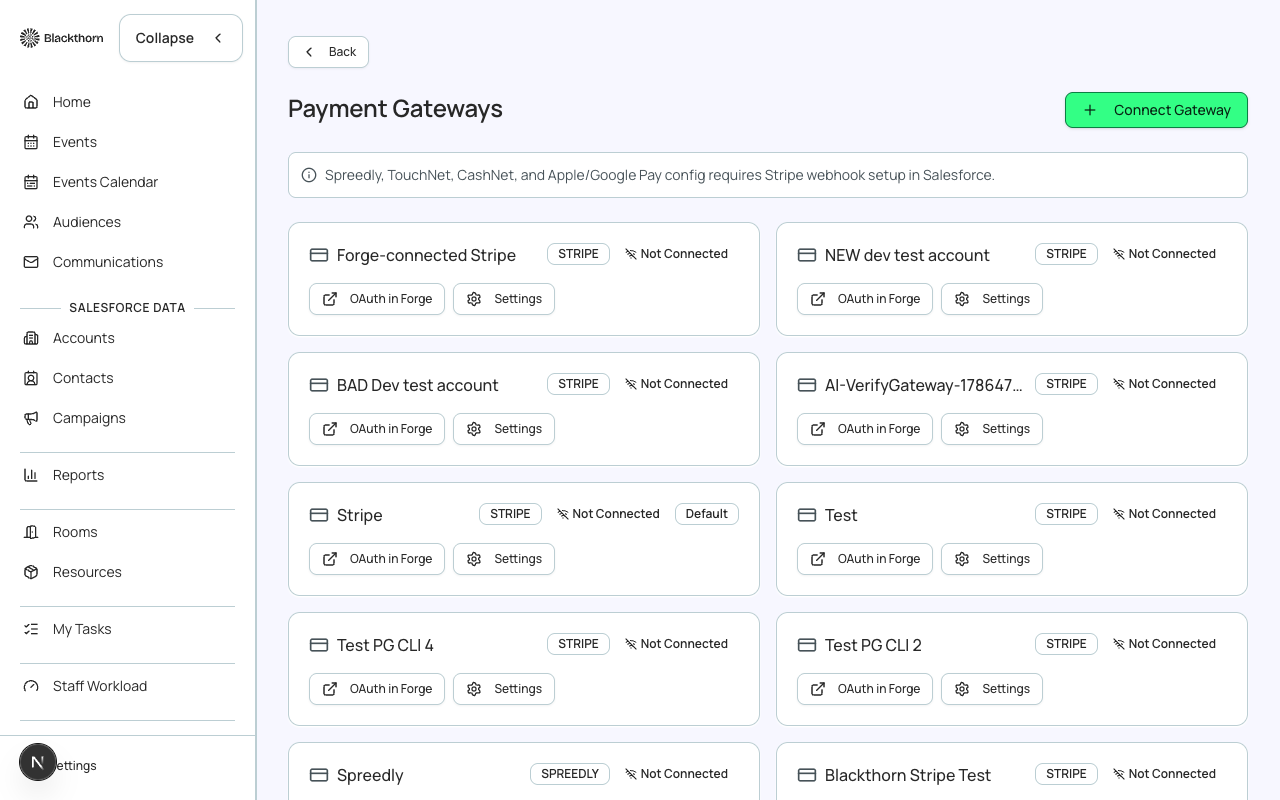
BetaPayment Gateways lists the payment gateway connections your organization uses to take card payments, with a settings page for each. Admin > Payments is where you create a gateway, see whether it is connected, choose test or live mode, and mark which gateway is the default for tickets and which for donations. The credentials with your payment provider are entered in Salesforce.
Stage: Included in GA
Payment Gateways is included in GA and on for every organization.
What this page is not
Manual card charges are not part of Payment Gateways. They are the separate Virtual Terminal feature, which is under Coming soon and off for every organization. Gateway credentials are connected on the gateway record in Salesforce; an optional OAuth in Forge button is a separate setting that is off by default.
Set up a gateway
- Choose Connect Gateway, name it (for example Stripe Live or Stripe Test), pick the Provider, set Test Mode, and choose Create.
- Choose Connect in Salesforce to open the gateway record and enter your provider's credentials there.
- Return to Admin > Payments and confirm the gateway shows Connected.
- Open its Settings and mark it as the default for tickets, donations or both.
Connect Gateway dialog: what each field does
| Field | What it does | Recommendation |
|---|---|---|
| Gateway Name | A label for this connection. Required. | Include the provider and mode in the name, such as Stripe Test, so people pick the right one. |
| Provider | Stripe, Authorize.net, Other (via Spreedly), TouchNet or CashNet. | Choose the provider you actually have an account with. Use Other (via Spreedly) for providers that are not listed. |
| Test Mode | Marks the connection as a test connection that does not move real money. | Create a Test gateway first and run test registrations. Create a separate Live gateway when you go live; do not reuse one. |
The gateway list
| Badge or button | Meaning | Recommendation |
|---|---|---|
| Provider badge | The provider name. | None. |
| Test or Live | Which mode the connected gateway is in. Shown once connected. | Check this before a launch. A Test badge on your production gateway means no real charges. |
| Connected or Not Connected | Whether the provider credentials have been saved and verified. | Not Connected means no payments will process. Use Connect in Salesforce to finish. |
| Default | The gateway used by default. | Keep exactly one default for tickets. |
| Connect in Salesforce | Opens the gateway record in Salesforce. | Use when a gateway shows Not Connected. |
| Settings | Opens the gateway's own page in Forge. | Use to change defaults and gateway behavior without leaving Forge. |
| Sync from Salesforce | Refreshes the list from Salesforce. | Use after changes made in Salesforce. |
You can use separate gateways for tickets and donations. Set each one as the default for its use on the gateway's settings page. A donation gateway needs the default-donation setting on its Salesforce record.
Gateway settings page
Each gateway opens a page headed with the gateway name and its Test or Live, Connected and Default badges. Below the header are the gateway record's own fields as laid out in Salesforce, which you can edit here without opening Salesforce. The available fields depend on your Salesforce page layout and permissions.
If a connection fails
After a failed connection, a Connection diagnostics panel can appear next to the error banner. It shows the Stage that failed, Details, the provider's own error, and whether the platform secret is Not configured in this environment, for the wrong mode, or rejected by the provider because the key was rolled, deleted or from another account. Send those details to Blackthorn support; most are fixed on the Blackthorn side.
Related pages
| Card | What it is for |
|---|---|
| Customers | View and manage payment gateway customers. |
| Allocation Rules | Configure automatic allocation creation for transactions. |
| PayLink Configurations | PayLink branding, allowed payment methods and defaults. |
| Anytime Messages | Buy additional SMS messages and manage auto-recharge. Shown only when that feature is on for your organization. |