Beta & Experimental Features
Org Events Calendar
Early AccessManage on the Beta Features pageOrg Events Calendar shows every event in your org on a month, week, day, or list view, with filters for status and category, and saved views for quickly returning to a filtered set, including My events, which shows only the events you own in Salesforce. Week and day views show the day and hour along the edges and scroll sideways when the week does not fit; the counts beside saved views show how many events each view would list in the current date range, regardless of the filters you have applied.
Availability
Org Events Calendar is listed under Coming soon on the Beta features page (/beta), and you can switch it on there for your organization. It needs Salesforce to be connected; otherwise the page asks you to connect Salesforce.
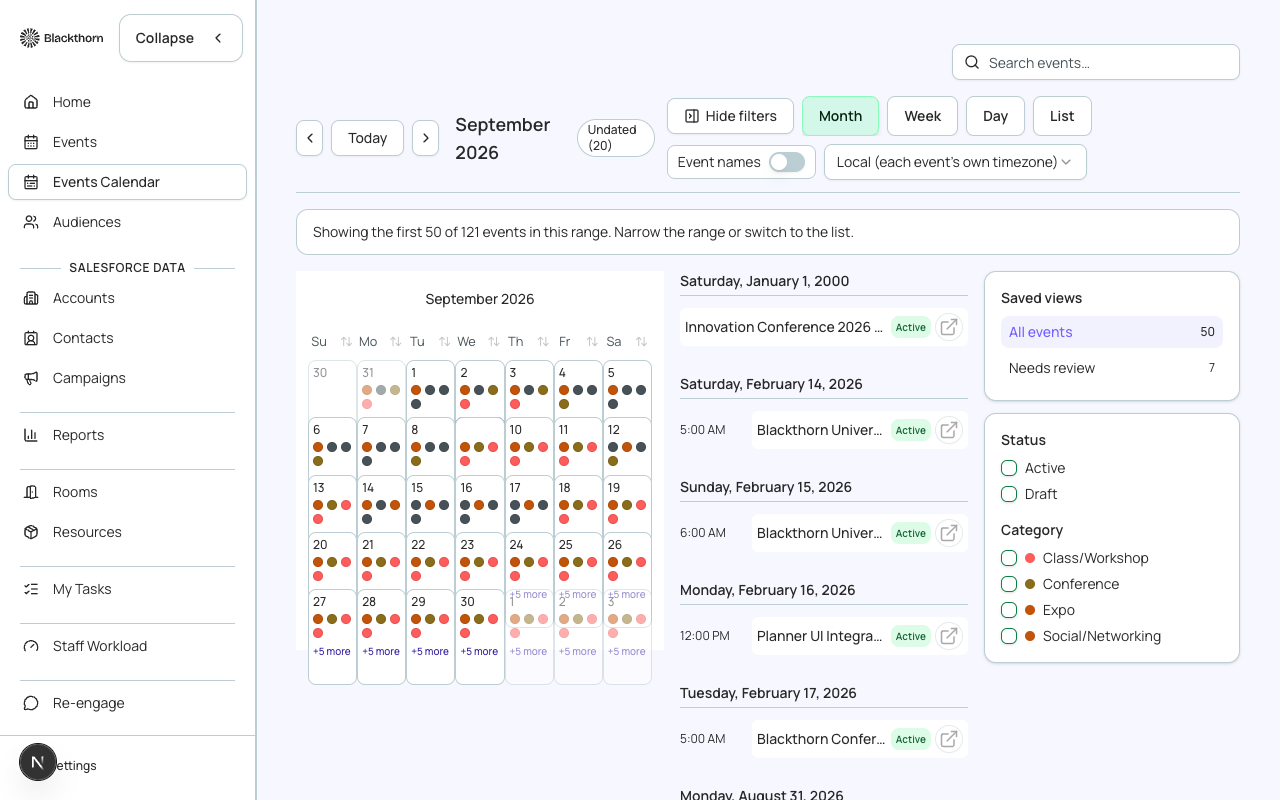
Views and navigation
| Control | What it does | Recommendation |
|---|---|---|
| Month, Week, Day, List | Switches the calendar view. Each Week and Day column is labeled with its weekday and date, and today is highlighted. Event chips show the start time and a one-line name that is cut off with an ellipsis; hover a chip to see the full name. Week and Day hide the hour grid when no event has a time on those days. The List view only shows events running within the dates in its header. | Use Month to see the shape of the quarter, Week or Day to resolve clashes, and List to scan names. |
| Click a date | In Month, click a date number or the empty space of a day to open that day in the Day view. In Week, click a date number in a column header. | Use it to drill from the month overview into one day's schedule. |
| Previous, Next, Today | Moves one period back or forward, or jumps to the period containing today. | Press T to jump to today. |
| Timezone | Local (each event's own timezone) shows each event at its own local time. Your timezone shows every event converted to your zone. A tag, Times in zone, shows which is active. | Use Local for planning venue-side schedules; use Your timezone when comparing events across regions. |
| Undated (n) | A pill that counts events that have no start date. They appear in an Undated section instead of on the grid. | Fix undated events in Salesforce so they land on the calendar. |
| Event details drawer | Click an event to open a drawer with its dates, time, time zone and a Go to event link. All day and Undated are labeled. | Use the link to jump into the event. |
A banner appears when more events fall in the range than can be shown, for example Showing the first n of n events in this range. Narrow the range or switch to the list.
Filters and saved views
| Control | What it does | Recommendation |
|---|---|---|
| Status | Filter to one or more statuses. The options are the statuses that appear in the dates you are viewing. | Choose Draft to find events still being set up. |
| Category | Filter to one or more categories, built the same way from the events in view. | Combine with Status to narrow quickly. |
| All events | The default saved view with no filters. | Click it to reset. |
| My events | Shows only the events you own in Salesforce. | Use it as your daily view. |
| Needs review | Events with a Draft status. | Use it to find events that have not been published or finished. |
| Fundraising only | Events in a category whose name contains fundrais. Shown only when such a category exists. | Use it for the development team's view. |
| Show filters / Hide filters | Opens or closes the filter side panel, which also lists saved views with event counts and a Clear filters button. | Hide the panel on small screens. |
| Active filter chips | Removable chips above the grid show every filter in effect. Remove one with its x. | Check them first if events seem to be missing. |
Saved-view tabs and removable filter chips sit above the grid. If no event matches you see No events match your filters.
Search
Press / to jump to the search box. Type at least 2 characters to search events by name. Choose a result to open it. If a result is hidden by your filters, the filters are cleared so it shows, with a notice. If there are more matches than shown it says More results, refine your search.
Keyboard shortcuts
| Key | Action |
|---|---|
| M, W, D, L | Month, Week, Day, List view |
| T | Jump to today |
| Left and right arrow keys | Move to the previous or next period |
| / | Jump to search |
The view, date, timezone and filters are kept in the page address, so you can bookmark or share a filtered calendar.
The first load for a large org can take a minute; you see Getting your calendar ready. While refreshing you may see the most recent data we have, with a notice that it is refreshing.