Beta & Experimental Features
Budget & Expense
BetaBudget & Expense tracks an event's planned and actual spend. Add budget entries by category, record expenses as they happen, and see estimated vs. actual totals in a summary card that refreshes after every change.
Stage: generally available. Find it under the event's Finance area, then Budget & Expense (the old /budget-expense address redirects there). The related Budget Insights & Alerts add-on is a separate feature and is not generally available.
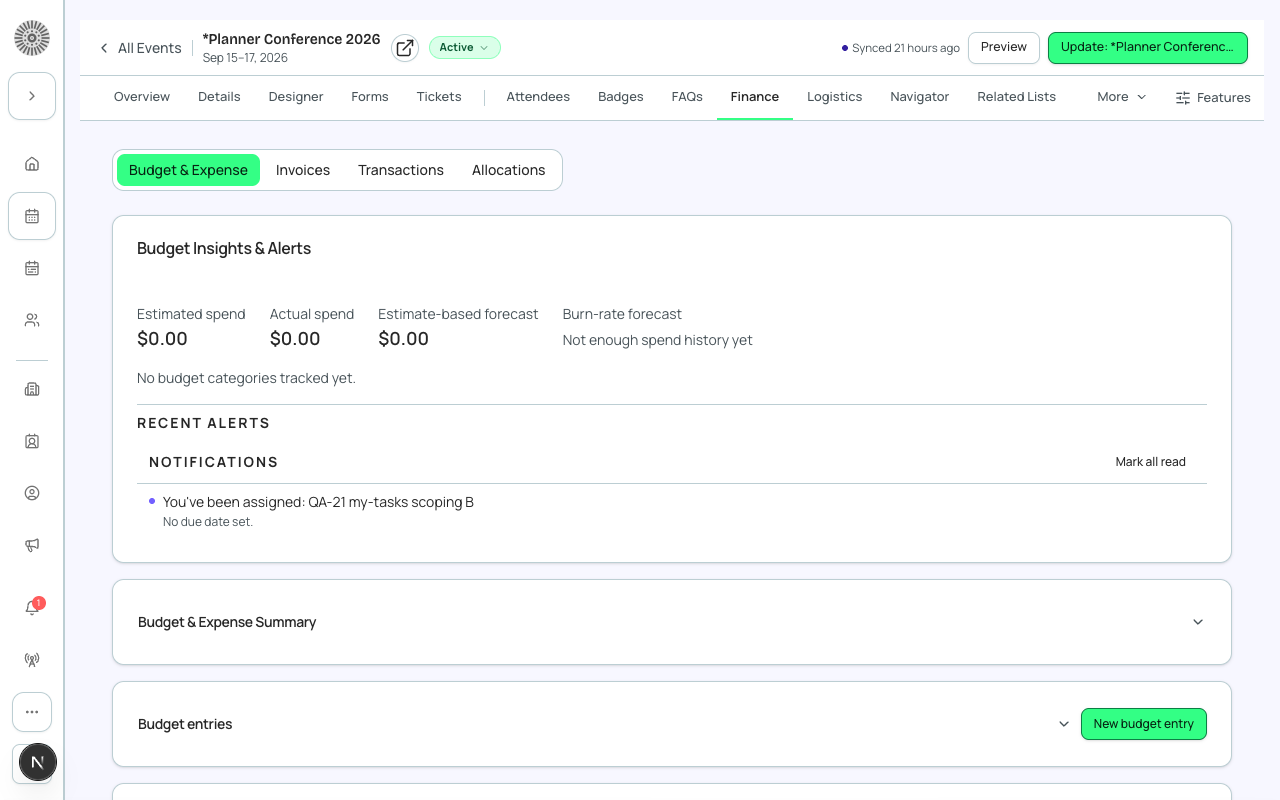
The page layout
- Budget & Expense Summary at the top: a per-category rollup with totals.
- Budget entries: your plan, one row per budget line.
- Expense entries: real spend, one row per payment or bill.
- Each of the three sections can be collapsed with its expand or collapse button.
Budget & Expense Summary
| Item | What it does | Recommendation |
|---|---|---|
| Category budget cells (left) | One editable amount per category: Audiovisual (AV), Catering (F&B), Contingency, Decor, Entertainment, Marketing, Marketing (Social), Other, Planning & Organization, Site Rental. Click a cell, type a number and leave the cell to save. | Use these for a quick top-down budget. If you add a Budget entry for a category, that record updates the category total automatically, so do not enter the same amount in both places. |
| Category expense cells (right) | The matching editable amount per category for spend: the same categories, with Production & Staff in place of Planning & Organization. | Normally leave these to be filled from expense entries; type here only for a quick total. |
| Total Budget | Read-only total of all category budgets. Help text: automatically calculated from related budget fields, but can also be manually entered, and is overridden by any update to a budget field. | Treat it as a calculated number. |
| Total Expenses | Read-only total of all category expenses, calculated the same way. | Compare it with Total Budget before approving new spend. |
| Variance | Total Budget minus Total Expenses, calculated automatically. A positive value is money left; a negative value is over budget. | Check it weekly in the run-up to the event. |
If a category cell cannot be saved you see Couldn't save change. Try again. If the summary cannot load you see Couldn't load budget summary. Try again.
Budget entries
- Open the event, go to Finance, then Budget & Expense.
- In Budget entries choose New budget entry.
- Fill in the fields below and save. The summary card updates automatically.
| Field | What it does | Recommendation |
|---|---|---|
| Name | Label for this budget line. | Name the line by what it buys, such as Main stage lighting. |
| Category | The budget category. Options: Audiovisual (AV), Catering (F&B), Decor, Entertainment, Marketing, Marketing (Social), Production & Staff, Site Rental, Other, Contingency. Other entries, or any custom-added category, roll up into the event's Other totals. | Pick the closest category so the summary and ROI variance report line up. |
| Subcategory | A finer label such as Meals, Lighting, Venue/Room or Speaker Fees. | Optional, but it makes reports much easier to read. |
| Estimated Amount | The planned amount (help text: estimated amount for this expense). | Use your quote or best estimate; update it when the contract changes. |
| Actual Amount | The amount actually spent against this line. | Keep it in step with the expense entries for the same line. |
| Priority | Critical, Important or Nice to have. | Use it to decide what to cut first if you go over. |
| Description | Free-text notes for this line. | Record assumptions, such as 200 guests at 45 per head. |
| Event | The event this line belongs to; filled in for you. | Not applicable. |
The list shows Name, Category, Subcategory, Budget and Actual and can be sorted by any column. Open a row to edit its fields in a side panel. Delete from the row menu asks Delete this budget item? and permanently removes it from Salesforce.
Recording expenses
Record each expense against its category as it is incurred. Actual spend rolls up into the summary card and into the ROI Dashboard's budget variance by category.
| Field | What it does | Recommendation |
|---|---|---|
| Name | Label for the expense. | Use the vendor and what it was for. |
| Amount | The amount of this expense. | Enter it as paid, including tax. |
| Transaction Date | The date the expense occurred. | Use the invoice or payment date. |
| Vendor (Account) | The vendor the expense was paid to, chosen from your Salesforce Accounts. | Always set it. Vendor & PO Tracking matches purchase orders to expenses by vendor. |
| Budget & Expense | Optionally link the expense to a budget entry. Category, Subcategory and Event then fill in automatically when blank. | Link expenses to their budget line so each line's actual spend is easy to trace. |
| Category, Subcategory, Description | Same meaning as on budget entries. | Leave Category blank when linking to a budget entry that already has one. |
The Expense entries list shows Name, Category, Amount, Transaction Date and Vendor. Both lists show 20 rows at a time with Show more, and refresh on their own while data is first loading.
Deleting a budget or expense entry removes the record from Salesforce permanently. If your org does not have the Budget & Expense objects, the page says This object isn't installed in your org.
Budget Insights & Alerts adds forecasting and spend alerts on top of this tab. Invoices, Transactions and Allocations live alongside it under Finance.
Budget entries and expenses are Salesforce records (Budget & Expense and Expense Entry). Totals live on the Event record and are calculated in Salesforce.