Beta & Experimental Features
Tables and Seating
BetaTables & Seating is where you build the table plan for a seated event and put each registered attendee in a seat. The core seat-assignment screen is available to every org: there is no toggle to turn on. Extra tools (floor plan view, dietary filter, generate tables, auto-seat, swap, seat notes) are a separate feature, Advanced Tables & Seating, listed under Coming soon on /beta, and the VIP pairing signals are a third, still-locked feature.
Stage
Tables & Seating is generally available (always on). Advanced Tables & Seating is listed under Coming soon on /beta, with no switch. VIP Seating Adjacency is locked for every org today. The sections below say which is which.
What it does
- Create tables, each with a name and a seat count, and group them into rooms.
- Seat attendees one at a time, in bulk, or a whole attendee group at once.
- Show dietary codes on seat chips so catering can see them at a glance.
- Find any attendee and see which table and seat they have.
- Export the seating list to CSV, and print place cards and table cards.
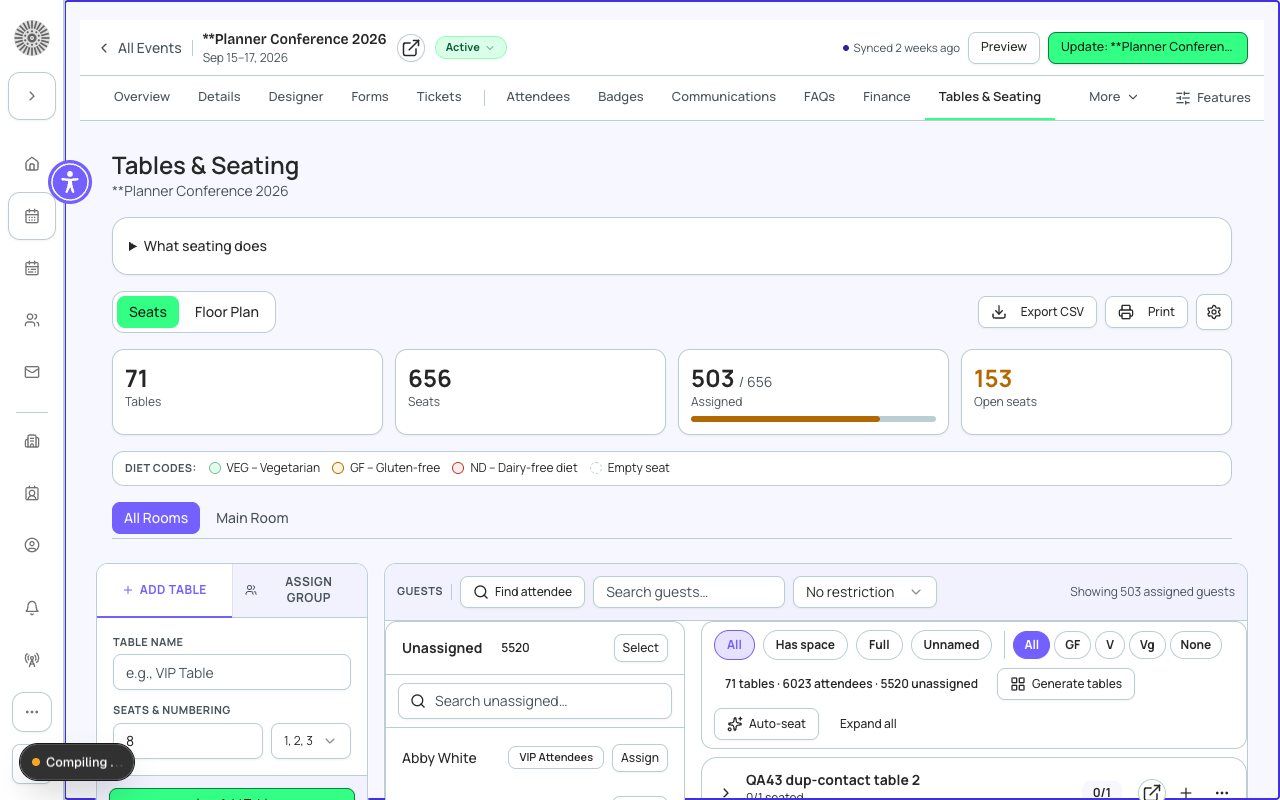
Open it
- Open your event and choose Tables & Seating in the event sidebar. If the tab is missing, your profile may not have access to it (see Admin > Profiles).
- Add tables. Name each one and set its seats (1 to 50 per table). Table and seat records are created in Salesforce.
- Seat attendees (see the table below).
- Choose Export CSV for the caterer or Print for place cards and table cards.
Page controls
| Control | What it does | Recommendation |
|---|---|---|
| Stats row | Shows tables, seats, assigned attendees and rooms, plus open seats. A fill bar shows what share of seats is filled. | Check open seats against your final headcount before you print. |
| Rooms tabs | Tables belong to a room. Pick a room to see only its tables, or All Rooms. | Use one room per ballroom or venue space so tables in different spaces do not get mixed up. |
| Add Table | Creates a table with the name and total seats you enter. | Match seats to the real chairs at the table. Add or delete single seats later if one table is different. |
| Seats & numbering: Numbering format | How new seats are numbered: 1, 2, 3 (numeric); A, B, C (alpha); or 001, 002, 003 (padded numeric, with a padding length). | Use alpha for theatre-style rows, numeric for banquet tables, and padded numeric if you export to a system that sorts text. |
| Settings: Seating unit label | Renames what a seating group is called throughout the page: Table, Section, Row, or Custom text (up to 40 characters, for example Cabana). | Pick Section or Row for non-banquet layouts so the buttons read correctly. |
| Assign Group | Choose a table and an attendee group, then Add group to table to seat every member in the next empty seats. If the table is too small it seats as many as fit and tells you how many were seated. | Use this for companies or families that must sit together. Pick a table with enough empty seats first. |
| Assign selected | Select several unassigned attendees, then choose a table card to seat them in order. A message reports how many were seated and how many are still unassigned. | Use for ad-hoc batches that are not a registration group. |
| Find attendee | Search by name to see Seated at table and seat number, or Unassigned. | Use at the event to answer guest questions. |
| Search guests | Filters the attendee list by name. | Use with Unassigned to work through who still needs a seat. |
| Seat actions | Assign, Swap, Clear or Notes on a seat, plus Rename, Add seat and Delete on a table. Deleting a table or seat returns its attendees to the unassigned list. | Clear a seat before reassigning if you want a clean history. |
| Export CSV | Downloads one row per seated attendee: table name, seat number, attendee name, email, dietary restriction and meal choice. | Send this to the caterer. Re-export after any change; it is a snapshot. |
| Opens Place Cards or Table Cards in a new tab for printing from your browser. | Print after the seating is final; reprint if anyone moves. | |
| Refresh | Reloads attendees and tables from the Salesforce cache. | Use if registrations were added in Salesforce a moment ago. |
Which attendees can be seated
Auto-seat skips attendees whose registration is Declined, Canceled, Rejected or Waitlisted. Manual assignment is not limited that way.
Advanced Tables & Seating (Coming soon)
When Advanced Tables & Seating is released, it adds these tools to the same page. Until then, none of them appear.
| Tool | What it does | Recommendation |
|---|---|---|
| Floor Plan tab | A visual canvas for the active room. Drag tables, add zones (Add zone), and open Floor Plan Setup to set the room width and depth in feet (between 1 and 1000); it shows roughly how many 60-inch tables fit. | Set the room size first so the layout matches the venue. |
| Diet filter and legend | A Filter by diet menu (Gluten-Free, Vegetarian, Vegan and ND) and a legend of the codes VEG, GF and ND (dairy-free). Seat chips are colour-coded. | Filter to one diet to count meals per table. |
| Generate tables | A three-step sheet: Guests (defaults to the registered attendee count, editable), Seats per table, Review. It adds tables and keeps existing ones. | Use for a new event with no tables. Check the summary of tables, seats and empty seats before you confirm. |
| Auto-seat | Previews proposed seating before anything is saved, with seated, unseated and split-group counts and warnings. | Review the preview. It keeps groups together where one table fits them, seats VIP guests at the earliest tables, and warns when a group is larger than any table and must be split. |
| Swap | Swap two seated attendees. Saved together so neither is lost. | Use to move someone without unseating them first. |
| Seat notes | A note box and change history for a seat. | Notes are saved per seat in Forge, not on the Salesforce record. Keep requirements that other systems need in the attendee record. |
Guided workspace is preview only
A three-pane guided workspace (rooms on the left, floor plan in the middle, table details on the right, with layout templates Banquet, Gala, Cabaret, Classroom, Theatre, U-shape, Boardroom and Cocktail, saved templates, and undo and redo) exists in the product but only loads when a preview flag is on for the deployment. It is not something an admin can switch on from /beta today.
VIP Seating Adjacency
VIP Seating Adjacency would show, next to a seat assignment, whether an attendee has sat with a VIP at past events (Repeat pairing or New pairing). It is a separate feature and is locked for every org today; see its own guide page.
Current limitations
- Each table holds 1 to 50 seats in the Add Table form.
- Seat notes are saved in Forge only; they do not appear on the Salesforce seat record.
- The floor plan and layout canvases are meant for a desktop browser; use the seats list on a phone.
- Access follows your profile: a profile without the Tables nav item cannot open any Tables & Seating page, including print pages.
Salesforce note
Tables and seats are Salesforce records (the Table and Seat objects of the Events package), and an assignment sets the seat's attendee. Forge reads them just in time and writes changes straight back, so a seat change shows up in Salesforce. Seat numbering format and the seating unit label are stored per event in Forge.