Event Tour
Attendees and Registrations
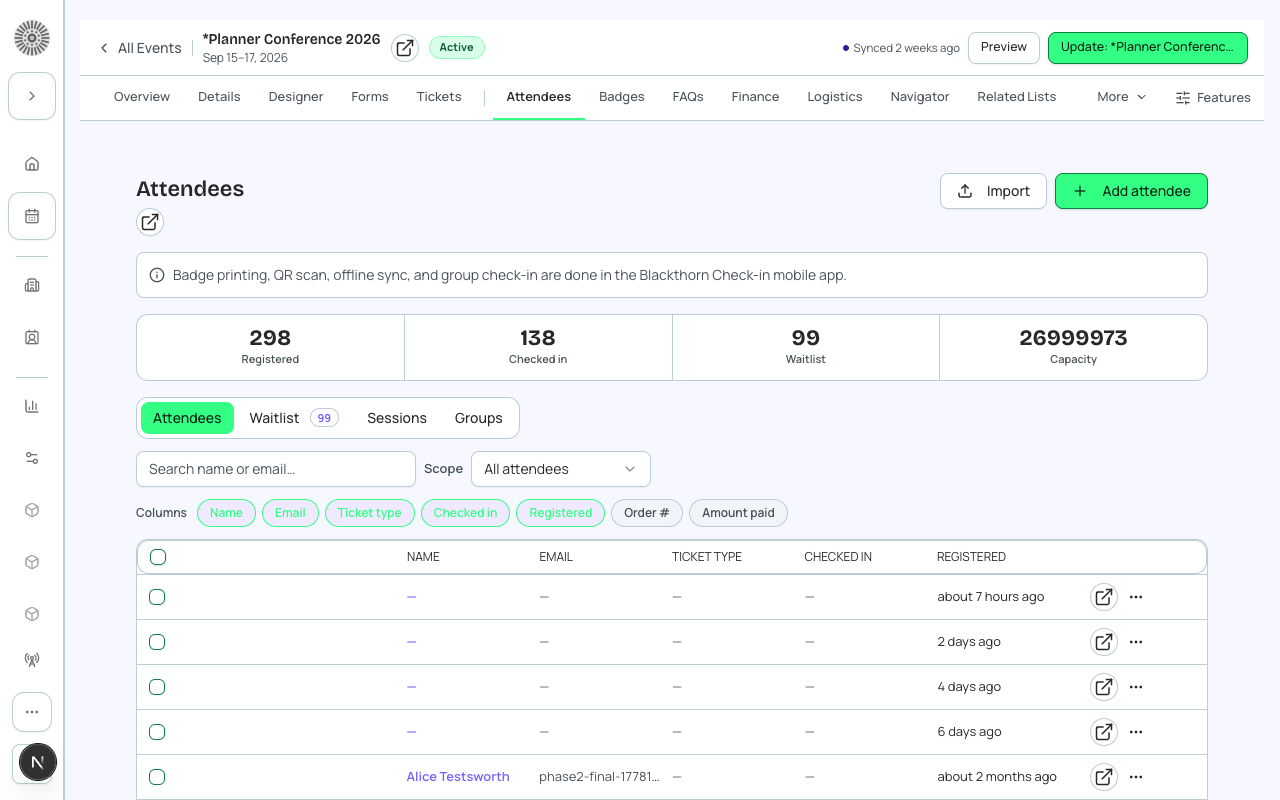
The Attendees tab is your live view of who is registered. It shows every attendee record for the event with registration and attendance status, ticket and order details, and lets you search, filter, edit in bulk, cancel, import, export, and manage the waitlist, sessions and attendee groups.
Open an attendee to see the Details tab, which shows a concise default set of fields (name, email, phone, company, title, statuses, event item and check-in time). Empty fields are hidden by default; tick Include empty fields to show them. The Advanced tab holds the full field list and Customize Fields.
Attendee names, email addresses, phone numbers and mailing addresses are stored in Salesforce (on the Attendee record and its linked Contact or Lead). Forge fetches this data as needed and does not keep it in its own database. Exports and downloads contain personal data, so handle them securely.
The header and summary strip
| Item | What it shows or does | Recommendation |
|---|---|---|
| Registered | Attendees whose Registration Status is Registered. Waitlisted, Invited and Canceled are not counted. | This is the number to compare against capacity. |
| Checked in | Attendees whose Attendance Status is Attended. | Watch it during the event to track arrivals. |
| Waitlist | Attendees whose registration status is Waitlisted - Pending or Waitlisted - Rejected. | If it grows, consider raising capacity or adding a session. |
| Capacity | The event's capacity, shown only when one is set. | Set it on Event Info. |
| Export | Downloads a CSV of the attendees in the current view. With rows selected it exports only those; otherwise it exports all matching rows, loading further pages first. Columns: Name, Email, Ticket type, Status, Registered. The button is off when nothing matches. | Filter first (ticket or search), then export. Treat the file as sensitive. |
| Import | Opens the import page (see below). | Use for attendees you already hold elsewhere. |
| Add attendee | Opens a form built from your organization's Attendee layout, with the event already filled in. It creates the Attendee record only. | Use it to record a person you have already taken payment from. To sell a ticket, use checkout or the Salesforce flow your team already uses. |
When anyone is To Invite, Invite all To Invite (N) appears next to Import. It sends invites to every To Invite attendee on the event, not only the rows loaded on screen, in batches of 200.
The Blackthorn Check-in mobile app handles badge printing, QR scanning, offline sync and group check-in. A note at the top of this tab points staff there.
Attendees tab
Search and filter
| Control | What it does | Recommendation |
|---|---|---|
| Search name or email | Filters the list by name or email as you type. | |
| Scope: All attendees | Everyone. | |
| Scope: Registered / Checked in / Not checked in | Registered shows only registered attendees (not waitlisted); Checked in is Attendance Status Attended; Not checked in is anything else. | Click the Registered, Checked in or Waitlist count above the tabs to jump straight to that list. Use Not checked in during an event to find no-shows to contact. |
| Scope: Ticket: <name> | Only attendees who bought that ticket. If Salesforce returns none, a banner asks you to confirm the Attendee-to-Ticket link is populated. | Use it to check sales for one ticket tier. |
| Clear | Resets search and scope. | |
| Columns | Choose which columns show: Name, Email, Ticket type, Checked in and Registered by default; Order #, Amount paid and Attendee group can be added. Your choice is remembered in your browser. | Add Order # and Amount paid when reconciling with Finance. |
The list loads 20 rows at a time (Show more loads further rows). Click a row to open the attendee. The row menu has View details, and Delete which permanently removes the attendee after you type their name to confirm; deleted records stay in the Salesforce Recycle Bin for 15 days.
Bulk actions
Tick one or more rows and a bar appears at the bottom.
| Action | What it does | Recommendation |
|---|---|---|
| Mark Registered | Sets Registration Status to Registered for the selected attendees. | Use it to accept people who were Invited or Pending. |
| Send invite | Moves the selected To Invite attendees to Invited. Selected people who are not To Invite are skipped and the dialog says how many. The invite email itself is sent by a Salesforce flow, and the dialog warns (Invite email flow inactive) when that flow is not active; you then confirm a second time to update the status only. The result shows how many were invited and how many failed. | Turn the Salesforce invite flow on first, or no email goes out. |
| Mark Attended | Sets Attendance Status to Attended. | Use it to catch up check-ins after an offline event. |
| Edit Fields | Choose a field, enter a value, add more fields with Add another field, or Clear this field (sets it blank for every selected attendee). Update applies to all selected. | Use for bulk changes such as a table number, tag or ticket. |
| Send Guest Ticket Invite | Sends a guest-ticket invite link to the selected attendees. People without an email, who are not eligible, or who are at their limit are skipped; the result shows sent, skipped and failed counts. | See the Guest Tickets page. |
| Cancel | Cancels the selected registrations. The confirmation has a Notify attendees switch, on by default; turn it off to cancel without the cancellation email. If some fail, a summary shows how many succeeded and failed. Bulk cancel changes status only and does not refund. | Refund first from each attendee's page, or in Finance, if money is owed. |
If the selected attendees belong to more than one invoice, a banner warns that changes will not merge the invoices and points you to the consolidated statement.
Registration and attendance statuses
Each attendee has two separate statuses: where they are in registration, and whether they showed up.
| Registration Status | How Forge treats it |
|---|---|
| Registered | Confirmed attendee. Counted as Registered and toward capacity. |
| Pending | In progress, not yet Registered. Not counted as Registered. |
| Awaiting Approval | Held for an approval decision. Grouped with Waitlisted in Forge's saved Waitlisted filter, but not counted in the Waitlist number above. |
| Invited / To Invite | Invited, or marked to be invited, but not Registered yet. To Invite is also one of Forge's saved attendee filters. |
| Lead | A prospect who is on the event but not Registered. |
| Waitlisted - Pending | On the waitlist, waiting for a place. |
| Waitlisted - Rejected | Taken off the waitlist; not offered a place. No registration confirmation is sent. |
| Declined | The person declined. No registration confirmation is sent. |
| Rejected | Registration not accepted. No registration confirmation is sent. |
| Canceled | Registration canceled; the seat is freed. No registration confirmation is sent. |
| Attendance Status | Meaning |
|---|---|
| Pending | Not yet checked in. |
| Attended | Checked in. Set automatically when the person is checked in through the mobile app, or by you with Mark Attended. |
| No-Show | Did not attend. Set manually or through a Salesforce flow; Event Settings can set it automatically after the event with Auto-update Attendance to No Show. |
Waitlist tab
Shows attendees waiting for a place, with a count on the tab. Search, and filter by status: All statuses, Waitlist · pending, Waitlist · approved or Rejected. A line at the bottom shows 'N on waitlist · M pending approval'.
| Control | What it does | Recommendation |
|---|---|---|
| Approve (per row) | Sets the attendee's Registration Status to Registered. | Approve in the order people joined (the Joined column) so it is fair. |
| Send message (bulk) | Opens Notify Waitlisted Attendees: choose an email template and Send. The result shows how many were sent and skipped. | Use it to tell people a place has opened, or to update them on their position. |
| Export CSV (bulk) | Downloads the selected waitlisted attendees. | |
| Waitlist queues | A card for each waitlist queue (the event-level queue and each ticket or session queue) with 'N of limit waitlisted'. Close queue marks the queue Closed in Salesforce; people already on it are not affected. | Close a queue when you no longer want new people joining it. |
Automatic promotion is controlled in Event Settings by Waitlisting: Automate. When it is on and an attendee moves from Registered to Canceled (or another not-attending status), the next attendee in the applicable waitlist moves to Pending. With it off, promote people yourself with Approve.
Sessions tab
A list of the event's sessions with date and time, capacity and counts. Search for a session, expand a row to see its attendees (Name and Status), View attendees, or View full list. For sessions with a waitlist you can select people and Move to Registered or Reject. If the Session Attendee object is not installed in your org, session waitlist management is unavailable.
Groups tab
Attendee Groups keep related registrations together, for example a company that registered several people on one invoice. The list shows each group's name and member count with Manage. New group asks for a group name and Create. A group page lists the attendees in the group (Attendees in this group), lets you add attendees, Rename the group (1 to 80 characters) or Delete it (deleting removes only the group record, not its attendees), and shows the Bill To and Invoice the group came from. If groups are not configured in your Salesforce org, a message says to contact your admin.
Importing attendees
Import adds people you already have to this event. Choose a source on the import page.
| Source | How it works | Limits and notes |
|---|---|---|
| From Spreadsheet | Upload a CSV, map each column (Source Column to Target Field, or Skip), preview, then import. Email must be mapped. | Maximum 5 MB and 5,000 rows per file; split larger files. Row errors are listed with the reason, such as invalid email or duplicate. |
| From Campaign | Pick a Campaign and choose Link campaign (or use the campaign already linked to the event), preview total members and a sample, then import. | Only the first 2,000 members of a larger campaign are imported. A campaign linked to another event opens a prompt naming that event; choose Link anyway to link it here too, or Cancel. |
| Contacts & Leads | Search Contacts and Leads by name, tick the ones to import. | A prompt warns when selected contacts are affiliated with a sponsor; choose Import anyway or Cancel. |
| Account | Search an Account and add every Contact on it. Choose the status they start with: To Invite, Invited or Registered. Contacts without an email are shown as Skipped and not added; people already on the event are counted as duplicates instead of added again. | Use for a company that is sending a whole team. Add is off when the Account has no contacts. |
| Other Event | Pick another event and import its attendees. | Use for repeat events. |
| Salesforce Report | Search a Salesforce report and import its records. | Use when your list already lives in a report. |
Attendee page
Click a row to open the attendee. The page shows the attendee's details, sessions, form responses, transactions and activity, with quick actions.
| Action | What it does | Recommendation |
|---|---|---|
| Resend Receipt / Send Itinerary | Emails the receipt or itinerary to the attendee after you confirm. Choose a Template if you have more than one; otherwise the default is used. | Use after an attendee changes sessions. |
| Receipt PDF / Itinerary PDF | Downloads the document. | Use for attendees who ask for a copy. |
| Send Reminder / Custom message | Opens the composer for an event reminder or a free-form message. | |
| Send Invite / Resend confirmation | Sends the invitation or registration confirmation again. | Use when an attendee cannot find the original email. |
| Charge | Take a payment for the attendee. | Use for balances still due. |
| Cancel registration | Cancels that attendee. Notify attendee is on by default. 'Also refund this attendee' appears when there is a refundable transaction: it refunds the most recent transaction, and you can enter a smaller amount (up to what remains). If the cancellation works but the refund fails, Forge tells you. | Cancel from here when a refund is needed; bulk cancel does not refund. |
Manual registration and walk-ups
To register someone who did not use the public page, use Add attendee (creates the Attendee record) or import them. Registering on behalf of someone with tickets, sessions, group and payment in one flow, and walk-up registration at check-in, are beta features; see the Beta section.
| Forge | SF Object | SF Field |
|---|---|---|
| Attendee first name | conference360__Attendee__c | conference360__First_Name__c |
| Attendee last name | conference360__Attendee__c | conference360__Last_Name__c |
| Attendee email | conference360__Attendee__c | conference360__Email__c |
| Registration status | conference360__Attendee__c | conference360__Registration_Status__c |
| Attendance status (Attended / No-Show) | conference360__Attendee__c | conference360__Attendance_Status__c |
| Linked Contact | conference360__Attendee__c | conference360__Contact__c |
| Linked Lead | conference360__Attendee__c | conference360__Lead__c |
| Parent event | conference360__Attendee__c | conference360__Event__c |