Event Tour
Sessions
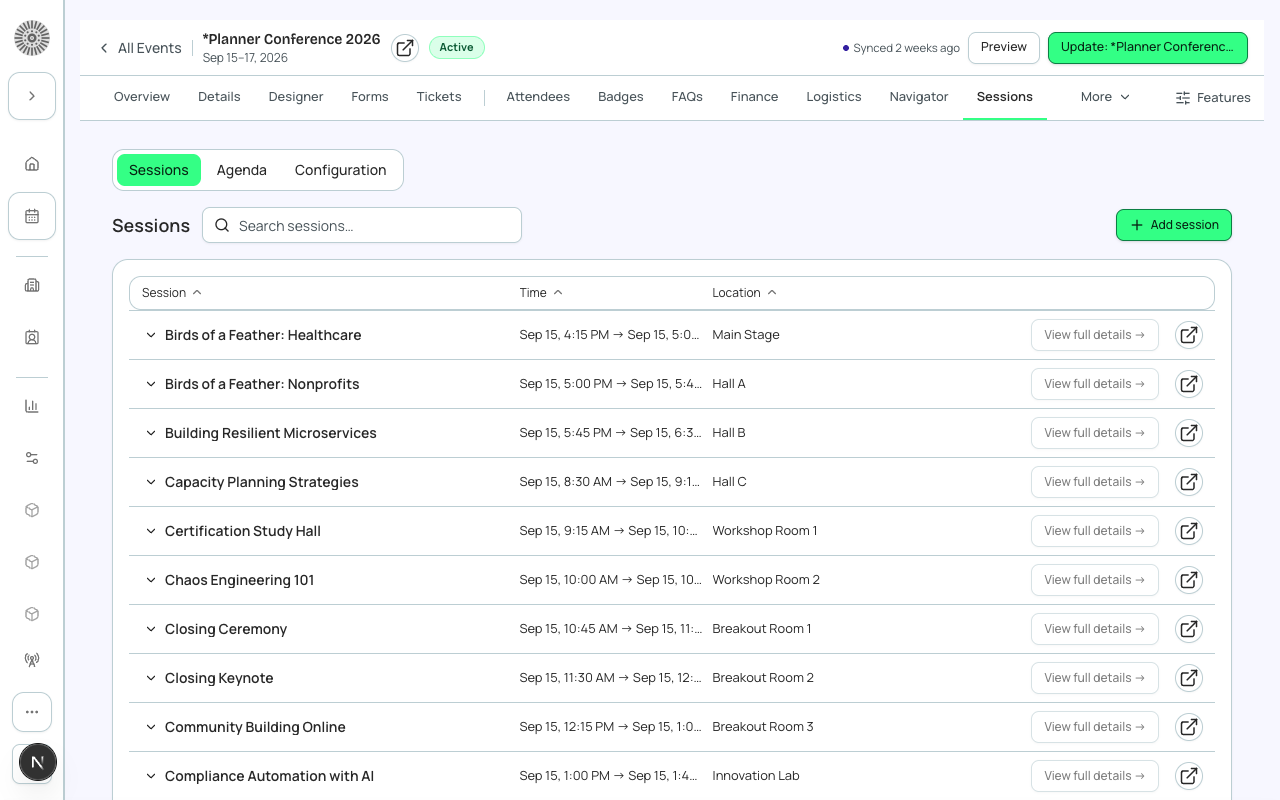
Sessions break an event into individual segments such as keynotes, workshops and breakouts. Each session has its own time, location, capacity, waitlist, speakers and tracks. The Sessions tab has five views: Sessions (the list and editor), Agenda (a drag-and-drop schedule), Templates (reusable session setups), Session rules (selection limits and time blocks) and Configuration (rules and ticket coverage).
Session model
In Salesforce a session is a Session record linked to its event. Registrants choose sessions during checkout, and which sessions they can choose depends on the tickets the session is linked to. A session can also have its own form, its own fee and its own waitlist. Screen readers announce each session by name as it is added or removed on the checkout sessions step. Session dates and times there follow the language of the page, not the visitor's browser.
In the Planner Conference 2026 demo org, sessions are modeled as separate child event records (a quirk of that org's historical setup). Sessions you create in your own events follow the standard model described here.
Sessions view
A list of sessions grouped by day, with Unscheduled sessions in their own group. Search, expand a row for details, or click View full details to open the session. Add session creates a new one, and Manage tracks edits the track list (see the Tracks page for visibility, assigning sessions and track attendees).
| Item | What it shows or does | Recommendation |
|---|---|---|
| Session, Time, Location columns | Name, scheduled time and room or location for each session. | |
| Expanded row: Start, Room, Registered, Capacity | Start time, room, the number registered and the capacity (Unlimited when none is set). | Use Registered against Capacity to spot sessions to move to a bigger room. |
| Conflict badge | A scheduling conflict was found: a room conflict (same room, overlapping time) or a track overlap. Soft warnings do not block saving. | Resolve conflicts before publishing the agenda. |
| Form badge (Required / Optional) | The session has a form attached and whether it is required. | Manage it from the Forms tab. |
| Multi-select and Bulk update | Select several sessions to bulk update Track, Room, Start and End. Enter at least one field; only the fields you fill in are changed. | Use it to move a whole track to a new room or to shift start times. |
| Save as template | Saves the session as a reusable template. | Save recurring formats, such as 'Keynote' or 'Workshop', once. |
| Delete | Permanently deletes the session after you confirm. | If people are registered, cancel the session and notify them instead. |
If the Sessions tab is turned off or limited on your public event page, a banner tells you: 'Sessions tab hidden on your public event page' (the agenda is still live in the attendee app and portal) or 'Sessions tab visible only after registration'. Change it in Event Settings with the Open Event Settings link. Event Settings records can be shared by several events, so changing it may affect other events.
Creating or editing a session
- Click Add session on the Sessions view. A New Session panel opens (or choose a template first when your org has templates).
- Enter the session name, start and end. End is required and must be after the start. Pick a Duration (30 min, 45 min, 1 hour, 90 min, 2 hours or 3 hours) to fill in the end automatically.
- Add location, link, capacity, waitlist, quantity limits, speakers, form, tracks and description as needed (see the table).
- In create mode choose Eligible Tickets and, optionally, switch on Paid session.
- Click Save Session. If the dates fall outside the event window the session is still saved, with a warning telling you to check the dates.
| Field | What it does | Recommendation |
|---|---|---|
| Session Name | The name attendees see. A separate Display Name field, when present on your layout, overrides it for attendees. | Keep names short enough for a mobile agenda. |
| Start / End | Date and time in the event's timezone. | Keep sessions inside the event's dates; sessions outside them show a warning. |
| Duration | A quick-set for the end time: 30 min, 45 min, 1 hour, 90 min, 2 hours, 3 hours. | Use it for standard slot lengths, then edit the end directly for odd ones. |
| Location / Room | Free text for the room or directions, such as 'Room 261' or 'Building A, Floor 2'. Shown for in-person and hybrid events. | Put the room name attendees will see on signage. |
| Room (Resources) | Pick a room from your organization's room library when Resource Management is enabled. Room and resource double-bookings, including across events, show a soft conflict warning. | Use it when you share rooms across events to catch double-bookings. |
| Session Link | The meeting link for the session. Placeholder says it is auto-generated by your webinar platform. Shown for virtual and hybrid events. | Leave it empty when a webinar account is connected. |
| Capacity | Maximum registrants for the session (Salesforce calls it Quantity Available). Blank means unlimited. Cannot be negative. | Set it to the room size so the session shows Full instead of overbooking. |
| Waitlist (switch) and Max Waitlist Size | When on and the session is full, attendees can still register and are waitlisted. Max Waitlist Size appears when Waitlist is on; blank means unlimited. | Turn it on for popular sessions. |
| Minimum Quantity / Maximum Quantity | The fewest and most tickets a registrant can select for this session (per cart). | Leave blank for one-per-person sessions or set Maximum Quantity to 1. |
| Session Speakers | Search and add speakers from the event's Speakers list. A speaker appears with their name, and you can remove them. If there are none, add one in the Speakers section first. | Add speakers here so they are linked to the session; manage their profiles on the Speakers tab. |
| Form | Attach a form asked when the session is chosen. Search by name; None removes it. | Use for session-specific questions such as a workshop prerequisite. |
| Tracks | Pills for each track on the event. Click to toggle. | Use tracks to filter the agenda by theme, such as Engineering or Leadership. |
| Description | Rich text description shown to attendees. | Say who the session is for and what attendees will take away. |
| Eligible Tickets (create only) | All tickets (default) offers the session on every ticket. Specific tickets lets you search and choose which tickets include it. | Pick Specific tickets for VIP-only or add-on sessions. After creation, change links from the ticket (Sessions on a ticket) or from Session coverage. |
| Paid session and Session Fee (create only) | Marks the session as paid and sets its fee. | Use for paid workshops that are not part of general admission. |
| Save as template | Saves this configuration as a template (not tied to any event). | Do it before you tweak the details, so the template is generic. |
If creating the session cannot link it to the selected tickets, Forge tells you straight away ('Ticket assignment partially failed: <names>'), and registrants will not see that session on those tickets until it is linked.
Fields beyond these (for example extra fields added by an admin) appear read-only on the form. The full session page uses your organization's Session layout.
Session detail page
- Details: the session fields from your layout. Schedule, Room, Track and Form are summarized at the top.
- Session attendees: who is registered. Select attendees and mark them Attended, No Show or Excused in bulk, or per person. Attendance status shows Not Marked until set. Add attendee and Remove from session are available.
- Form answers: the session's form submissions, with a link to the registration answers.
- Communications: email this session's registrants. Choose Simple or Design, set Subject, Preheader and Message, insert merge fields, Send test, then Send Now. The audience is the session's registrants only.
Agenda view
The Agenda Builder is a visual timeline. The left panel lists unscheduled sessions (search, drag to schedule, or Set time). Drag a session onto a lane to schedule it, drag within the timeline to move it, or use Move session (choose a start time and lane/room, then Save move) from the keyboard. Moving a session keeps its length (a session without an end time is placed as 45 minutes).
| Control | What it does | Recommendation |
|---|---|---|
| Day tabs | One tab per event day; a note shows the day and its hours. | Check each day for gaps. |
| Filter by track / Filter by room | Show only one track or room. | Use while resolving conflicts. |
| Layout: Day view or Compact | Switch between the full timeline and a denser layout. | Use Compact for long days. |
| Prevent overlap | Prevents two sessions overlapping in the same lane. A move that would overlap is rejected. | Turn on when each lane is a room. It is the same setting as Prevent session overlaps on Configuration. |
| Lane cards | Each session shows its track, registered / capacity (or registered when there is no limit), remaining and waitlisted counts. | Watch remaining counts to decide when to open a second session. |
| Preview agenda | Shows the agenda as attendees will see it. | |
| Publish | Makes the agenda visible to attendees ('Agenda published — attendees can now see it'). Needs an Event Settings record for the event. The button shows Published once live. | Publish after you resolve conflicts; click Publish again after edits so attendees see them. |
| Refresh and Manage sessions | Reload the data, or jump back to the list. | |
| Last saved | Shows when changes were last saved. |
Templates view
Session templates are reusable session setups not tied to any event. Add template creates one with the same fields as a session (without event-specific parts such as speakers and tickets). When you add a session you can choose a template to prefill it. Deleting a template does not affect sessions already created from it.
Session rules view
Session rules limit how many sessions an attendee can pick from a group, for one ticket. A Time Block rule groups sessions that run at the same time; a Content Group rule groups sessions by topic or track. Add rule creates one and Edit changes its name, type, minimum, maximum and Mutually exclusive setting. Recalculate time blocks creates Time Block rules for every session that has a start time and is not in a rule yet: sessions starting within 15 minutes of the previous one share a block, and sessions already in a rule are never changed. The button is disabled when there are no ungrouped sessions with start times.
| Setting | What it does | Recommendation |
|---|---|---|
| Min and Max | The fewest and most sessions an attendee can choose from the rule. Leave blank for no limit. Max cannot be lower than Min. | Set Max to 1 for sessions that run at the same time. |
| Mutually exclusive | Attendees can choose at most one session from the rule. Max must be 1 or blank when it is on. | Use it for competing breakouts. |
| Recalculate time blocks | Creates one Time Block rule per ticket and block, and moves the ungrouped sessions into it. Run it again after adding sessions; existing groups stay as they are. | Review the new rules and set Min and Max. |
Configuration view
| Setting | What it does | Recommendation |
|---|---|---|
| Prevent session overlaps | Block conflicting registrations: when on, an attendee cannot register for overlapping sessions. | Turn on for conferences where attendees physically cannot be in two places. |
| Capacity thresholds (switch and number) | When on, checkout tells the registrant how many spots are left once the remaining count drops to the number you set. Shows 'Not available in this Salesforce org' if your package lacks the fields. | Set it to about 10 to prompt undecided attendees. |
| Warn on unlinked tickets | Flags sessions that are not linked to any ticket. | Leave on while building the agenda so you do not forget to link sessions. |
| Session coverage (Ticket Alignment) | Lists sessions without ticket links with a suggested ticket: Auto-link suggestion, Choose manually, Assign selected and Assign All. Shows Healthy when every session has a ticket. | Run Assign All once for a straightforward event, then fix exceptions by hand. |
| Required Sessions | Per ticket and session pair, mark a session Required so it is part of the ticket at checkout. | Use for a mandatory opening session. |
Linking sessions to tickets
You can restrict a session to certain tickets, for example a 'VIP Workshop' session only for VIP and Platinum tickets. A new session is offered on every ticket by default, whichever page you create it from (the event wizard, the Sessions list, or Add session); narrow it by choosing Specific tickets at creation, or edit the links later from the ticket's Assign Sessions card or the bulk assign dialog on the Tickets tab.
Session reporting
Reporting shows session popularity: enrollment count per session, percentage of capacity filled, and a breakdown by ticket type. Use it to find sessions that need a bigger room or a repeat slot.
| Forge | SF Object | SF Field |
|---|---|---|
| Session name | conference360__Session__c | Name |
| Parent event | conference360__Session__c | conference360__Event__c |
| Start date / time | conference360__Session__c | conference360__Start_Date__c + conference360__Start_Time__c |
| End date / time | conference360__Session__c | conference360__End_Date__c + conference360__End_Time__c |
| Capacity (Quantity Available) | conference360__Session__c | conference360__Maximum_Registrants__c |
| Location / Room (free text) | conference360__Session__c | conference360__Room_Text__c |
| Room (Resources lookup) | conference360__Session__c | conference360__Room_Lookup__c |
| Session link | conference360__Session__c | conference360__Webinar_URL__c / conference360__Join_URL__c |
| Waitlist / Max Waitlist Size | conference360__Session__c | conference360__Waitlist_Enabled__c / conference360__Waitlist_Capacity__c |
| Minimum / Maximum Quantity | conference360__Session__c | conference360__Minimum_Quantity__c / conference360__Maximum_Quantity__c |
| Description | conference360__Session__c | conference360__Description__c |
| Prevent session overlapping (event) | conference360__Event__c | conference360__Prevent_Session_Overlapping__c |