Event Tour
Forms
The Forms tab controls the questions registrants and attendees are asked. You build or choose forms here, decide where in the journey each one appears (before checkout, after checkout, after the event), optionally give individual tickets and sessions their own forms, and review the answers. Forms are stored in Salesforce, and Forge never keeps form answers in its own database.
Removing a form from an event only detaches it from that event. The form stays in the Forms library and on any other event that uses it; delete a form from the library itself.
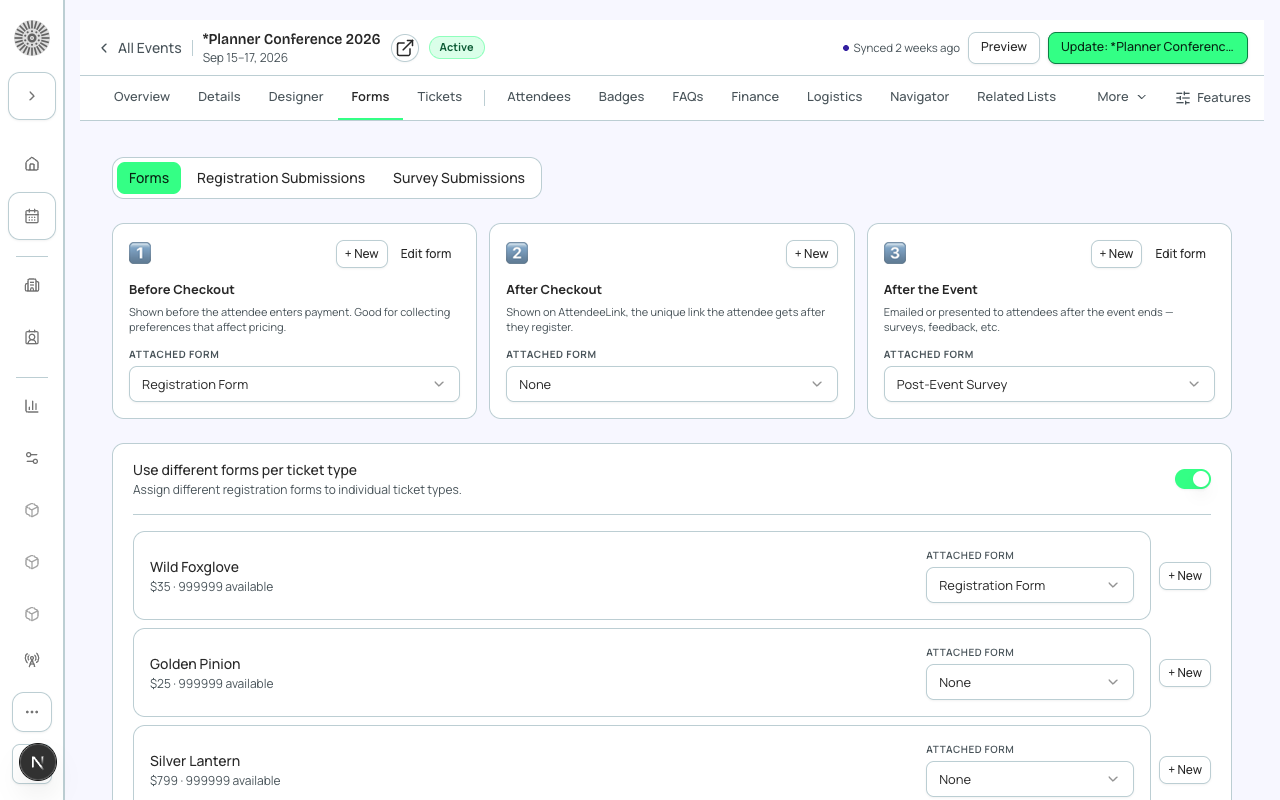
The three sub-tabs
| Sub-tab | What it shows | Use it to |
|---|---|---|
| Forms | Forms on this event, the three attachment points, per-ticket and per-session forms, and the form builder. | Create and attach forms. |
| Registration Submissions | The answers people gave. Filter by form, switch between By attendee and By question, search, export CSV, and open the Salesforce record. | See and export what registrants answered. Select a bar in the answer distribution to filter to that answer. |
| Survey Submissions | Answers to your post-event survey forms. | Review feedback after the event. See the Surveys page for sending surveys. |
Forms on this event and the form library
The top of the Forms sub-tab lists every form this event uses, with where it is attached (Ticket: <name>, Session: <name>, or an attachment point), when it was last updated, and an 'Also used by N other events' note you can open to see which. Each row has Duplicate and a link to the form in Salesforce. With no forms yet you can choose + New Form or Browse form library.
| Action | What it does | Recommendation |
|---|---|---|
| + New | Starts a blank form and opens it in the inline builder. Give it a name and Save. Each attachment card has its own + New button. | Name forms by purpose (for example 'Dietary and accessibility') so they are easy to find in the library. |
| Browse form library | Opens the Form library: search, then Use this form to attach one you built earlier. | Reuse a form instead of rebuilding it for every event. |
| Use a copy / Duplicate | Creates '<name> (copy)' in your library and attaches that copy. Translations are copied too; any that cannot be copied are reported. | Use a copy whenever the form is shared and you want to change it for this event only. |
| Used by other events warning | Choosing a form that other events already use asks you to confirm, because changes you make apply to every event using it. | Click Use anyway only when you want the change everywhere. |
| Delete form | Deletes the form from Salesforce after you confirm. | Detach and duplicate rather than delete when other events share the form. |
Where forms are attached
Three cards control the main forms. Each has a form picker (None, or an existing form), + New, Edit form, Duplicate and Delete. The picker lists forms of the matching type first, with other types in an Other form types group.
| Attachment point | When attendees see it | Form type | Recommendation |
|---|---|---|---|
| Before Checkout | Before the registrant enters payment. | Pre-registration | Ask the questions that change what they can buy or how you will serve them: dietary needs, t-shirt size, accessibility, which track they want. |
| After Checkout | On Attendee Link, the unique link the attendee receives after registering. | Post-registration | Ask for things you do not need to complete the purchase: bio, headshot, travel details. This keeps checkout short. |
| After the Event | Emailed or presented to attendees after the event ends. | Survey | Use for feedback and net promoter style questions. |
Keep checkout short. Every Before Checkout question is a chance for someone to abandon. Move optional questions to After Checkout, where they do not block the purchase.
Per-ticket forms
Turn on Use different forms per ticket type to assign an extra form to individual tickets. Attendees with that ticket answer it in addition to the event's form. The switch turns itself on if tickets already have forms, with a note saying so. Each ticket row shows its price and quantity and a picker, with an overview of which attendee fields that ticket already collects (required or optional) so you do not ask twice.
Use it when one ticket needs information the others do not, for example a student ID for the Student ticket or a company VAT number for a Corporate ticket. Products and donations attach theirs from the item itself (Collect additional info on the Tickets tab).
Per-session forms
Turn on Use different forms per session to assign a registration form to individual sessions, so the questions are asked when someone selects that session. You can select several sessions, choose a form and Apply, or Clear forms; failures are reported per row with Retry failed. If the switch is unavailable, per-session forms are not enabled in your Salesforce org.
Use it for sessions that need their own questions, such as a workshop prerequisite or a lunch choice. A banner appears if your public event page hides the Sessions tab (Always, Post-Registration or Hide in Event Settings), because attendees may then never see the sessions.
The form builder
Edit form (or + New) opens the builder inline, so you can save back to Salesforce without leaving the page. The builder has a field library on one side, the form with drag-to-reorder questions and sections, a Preview form button, Save with unsaved-changes warning and Discard changes, and Clone this form, Translate All and View responses buttons.
Form types
| Form type | Where it is used |
|---|---|
| Pre-registration | Before Checkout. |
| Post-registration | After Checkout on Attendee Link. |
| Survey | After the Event; surveys. |
Question types
These are the types you can pick for a new question. Existing Phone, Consent and Signature questions keep working but are no longer offered for new questions.
| Type | What the registrant sees | Settings available |
|---|---|---|
| Text | One-line text. | Required, Default Value, Help, Salesforce mapping |
| Long Text | Multi-line text. | Required, Default Value, Help, Salesforce mapping |
| Email address with format checking. | Required, Default Value, Help, Salesforce mapping | |
| Number | Numeric input. | Required, Default Value, Help, Salesforce mapping |
| Date | Date picker. | Required, Default Value, Help, Salesforce mapping |
| URL | Web address. | Required, Default Value, Help, Salesforce mapping |
| Picklist | Choose one option from a list. Enter options one per line. | Required, Default option (chosen from your options), Help, Options, mapping |
| Multi-Select Picklist | Choose several options. Enter options one per line. | Required, Default option, Help, Options, mapping |
| Checkbox | A single tick box. | Required, Default Checked (Yes or No), Help, mapping |
| Big list | Choose from a very long list, such as countries or companies, using a Big List group or a list you type in (one option per line). | Required, Help, Big List source, mapping |
| File Upload | Registrant uploads a file. | Required, mapping to an object only (no field) |
| Hidden | Not shown to the registrant. It carries its Default Value. | Default Value, mapping (no Required or Help) |
| UTM | Not shown to the registrant. It reads a URL parameter, such as utm_source, so the question label must be the exact parameter name. | Default Value, mapping (no Required or Help) |
| Divider | Starts a new section. It has a Section Title and no answer. Fields after it belong to the section. | Section title only |
Question settings
| Setting | What it does | Recommendation |
|---|---|---|
| Label | The question text. Matching a standard question (for example First Name, Last Name, Email, Phone, Address, Country, Salutation, Title, Company or Dietary Preference) shows a 'This looks like a standard question' banner. | Click Use standard mapping to link it to the right Salesforce field automatically, or Keep custom. |
| Type | See the table above. The type locks for standard questions. Changing type clears settings the new type does not support. | Pick the type that matches the data you want, since it controls validation and which Salesforce fields can be mapped. |
| Required | Registrant must answer before continuing. | Require only what you cannot run the event without. |
| Default Value / Default option / Default Checked | Pre-fills the answer. Text defaults hold up to 255 characters. | Pre-fill the most common answer, such as the typical meal option. |
| Options | The answers for Picklist and Multi-Select. One per line. | Keep lists short and include an 'Other' option when you cannot list everything. |
| Help | Help text shown below the field. | Explain why you are asking, which raises completion. |
| Map To Object | Where the answer is also saved: Attendee, Contact, Account or Lead (None keeps it only on the form submission). An object that is not mapped in Admin is shown disabled with '(map this object in Admin)'. | Map when you want the answer on a record you report on, for example Contact for dietary preference you reuse across events. |
| Map To Field | The Salesforce field on that object. Only fields compatible with the question type are listed, and you can search. 'No compatible fields' means none fit the type. | Choose a field of a matching type. A saved mapping that no longer fits the type shows as not mapped and stays as saved until you choose a field. |
Do not map questions to Attendee First Name, Last Name or Email. Attendee creation uses your Relationship Settings, and mapping these directly can leave the resulting Contact and Account fields empty. Map identity questions to Contact instead.
Standard questions, sections and ordering
- Standard registration fields (first name, last name, email) keep a fixed position at the top and cannot be reordered.
- Drag the handle, or use Move up and Move down, to reorder the other questions. Collapse a question to focus on others.
- Add a Divider to create a section with a Section Title, and drag whole sections.
- Save to library stores a question so you can add it to other forms from the question library (open question library, search saved questions, Add to form).
- Quick formats let you save the current form as a preset (name and description, at least one question needed) and start new forms from available presets.
Conditional questions
A question can appear only when an earlier answer matches. Use Add conditional question on a question to open the wizard: choose the trigger answer, then define the follow-up question (label, type, answer options, help text, required) and Preview it. Or use Show when... on an existing question to open the condition editor.
| Setting | What it does | Recommendation |
|---|---|---|
| Depends On | The earlier question whose answer controls this one. Only questions above it are listed. | Order questions so the controlling question comes first. |
| Operator | Equals, Contains or Not contains (the value is case-sensitive for Equals). | Use Equals for picklists and checkboxes, Contains for multi-select. |
| Value | The answer that triggers the question. | Type the answer exactly as it appears in the option list. |
| Multiple conditions: How the conditions combine | All of these are true, or Any of these is true. | Use All to narrow, Any to widen. |
| Make top-level | Removes the conditions that control when the question appears (conditions it controls elsewhere are kept). | Use when a follow-up should always be asked. |
| Duplicate with conditionals | Copies the question together with its follow-ups. Save the question first. | |
| Conditional map | A summary of which questions show or hide based on earlier answers, with Edit and Preview branch. | Check it before publishing to catch orphaned follow-ups. |
Translations
Translate on a question adds translations of its label and help text per language (Add language). Translate All opens a table for every question across the supported languages, and Upload translations lets you upload a CSV or Excel file; you review a preview and any warnings before Apply translations.
Deleting a question from a live form also deletes the answers already collected for it. Forge asks you to confirm and lists the questions. If you only want to stop asking a question, move it behind a condition or replace the form with a copy instead.
Reusing forms across events
Forms can be reused and duplicated. Use the Form library from any event, or the global Forms area in the sidebar, to attach an existing form or duplicate one for a new event. Duplicating copies the structure and mappings but not submitted answers.
| Forge | SF Object | SF Field |
|---|---|---|
| Form name | conference360__Form__c | Name |
| Form type | conference360__Form__c | conference360__Type__c |
| Form element label | conference360__Form_Element__c | Name |
| Maps to object | conference360__Form_Element__c | conference360__Maps_To_Object__c |
| Maps to field | conference360__Form_Element__c | conference360__Maps_To_Field__c |