Event Tour
Event Info
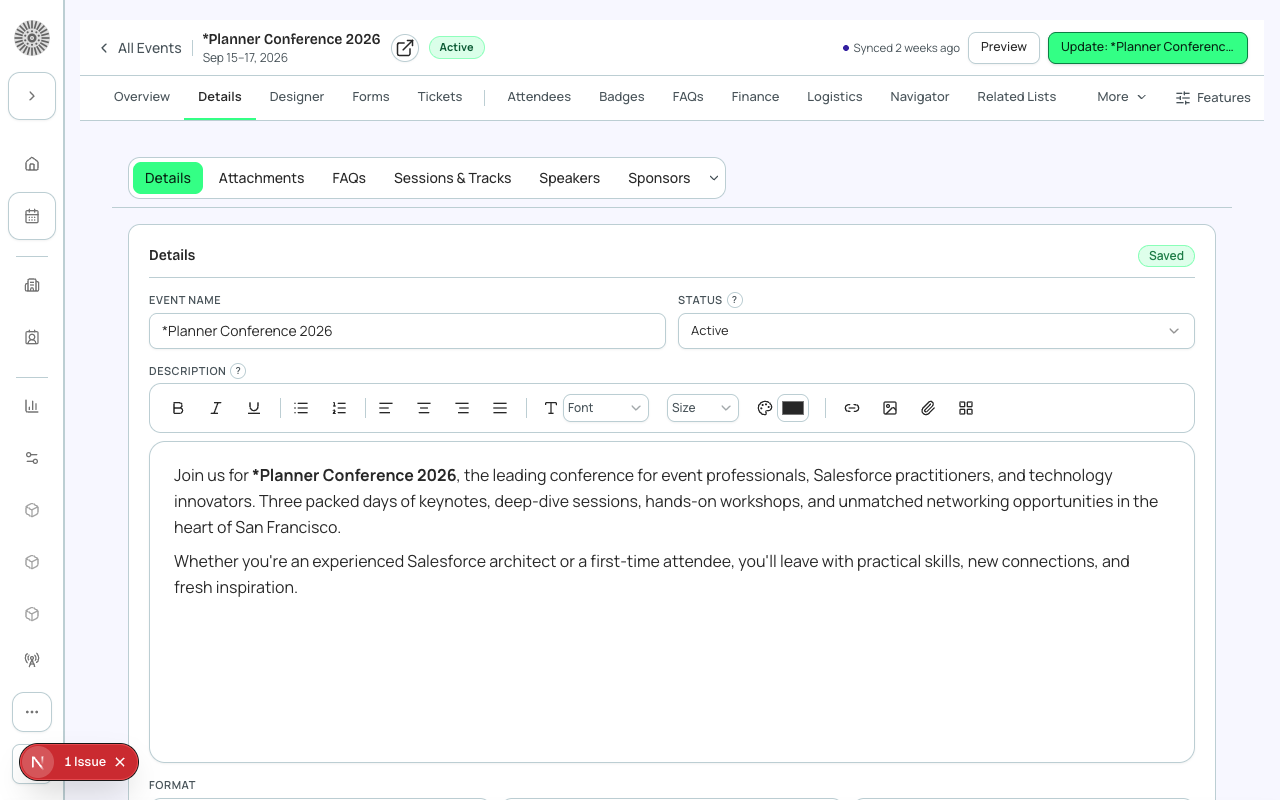
Event Info is the Details tab of the event workspace. It is one long page: a single Details card (Basics, Date and Time, registration messages, Location, Capacity and Waitlist) followed by collapsible sections for Speakers, Sessions and Tracks, Sponsors, FAQs, Attachments and Recurring Events. Every field here is saved to the event record in Salesforce. Fields you are not allowed to read in Salesforce are hidden, and fields you can read but not edit are greyed out.
How saving works
- Edit any field. A bar appears at the bottom of the page: You have unsaved changes, with Discard all and Save all. Save all saves every section you touched in one click; if one section fails, the bar tells you which one (Could not save: <section>) and keeps your other edits.
- Leaving the page with unsaved changes asks you to confirm first.
- Most sections also show a small chip row at the top so you can jump to Details, Speakers, Sessions and so on without scrolling.
- Your organization can turn on Open records locked (Admin > Org Settings). The Details card then opens read-only and you click Edit to unlock it, and Lock to lock it again (Lock is disabled while you have unsaved changes). Turn this on if many people share the workspace and you want to prevent accidental edits.
Basics
| Field | What it does | Recommendation |
|---|---|---|
| Status (Draft, Active, Completed, Canceled) | The event's Status in Salesforce. You can change it here or from the status dropdown in the event header; either way Forge asks you to confirm. Only Active events can be published. | Leave Draft until tickets, dates and location are ready. Set Completed after the event; use Canceled only for an event that will not run. |
| Event Name | The name shown on the public page, emails and confirmations. | Keep it short and without the year if you plan to Duplicate the event, so you do not have to rename it. |
| Record Type | Appears only when your Salesforce org has two or more event record types available to you. Changes which Salesforce page layout and rules the event follows. | Leave it alone unless your admin has told you which record type to use. |
| Main Event Image | Upload a PNG, JPEG or WebP up to 5 MB. It is saved to Salesforce and used as the header image on the public page. Remove clears the image and its alt text. | Dynamic-style pages recommend 2500 x 731 px (minimum 1100 x 321); other layouts recommend 820 x 410 px (minimum 650 x 320). If the image saves but does not show publicly, ContentDistribution is disabled in your Salesforce org; ask your admin to enable it. |
| Alt Text | A short description of the image for screen readers. Required whenever an image is set; Save is blocked without it. | Describe what is in the picture (for example 'Attendees networking in a conference hall'), not the event name. |
| Description | Rich-text description shown on the public event page. | Put dates, who it is for and what attendees get in the first two lines; that is what people read before registering. |
| Short Description | A one-line summary used in lists, such as the Event Group list. | Write it as the sentence you would put on a card or in a search result. |
| Format (In-Person, Virtual, Hybrid) | Three cards. In-Person: attendees gather at a venue. Virtual: attendees join online. Hybrid: both. The choice decides which Location fields appear and which Needs Attention reminders apply. | Pick Hybrid only if you will actually host both; it requires both a venue and a webinar account. |
| Event Settings | Picks the Event Settings record the event uses. A Settings record holds the checkout, visibility, language and processing rules, and several events can share one. Open Event Settings jumps to the settings screen. | Use one shared Settings record for events that should behave the same, and a separate one for an event that needs different checkout or waitlist rules. |
| Event Organizer | Search Contacts and Accounts and pick one. The name is shown to registrants on the event page. Remove organizer clears it. | Use your organization's Account for a public-facing host, or a Contact for a named person. |
| Event Group | Read-only summary of the group the event belongs to, with a Manage groups link. | Assign a group when events belong to one series or program so they can be listed and reported together. |
| Customize fields (admins) | Opens a panel where an administrator chooses which additional Salesforce fields appear in this card. Search, Show all and Reset are available. | Add only fields your team actually fills in; every extra field adds scrolling. |
Custom fields your administrator has added to a section are shown at the bottom of that section. A field that is required in Salesforce blocks Save until it has a value.
Date and Time
| Field | What it does | Recommendation |
|---|---|---|
| Start Date and Start Time | When the event begins, in the event's own timezone. | Set these before publishing; Publish is blocked without a start date. |
| End Date and End Time | When the event ends. The end must be after the start or Save shows 'End date/time must be after the start date/time'. | For a multi-day event set the end date to the last day, not the same day. |
| Timezone | The event's timezone. Registrants see times in this timezone on the page and in emails. The list is sorted by offset. | Pick the venue's timezone for in-person events. For virtual events pick the timezone you promote in your marketing. |
Reschedule event
Reschedule event moves the event and its sessions by a number of whole days (from -30 to 30; negative is earlier). Times of day never change. A live preview lists the event and every session with current and new dates, and the Reschedule button applies it.
| Option | What it does | Recommendation |
|---|---|---|
| Days to shift | How many days to move the event and its sessions. | For a bigger move, run it twice or edit the dates directly. |
| Sessions to shift: All sessions | Moves every session with the event. | Use this when the whole event moves. |
| Sessions to shift: Future sessions only | Leaves sessions that already took place alone (they show an Excluded badge in the preview). It only appears when it would make a difference. | Use this for a multi-day event that has already started and one remaining day is moving. |
If this event is the source of a recurring series, rescheduling also shifts the series dates and the other events generated from it. After saving, the toast reports how many sessions were shifted and skipped.
Registration messages (shown after Date and Time)
| Field | What it does | Recommendation |
|---|---|---|
| Cancel Before Date and Time | The due date for cancellations. | Set it to match your refund policy, for example 7 days before the start. |
| Registration Success Message | The personal message shown to someone who has just registered. | Say what happens next (check your email, add to calendar, how to get in). |
| Redirect URL | Where registrants are sent after they register. | Use it to send people to your own thank-you or next-steps page. |
| Redirect Button Label | The button text used with the Redirect URL when a success message is shown. | Use an action phrase such as 'Continue to community'. |
Location
The fields shown depend on the Format you chose. A Required badge appears on the section header while it is empty.
| Field | Shown for | What it does | Recommendation |
|---|---|---|---|
| Venue Name | In-Person, Hybrid | Name of the venue or building. | Use the name attendees will look for on signage. |
| Street Address, City, State/Province, Postal Code, Country | In-Person, Hybrid | The venue address. Picking a street suggestion fills city, state, postal code and country for you. View on map opens the address in Google Maps. | Choose the address suggestion instead of typing so the map link resolves. |
| Webinar / Meeting Account | Virtual, Hybrid | The Zoom, GoToMeeting, Webex or similar account the meeting is created in. Required for virtual and hybrid events. Manage webinar accounts jumps to account setup. | Connect the account first, then pick it here and Save; Forge creates the meeting for you. |
| Meeting / Webinar URL | Virtual, Hybrid | The meeting link. It is generated automatically after you pick an account and save, as long as the event has start and end dates and times. If those are missing you get 'Set the event start and end date and time to generate the meeting link'. | Set the dates and times first, then choose the account. |
A virtual-only event shows just the meeting link; a hybrid event shows both the venue and the meeting link.
Capacity and Waitlist
| Field | What it does | Recommendation |
|---|---|---|
| Capacity (Total Capacity) | The maximum number of registrations for the whole event. Leave it blank for Unlimited. Salesforce keeps it in sync with the Quantity Available you set on each ticket, but a value you enter directly overrides that rollup. | To cap the event no matter how many tickets exist, enter a number here. To let tickets drive capacity, leave it blank and set quantities on Tickets. |
| Waitlist | Enabled or Disabled. When on and no seats remain, people can still register but are placed on the waitlist. | Turn it on for events that regularly sell out. |
| Max Waitlist Size | Only shown when Waitlist is Enabled. The number of people allowed on the event waitlist. Blank means unlimited. Turning the waitlist off clears it. | Cap it at roughly the number of people you would realistically promote. |
Total Capacity is recalculated by Salesforce whenever you create or edit a ticket, and it can drop to zero or blank when a ticket is unlimited or changes. Forge shows a 'Total Capacity may have changed' alert on Overview when the saved value no longer matches, and the unlimited ticket case displays as Unlimited. Check it after editing tickets.
Session-level capacity and waitlist settings are managed in the Sessions and Tracks section below, not here. Whether the next person on a waitlist is promoted automatically depends on the Waitlisting: Automate setting in Event Settings.
Event image
The Event image card sits below the registration messages. It sets the thumbnail image used for the event card and mobile views: upload a PNG, JPEG or WebP image (up to 5 MB), then replace or remove it. The main event image is still set in Page Designer; this card never changes it.
- Alt text is required whenever the event has an image. A thumbnail without alt text cannot be saved. Removing the thumbnail also clears the alt text unless the event has a main image from Page Designer.
- Image file names are saved cut to 100 characters.
- For an event in a recurring series, choose This event, This and later events, or All events in the series. This and later never changes events that already ended. After saving, the card lists how many other events were updated and names any event Salesforce rejected, with its error.
- Every save is read back from Salesforce, so a value Salesforce stored differently is reported instead of shown as saved.
Sections below the Details card
Each section is a collapsible card with an Add button and a count. Drag the handle (or use Reorder, then Done) to change the order; your order is remembered per event. For Speakers, Sessions, Sponsors and FAQs, a section with more than 20 records collapses to a count with a Manage button that opens the full tab, and past 10 records it also gets its own tab in the tab bar.
| Section | What you can do here | Where the full detail is |
|---|---|---|
| Speakers | Add, edit and delete speakers: first and last name, title, account, email, bio. | See the Speakers page. |
| Sessions and Tracks | Add sessions (name, start, end, location/room, link, capacity, waitlist, minimum and maximum quantity, tracks) and manage tracks. A warning shows when a session falls outside the event dates. | See the Sessions page. |
| Sponsors | Add sponsors with company name, tier, status and website. | See the Sponsors page. |
| FAQs | Add questions, answers and categories shown on the public page. | See the FAQs page. |
| Attachments | Upload PDF, Word (DOC, DOCX), PNG or JPEG files up to 10 MB each, linked to the event. | Use this for agendas, venue maps and sponsor kits you want stored with the event. |
| Recurring Events | A link card that opens the Recurring Events setup for this event. | See the Recurring Events page. |
Keywords
The Keywords card sits under the Details card. Each chip is a keyword linked to this event, shown as its name and category. Choose Add keywords, search the org's keyword library and pick one to link it. If nothing matches, + Create adds the word to the library and links it in one step. Remove a chip with its x: that only unlinks it from this event, and the keyword stays in the library for other events. Picking a keyword that is already linked does nothing. Manage the library itself under Keywords in Global Tour.
Event fields
Settings > Event fields holds the event options that have no other editor. Changes use the same Save all bar as the rest of the page. A field you can read but not edit shows Read-only. If Salesforce rejects one field, it keeps its error and your value while the others save. If someone else saved the event after you opened it, Forge offers Reload instead of overwriting their change. Fields your Blackthorn Events package version does not have are skipped, and a note tells you how many.
| Field | What it does | Recommendation |
|---|---|---|
| Category | The kind of event, such as Conference or Fundraiser. | Set it so reports and public listings group the event correctly. |
| Display density, Show event information, Show gradient | How the event's public page lays out its header and details. | Change one at a time and preview the page. |
| Badge printing | Turns on badge printing for the event. | Turn it on only for events that print badges at check-in. |
| Custom CSS URL | Link to a stylesheet applied to the event's public page. | Use an https address you control. |
| Prior-year event | The earlier event used for year-over-year comparison. | Pick the matching event from last year. |
| Series key | A key that groups events of one series. | Reuse the same key across the series. |
| Discount code field, PayPal gateway | Whether checkout shows a discount code box, and which PayPal gateway the event uses. | Choose Required only when every registration needs a code. |
| Wi-Fi network, password and message | Wi-Fi details shown to attendees. | Keep the message short; it is visible to attendees. |
| Navigator description type, hide invite QR | Which description the Navigator app shows and whether it hides the invite QR code. The Navigator event code is shown read-only. | Use the mobile description for a short summary. |
Recommended setup order
- Set Event Name, Format and Description, then add the Main Event Image with alt text.
- Enter Start and End date and time and choose the Timezone.
- Add the venue address, or pick the webinar account and Save to generate the meeting link.
- Set Capacity (or leave it blank) and decide whether to turn the Waitlist on.
- Add tickets on the Tickets tab, then return to Overview, switch the status to Active and click Publish.
| Forge | SF Object | SF Field |
|---|---|---|
| Event Name | conference360__Event__c | Name |
| Status | conference360__Event__c | conference360__Status__c |
| Description / Short Description | conference360__Event__c | conference360__Description__c / conference360__Short_Description__c |
| Format | conference360__Event__c | conference360__Event_Location__c |
| Start / End Date | conference360__Event__c | conference360__Event_Start_Date__c / conference360__Event_End_Date__c |
| Start / End Time | conference360__Event__c | conference360__Event_Start_Time__c / conference360__Event_End_Time__c |
| Timezone | conference360__Event__c | conference360__Time_Zone__c |
| Venue Name | conference360__Event__c | conference360__Venue_Name__c |
| Street / City / State / Postal Code / Country | conference360__Event__c | conference360__Venue_Street__c / Venue_City__c / Venue_State_Province__c / Venue_Postal_Code__c / Venue_Country__c |
| Webinar / Meeting Account | conference360__Event__c | conference360__Webinar_Account__c |
| Meeting / Webinar URL | conference360__Event__c | conference360__Webinar_URL__c |
| Capacity (Total Capacity) | conference360__Event__c | conference360__Attendee_Limit__c |
| Waitlist / Max Waitlist Size | conference360__Event__c | conference360__Waitlist_Enabled__c / conference360__Waitlist_Capacity__c |
| Event Settings | conference360__Event__c | conference360__Event_Settings__c |