Event Tour
Location
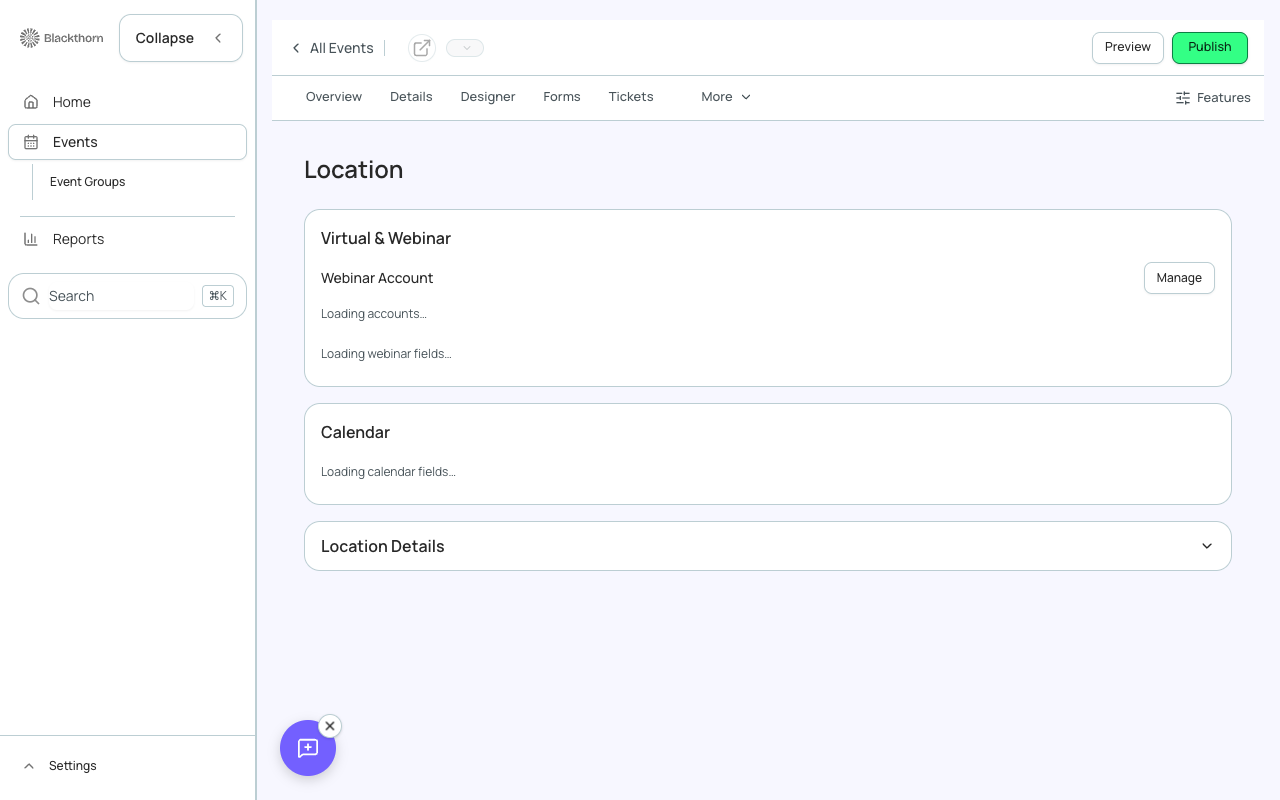
The Location tab holds the online and calendar side of where your event happens: the webinar or meeting account, the meeting link and Zoom settings, what shows up in calendar invites, and the venue details from your Salesforce Event layout. The core venue address and format (In-Person, Virtual or Hybrid) are set on the Event Info tab; this tab goes deeper.
Which tab to use
| I want to... | Go to | Set |
|---|---|---|
| Change whether the event is in person, virtual or hybrid | Event Info > Basics | Format |
| Add the venue name and address | Event Info > Location (or Location Details here) | Venue Name, Street Address, City, State/Province, Postal Code, Country |
| Create a venue account and link it to the event | Location > Venue | New venue account |
| Connect Zoom, GoToWebinar or Webex and get a meeting link | Location > Virtual & Webinar | Webinar Account |
| Control what the calendar invite says | Location > Calendar | Calendar Location, Calendar Description, Include Zoom URL in Calendar |
Venue
The Venue card shows the Account linked to this event as its venue. If your Salesforce user can create Account records, New venue account opens a panel for the venue's Name (required), Street, City, Postal code, State / province and Country. Create and use creates the Account, links it to the event and fills the event's venue name and address from it. The card then shows the new venue account's name.
New venue account is hidden when your Salesforce user cannot create Accounts. If Salesforce stores different values than you entered, a message tells you to check the venue fields.
Virtual and Webinar
Webinar Account
Pick the webinar or meeting account the event's meeting is created in. The list shows each account with its provider in brackets, for example 'Main Zoom (Zoom)'. Choose No account linked to clear it. Manage opens the Webinar Accounts page in Admin (Integrations), where accounts are created and authorized. When there are no accounts the card says so and points you to Manage.
When no webinar accounts are connected, the list is disabled and shows No accounts connected. Connect in Admin opens the webinar integrations page, where accounts are created and authorized.
| Item | What it shows | Recommendation |
|---|---|---|
| Account picker | The accounts available to this org. Selecting one links it to the event immediately (a toast confirms Webinar account linked). | Use one account per presenter group or brand so meetings are created under the right host. |
| Provider | GoToWebinar, Zoom or Webex. | Pick the provider your attendees expect. |
| The email address of the account. | Check it is the host account you intend. | |
| Status chip | Whether the account is authorized or needs attention (for example an expired authorization), with a detail line. | If it is not in a good state, re-authorize it from Manage before the event or the meeting link will not be created. |
| Last authorized | When the account was last authorized. |
Virtual and Hybrid events need a webinar account. Without one, Overview shows a 'No webinar account connected for this event' reminder, and the account is required when you save the event's Location on Event Info.
Meeting fields
| Field | What it does | Recommendation |
|---|---|---|
| Webinar / Meeting URL | The meeting link. It is generated automatically by your connected webinar platform after you pick an account and save the event (the event needs start and end dates and times). Shown to registered attendees only. You can paste a link for a platform that is not connected. | Do not paste a Zoom link by hand when an account is connected; let Forge generate it so the registration and calendar stay in sync. |
| Webinar / Meeting ID | The platform's identifier for the meeting. | Leave as generated. Include it in reminder emails if people dial in by phone. |
| Webinar / Meeting Password | Managed automatically by the webinar integration. It is not editable here. | |
| Zoom Type | Meeting or Webinar (Zoom accounts). | Choose Webinar for large audiences where attendees should not see each other, and Meeting for interactive sessions. |
| Zoom Email Notifications | Use Zoom Account Settings, Send Zoom Emails, or Do not send Zoom Emails. Applies only to Zoom. | Choose Do not send Zoom Emails if you send your own confirmations from Forge, to avoid duplicate emails. |
| Include Zoom URL in Calendar | When on, the Zoom link is included in the calendar invite's Description. | Turn on for virtual events so attendees can join from their calendar. |
Only the fields that exist in your organization's Salesforce package are shown. Each field saves as soon as you leave it, with a 'Field updated' confirmation.
Calendar
These control the calendar invite (the Add to Calendar file) attendees receive.
| Field | What it does | Recommendation |
|---|---|---|
| Calendar Location | The location line shown in calendar invites sent to attendees. | For a venue event, put the full address. For hybrid, put the venue followed by 'or online'. |
| Calendar Description | The description shown in calendar invites sent to attendees. | Add arrival instructions, parking and who to contact. |
Location Details
Collapsed by default. It shows the venue, address, room and map sections from your Salesforce Event layout, with empty fields visible so you can fill them in, and the same inline editing as the rest of the workspace. Fields that have their own screens (publish status, redirect URL, registration and revenue goals, UI experience, prior year event, start and end dates and times, creator, campaign and category) are left out here.
| Field | What it does | Recommendation |
|---|---|---|
| Venue | Link a Salesforce Account as the venue. If the Account has a billing address, it is copied into the venue address fields automatically. | Use a venue Account when you book the same venue repeatedly; the address stays consistent. |
| Venue Name, Street, City, State/Province, Postal Code, Country | The address shown on the public page, in emails, and used for the map link. | Fill every part so the map and directions resolve correctly. |
Which Location Details fields appear depends on your organization's Event page layout, which an administrator controls. If you need a field that is missing, ask your admin to add it to the Event layout.
| Forge | SF Object | SF Field |
|---|---|---|
| Webinar / Meeting Account | conference360__Event__c | conference360__Webinar_Account__c |
| Meeting URL | conference360__Event__c | conference360__Webinar_URL__c |
| Meeting ID | conference360__Event__c | conference360__Webinar_ID__c |
| Zoom Type | conference360__Event__c | conference360__Zoom_Type__c |
| Zoom Email Notifications | conference360__Event__c | conference360__Zoom_Email_Notifications__c |
| Include Zoom URL in Calendar | conference360__Event__c | conference360__Include_Zoom_URL_In_Calendar_Description__c |
| Calendar Location | conference360__Event__c | conference360__Calendar_Location__c |
| Calendar Description | conference360__Event__c | conference360__Calendar_Description__c |
| Venue (Account lookup) | conference360__Event__c | conference360__Venue__c |
| Venue Name and address | conference360__Event__c | conference360__Venue_Name__c, Venue_Street__c, Venue_City__c, Venue_State_Province__c, Venue_Postal_Code__c, Venue_Country__c |
Venue maps
- Open Location > Venue maps to add floor plans and mark rooms on them. Upload a .jpg, .jpeg, .png, .gif or .webp image (up to 10 MB), then Add pin and drag it into place, or select it and use the arrow keys (Shift moves further).
- Name each pin, pick its color, and assign the sessions that happen there. A session belongs to one pin; assigning it to another pin moves it. Deleting a pin or a map clears its sessions' pin.
- Save writes every map, pin and session assignment together and shows what Salesforce kept; if anything fails, nothing changes. Discard returns to the last saved state.
- Copy from event brings maps and pins (not sessions) from another event. Cloning an event can include its venue maps, with sessions kept on the matching pins.
- Maps added as Event Content venue maps show a Convert to venue map button; converting leaves the original Event Content file in place.
- The old Event content venue map page now redirects to Location > Venue maps, and uploading a new image there is retired.
| Forge | SF Object | SF Field |
|---|---|---|
| Map name and image | conference360__Venue_Map__c | conference360__Display_Name__c, conference360__Image_URL__c |
| Pin size and labels | conference360__Venue_Map__c | conference360__Pin_Size__c, conference360__Hide_Pin_Labels__c |
| Pin name, position and color | conference360__Map_Pin__c | Name, conference360__X_Position__c, conference360__Y_Position__c, conference360__Color__c |
| Pin description | conference360__Map_Pin__c | conference360__Rich_Description__c |
| Sessions on a pin | conference360__Session__c | conference360__Map_Pin__c |