Event Tour
Related Lists
The Related Lists tab shows every Salesforce related list attached to this event, one collapsible card per list. It is the place for event-scoped admin work on records that are not important enough to have their own tab, and a shortcut into the tabs that do. Legacy related-list links open here with the object name pre-filled in the search box.
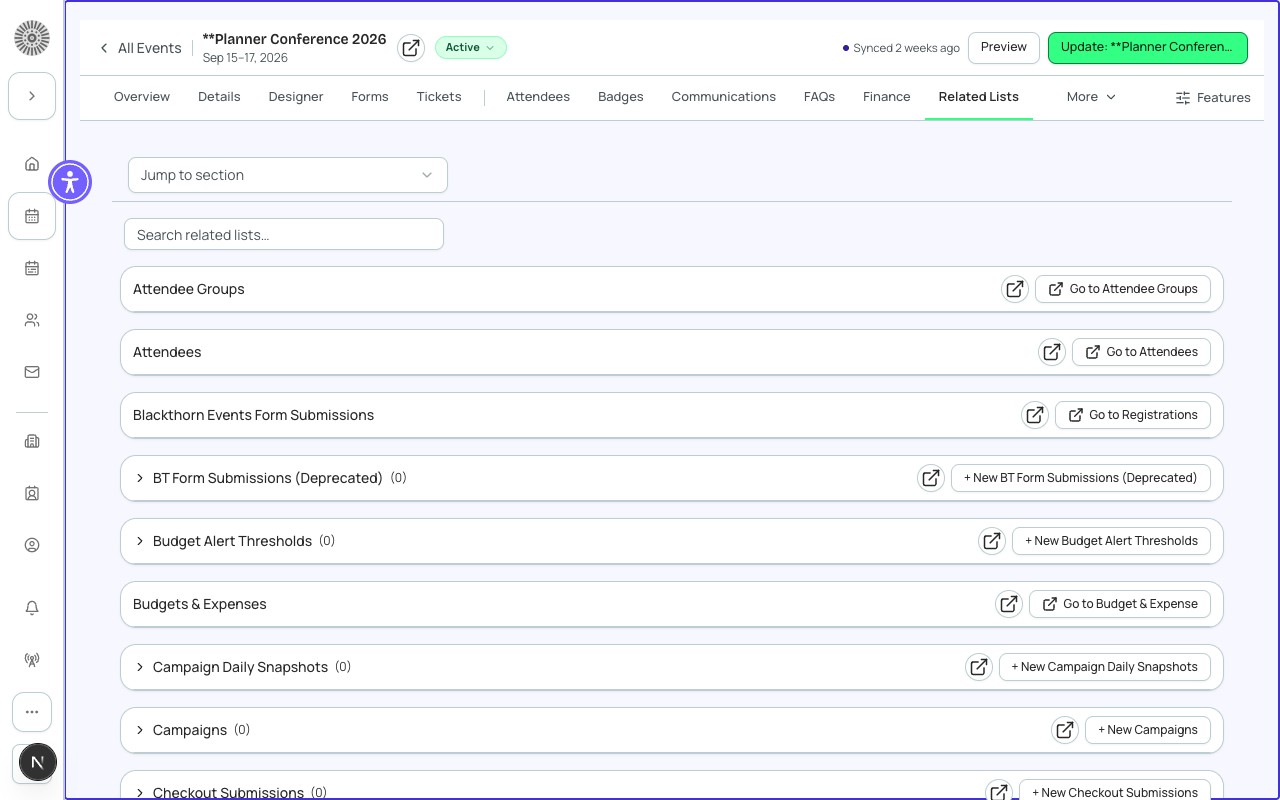
The page
| Field | What it does | Recommendation |
|---|---|---|
| Search related lists | Filters the cards by name as you type. | Type part of an object name, such as 'fee', to find it quickly. |
| Jump to list | A section menu that scrolls to a card. | Use it when the event has many related lists. |
| Card header | The list's Salesforce label, a record count badge and a View in SF link that opens the object's list in Salesforce. Counts load in the background; if one cannot be read the card says 'Count unavailable' with a Retry. Cards start collapsed so the page opens quickly, and a card only loads its records when you expand it. | Expand only the lists you need. Two relationships to the same object get distinct labels automatically. |
| Which lists appear | The related lists Salesforce defines for the Event record, in your org. What you see depends on your installed Blackthorn packages and on your Salesforce field-level security and sharing rules; you only see records and fields your Salesforce user can access. | If a list you expect is missing, ask your Salesforce admin to check access to that object. |
Two kinds of card
| Card type | Used for | What you can do |
|---|---|---|
| Go-to cards | Lists that already have their own tab in the event workspace: Sessions, Speakers, Sponsors, Attendees, FAQs, Hotels, Tickets, Tables and Seats, Attendee Groups, Registrations (form submissions), Content, Budget & Expense, Invoices and invoice line items, Transactions and Discount Codes. | The card shows a 'Go to {tab}' button instead of the records. Use the dedicated tab, which has better controls than a raw list. |
| Record cards | Every other related list. | Expand to see a table of records with columns defined by Salesforce. New {label} creates a record already linked to this event. Click a row to open it in a side panel where you can edit its fields; Delete asks you to confirm and cannot be undone. Show more loads further rows. If the list is empty it says 'No records yet. Click New to create one.' |
To fix a single record that the normal tabs do not expose, expand its card, click the row and edit it in the panel. For a one-time bulk change across many events, use Salesforce directly instead.
The global Records zone in the sidebar shows records across your whole workspace. Related Lists shows only records related to this event. Use Related Lists for event-scoped admin work and the Records zone for workspace-wide inspection.
Related Lists reads your live Salesforce org. Changes you make here are written to Salesforce and are subject to the same validation rules, triggers and permissions as editing them in Salesforce. If saving fails, the card shows 'Could not save. Please review and try again.'