Event Tour
Staff
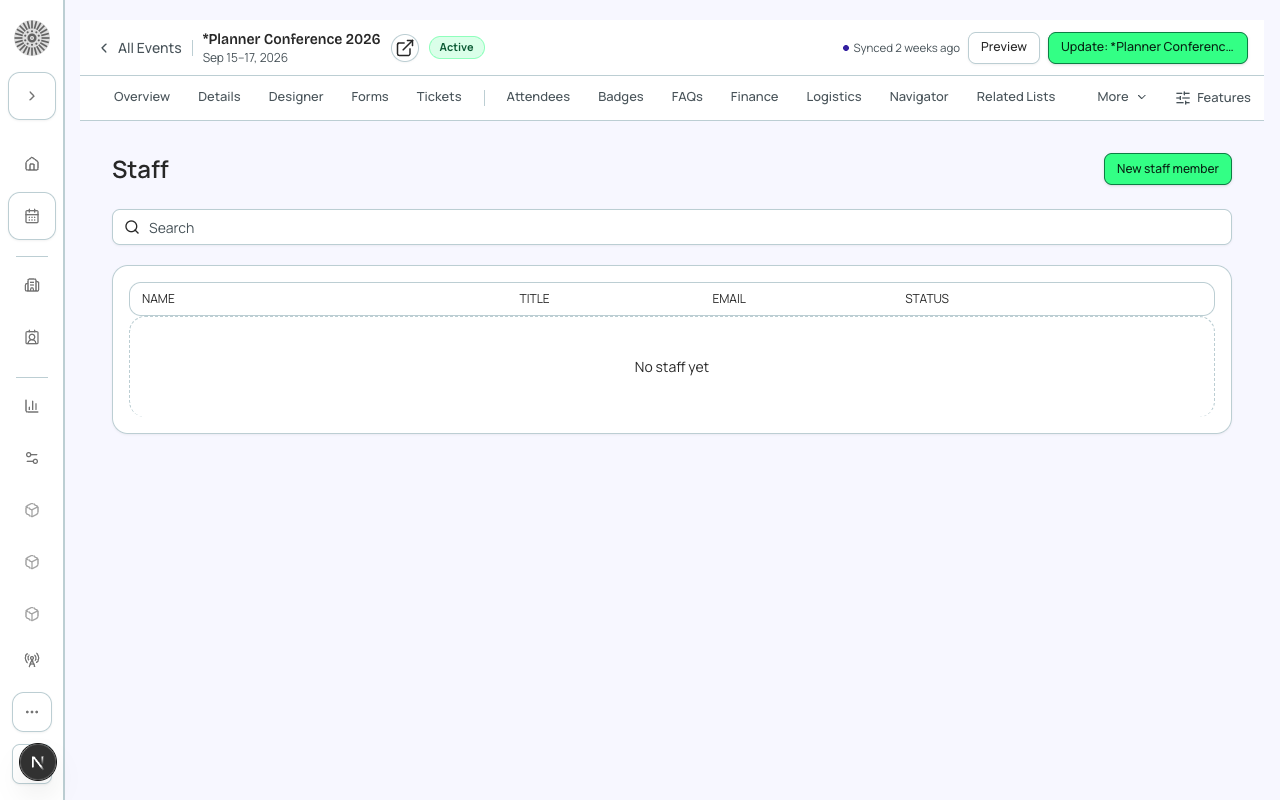
The Staff tab lists the internal team members working your event, such as coordinators, volunteers and contractors. Staff records are internal: they do not appear on the public registration page. A staff member is a person (a Salesforce Contact, or a User) linked to the event, and can be assigned to the sessions they run.
Staff versus attendees and speakers
| Record | Who it is | Shown publicly? |
|---|---|---|
| Attendee | Someone who registered for the event. | No (only to the attendee and organizers). |
| Speaker | Someone presenting; has a bio and photo. | Yes, depending on visibility settings. |
| Staff | Someone working the event. May also be an attendee or a speaker; those are separate records. | No. |
The staff list
| Column or action | What it shows or does | Recommendation |
|---|---|---|
| Name, Title, Email | The staff member's name, job title and email, read from their Contact. Click a column header to sort. Search matches name, email and title. The list shows 20 at a time. | To change a name, title or email, edit the Contact in Salesforce; the staff record reads from it. |
| New staff member | Opens the New staff member page. | |
| Delete (trash icon) | Removes the staff member after you confirm. If they staff sessions, the confirmation says how many, because deleting the staff record also removes them from every one of those sessions. | Remove them from specific sessions first if you only want to reassign work. |
Adding a staff member
- Click New staff member.
- Search Contacts by name or email and pick the person. A Contact is required; the page shows 'Select a contact' until you choose one.
- Save. The person appears in the list ('Staff member created').
A staff member is a User or a Contact, never both, and a staff record belongs to one event. If the person is not yet a Contact, create the Contact in Salesforce first.
Staff detail page
| Item | What it does | Recommendation |
|---|---|---|
| Details | The fields from your organization's Staff layout, read from the linked Contact and the staff record. A Salesforce link icon opens the record, and Save and Close returns to the list. | Ask your admin to add fields to the Staff layout if you need them. |
| Session Assignments | Search and add the sessions this person is staffing, or remove them. The list shows 'No sessions assigned' when empty. | Assign staff to the sessions they run so you can see coverage at a glance. |
Assigning staff from a session
The session page also has a Session staff picker, so you can assign people from either side. Assignments are the same records, so changing one side updates the other.
Staff roles and permissions are not set here. Who can edit event settings or run reports is controlled by Salesforce profiles and permission sets, not by a staff record.
| Forge | SF Object | SF Field |
|---|---|---|
| Staff member (linked person) | conference360__Staff__c | conference360__Contact__c (or conference360__User__c) |
| Event | conference360__Staff__c | conference360__Event__c |
| Session assignment | conference360__Session_Staff__c | conference360__Staff__c + conference360__Session__c |