Event Tour
Event Overview
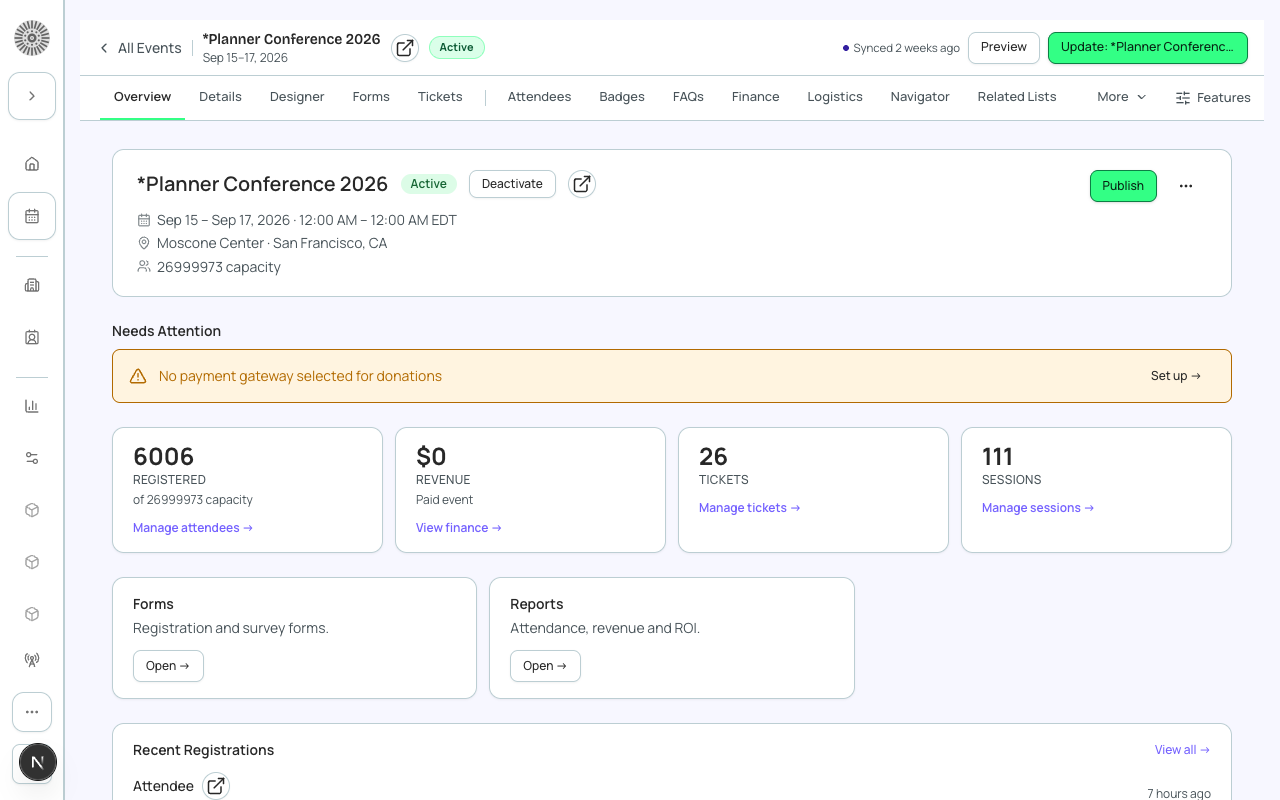
The Overview tab is the first thing you see when you open an event. It shows the event's status, the four numbers that matter most (registered, revenue, tickets, sessions), a list of anything that still needs your attention, the event QR codes, and the latest registrations. Every tile and button on it is a shortcut to the tab where you change the underlying data. The Capacity card shows registered and pending against the event's capacity. The bar turns amber at 75% used and red at 90%, and Remaining is the limit minus the attendee limit buffer, registered and pending. A capacity of 999999, or any unlimited ticket, reads No capacity limit. The waitlist row shows its count, limit and remaining, or Closed when its limit is 0, and Invited, Attended, Canceled and No show counts sit below. When registrations or waitlisted people exceed the limit a banner appears; Dismiss hides it until you close the browser session. Counts update as new registrations arrive.
How to get here
Open any event from the Events list. Forge lands on Overview (the Overview tab is also where /events/{eventId} redirects to). The event workspace has two navigation surfaces that always stay in sync: the tab bar under the event header, and the event section of the left sidebar. The tab bar always shows Overview, Details (the Event Info page), Designer, Forms and Tickets, followed by the other tabs in alphabetical order. A section such as Attendees, FAQs, Sessions, Speakers, Sponsors or Transactions becomes its own tab once it holds more than 10 records; before that, you reach it from the sidebar or from its section on the Details page.
Event header
The header stays above every tab in the event workspace. It shows the event name, date, time and location (Virtual, Hybrid or TBD when the format or date is not set), and the controls below.
| Control | What it does | Recommendation |
|---|---|---|
| Status dropdown (Draft, Active, Completed, Canceled) | Choose a new event Status. Each change asks you to confirm. Canceled shows an extra warning because attendees and active registration flows are affected immediately. | Keep an event Draft while you build it. Switch to Active when you are ready to sell. Use Completed after the event so it stops appearing as upcoming. Use Canceled only when the event is truly off. |
| Publish / Update | Publish pushes the event to its public page. After the first publish the button becomes Update: <event name>, which re-sends your latest changes. A grey Synced <time> label shows when the public page last confirmed an update. | Publish only when the checklist below is green. After editing a published event, click Update so the public page catches up. |
| Preview | Opens the public page in a new tab as a preview, even if the event is not published. The page stays blank for an unpublished event until you publish. | Use Preview to check the page before you publish. It is a preview, not the live page. |
Publish stays disabled (hover it to see why) until all of these are true: the event has a start date, its status is Active, and it has at least one ticket whenever your Event Settings require one. Donation, Guest and Product tickets do not count toward that ticket requirement. The same blockers appear under Needs Attention with a link to fix each one.
Top card
| Item | What it does | Recommendation |
|---|---|---|
| Event name, status and date/time line | Read-only summary. The date line is built from the event's real start and end date, time and time zone. A venue line (name, city, state) shows for in-person and hybrid events, with a View on Google Maps link. | If the date or venue looks wrong, fix it on the Details tab. This card has no edit fields. |
| Format and capacity line | Shows In-Person, Virtual or Hybrid, and the capacity. Capacity shows Unlimited when no limit is set, when any ticket is unlimited, or when Salesforce holds its internal 'unlimited' placeholder. | If the number is not what you expect, see Total Capacity on the Event Info page: it is rolled up from your ticket quantities. |
| Continue setup (Draft events only) | Takes you to the Details tab to finish the basics. | Use it as your checklist entry point on a new event. |
| View public page | Opens the live page for a published event, or the preview for an unpublished one. It is disabled for a Draft event that has no start date, because there is no page address yet. | Share the page address from here once the event is published. |
| Open in Salesforce | The Salesforce icon next to the title opens the event record in Salesforce. | Use it when you need field history or a field Forge does not edit. |
| Refresh | Reloads Overview and refreshes the event's cached metrics. | Click it after a bulk import or when a count looks stale. |
| More options (...) | Edit details (goes to the Details tab), Duplicate event (opens the clone flow with this event as the source), Preview, and Delete. | Use Duplicate for a repeat event; use Recurring Events instead if you need a full schedule. |
Deleting an event
Delete asks you to type the event name to confirm. It permanently deletes the event record in Salesforce. Deleted records stay in the Salesforce Recycle Bin for 15 days, where a Salesforce admin can restore them. Delete is greyed out, with the reason shown, when your organization blocks deletes (for example in a production org).
To retire an event you might need again, set its status to Canceled or Completed instead of deleting it. Deleting removes the event and cannot be undone from Forge.
Needs Attention
This list appears only when something is missing. Each row has an action button that jumps to the fix. Rows marked as required block a good launch; the 'enabled but none added' rows are reminders.
| Alert | Shown when | How to clear it |
|---|---|---|
| Event is not active - attendees cannot register | Status is Draft. | Click Activate and confirm. |
| Add a ticket / Add a start date | Publishing is blocked because no qualifying ticket exists or the start date is empty. | Add a ticket on Tickets, or set the start date on Details. |
| Published, but the public page may not show your latest changes yet | The event is published in Salesforce but the public page has not confirmed the latest publish. | Click Republish. Forge re-checks every 15 seconds for up to 5 minutes (Check now forces a check and shows when it last ran). If it still has not updated, republish again or contact Blackthorn support. |
| Total Capacity may have changed since it was last set | The event's Total Capacity no longer matches the value Forge last saw. It is rolled up from ticket quantities, so editing tickets can change it. | Click Review capacity, confirm the number, and Forge accepts it as the new baseline. |
| No payment gateway selected for paid tickets | The event has at least one paid ticket but no payment gateway. | Pick the event payment gateway on Tickets > Configuration. |
| No payment gateway selected for donations | The event has a Donation item but no donation gateway. | Choose a donation gateway on Tickets > Configuration. |
| No webinar account connected | The event is Virtual or Hybrid and has no webinar/meeting account. | Choose one under Location on the Details page. |
| Missing venue information | The event is In-Person or Hybrid and has no venue name. | Add the venue under Location on the Details page. |
| Landing page not designed yet | The event uses a Page Designer-style experience but has no page content yet. | Open the Designer tab and build the page. |
| Sessions / Speakers / Sponsors enabled but none added yet | The section is turned on for the event, there are no registrations yet, and you have not added any. | Add records on the matching tab, or ignore the reminder if you do not need that section. |
Event at a glance (tiles)
Four tiles, each a link to the tab that owns the number.
| Tile | What the number is | Click goes to |
|---|---|---|
| Registered | Attendees whose registration status is Registered. Waitlisted, Invited and Canceled attendees are not counted. The sub-line shows 'of N capacity' or 'of Unlimited capacity'. | Attendees |
| Revenue | The event's Gross amount from its Salesforce record, shown in whole dollars. The sub-line reads Free event when the event has no paid or donation items, otherwise Paid event. | Reports |
| Tickets | The number of ticket and item records on the event (tickets, donation items and products all count). | Tickets |
| Sessions | The number of session records on the event. | Sessions |
The Registered tile uses the same rule as the Attendees tab statistics, so the two numbers should match. If Revenue looks lower than expected, remember it is the Salesforce Gross rollup, which updates when payments are recorded rather than the instant you click Refresh.
Event QR codes
A collapsible card that generates QR codes for the event's Landing Page and its Checkout page. Open it to preview each code, download it as PNG or SVG (use SVG for print so it stays sharp), or download a PDF sheet with both. A code can only be generated once the event is published; before that the card says there is no URL available.
Quick links
| Card | Opens | Notes |
|---|---|---|
| Communications | The event's Communications tab: invites, reminders and follow-ups. | Hidden when Communications is turned off for the event or the organization. |
| Forms | The event's Forms tab: registration and survey forms. | |
| Reports | The event's Reports tab: attendance, revenue and ROI. |
Recent registrations
The four most recent attendee records created for the event, newest first, with name, email, ticket name and how long ago they registered. A Salesforce icon opens the attendee record and View all opens the Attendees tab. The list is empty until the first registration. It is a quick pulse check, not a filtered report.
If your Salesforce user cannot see an event, Overview shows Access Denied instead of the tiles. Ask your Salesforce admin for access to the event's record.
| Forge | SF Object | SF Field |
|---|---|---|
| Event name | conference360__Event__c | Name |
| Visible (public registration) | conference360__Event__c | conference360__Visible__c |
| Hide register button | conference360__Event__c | conference360__Hide_Register_Button__c |
| Status | conference360__Event__c | conference360__Status__c |
| Maximum attendees | conference360__Event__c | conference360__Attendee_Limit__c |