Event Tour
Speakers
The Speakers tab manages everyone presenting at your event. Each speaker is a Speaker record on the event, optionally linked to a Salesforce Contact, with a bio and photo, and assigned to the sessions they present. The tab has views for the speaker list, speakers by session, and rules.
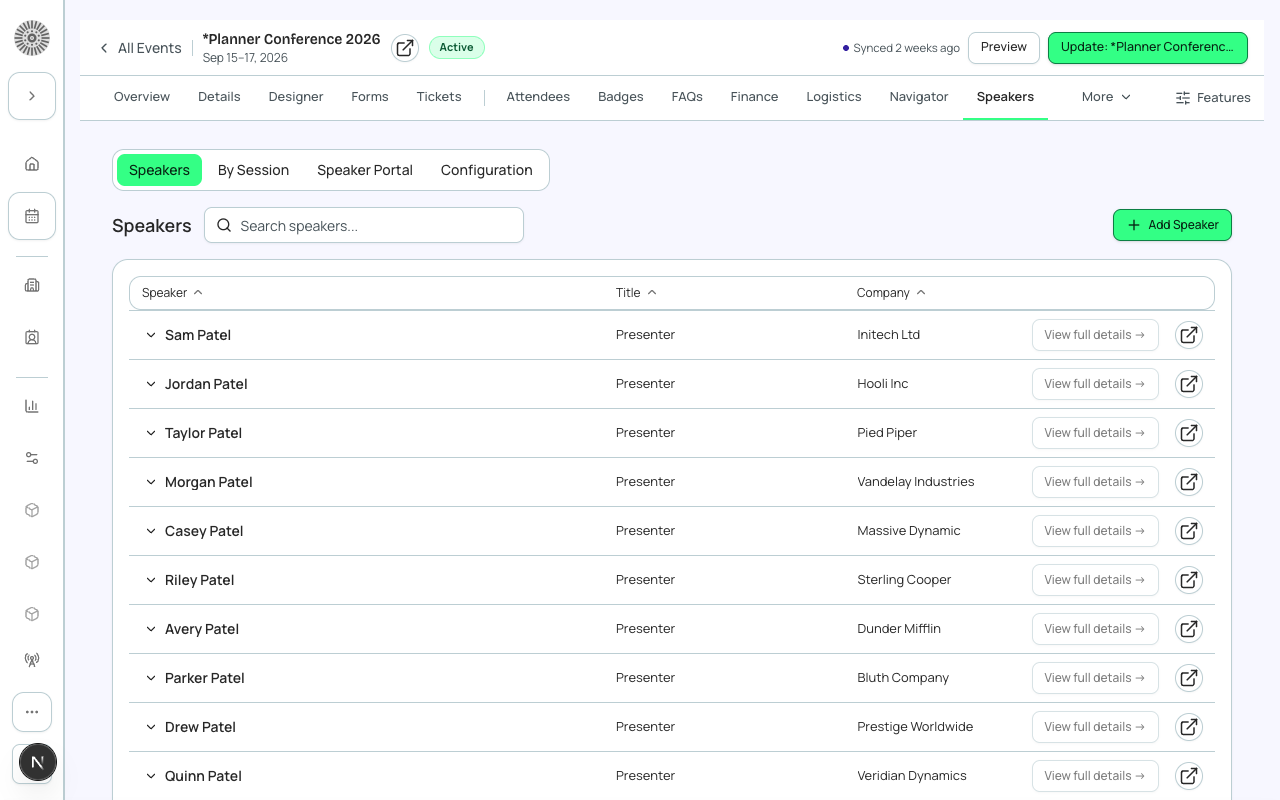
Views
| View | What it shows | Use it to |
|---|---|---|
| Speakers | The list of speakers with name, title and company. Expand a row for Title, Company, Email and Phone, or click View full details to open the speaker. Search, Add Speaker and delete are here. | Add and edit speakers. |
| By Session | Each session with the speakers assigned to it, plus an Unassigned speakers list (speakers not linked to any session yet). Add a speaker to a session or remove one with Remove from session (the speaker record is not deleted). | Check every session has a speaker and find speakers with no session. |
| Configuration | Speaker rules (see below). |
A Speaker Portal view also appears when the Unified Portal beta is enabled for your organization; see the Speaker Portal page.
Adding a speaker
Add Speaker opens a panel with two tabs.
| Tab or field | What it does | Recommendation |
|---|---|---|
| Search | Search Contacts by name or email and pick one. A Contact already on this event shows 'Already added'. The speaker is linked to that Contact. | Use Search for people already in your CRM so their record stays one person. |
| Add New | Create a speaker by typing the details. | Use for first-time speakers who are not yet Contacts. |
| First Name and Last Name | Required. The speaker's name shown on the agenda. | Use the name as the speaker wants to be billed. |
| Title | Job title shown with the name. | |
| Company (Account Name) | The speaker's organization shown with the name. | |
| The speaker's email address. | Add it so you can include speakers in communications. | |
| Bio | Rich-text biography, with image upload support. | Keep to about 100 words so it fits the agenda and cards. |
| Photo | Upload a PNG or JPEG up to 2 MB. Square headshots work best (128 x 128 px is recommended). You can crop the headshot, Replace it or Remove it. | Use a high-quality square photo; the page shows it small. |
| Photo alt text | Required once a photo is added. Describes the photo for screen readers. | Write something like 'Headshot of Jane Doe smiling'. |
Speaker page
Click View full details (or open the speaker) for the full record. The fields shown follow your organization's Speaker layout (Admin > Record Layouts), and Save and Close saves your changes.
| Field | What it does | Recommendation |
|---|---|---|
| Status | Planned, Invited, Confirmed, Attended, Declined, Canceled or No Show. Select Confirmed when you are ready to show the speaker on your event page. | Move speakers Planned > Invited > Confirmed as they respond. After the event use Attended or No Show. |
| Speaker Visibility | Featured, Shown on Listing or Hidden: feature or hide a speaker when viewing the event or its sessions. | Use Featured for keynote speakers and Hidden for a speaker you are not yet announcing. |
| Hide On Event Page | Hides the speaker from the public event page. | Tick it while the speaker is not yet confirmed publicly. |
| Salutation | Mr., Ms., Mrs., Dr. or Prof. | |
| Short Description and Long Description | Short and long text descriptions of the speaker. | |
| Website, LinkedIn, Twitter, Instagram | Links to the speaker's profiles. | Use full https URLs. |
| Phone | The speaker's phone number. | |
| Contact | Link the speaker to an existing Contact. | Link it so changes to the person stay in one place. |
| Image URL | HTTPS link to the speaker's image (128 x 128 px recommended). Uploading a photo fills it in. |
Only the fields on your Speaker layout appear. If a field is missing, ask your admin to add it to the Speaker layout.
Assigning speakers to sessions
You can assign a speaker from two places: the Session Speakers field when creating or editing a session, or the By Session view. When you add a speaker to a session that overlaps in time with another session they already present, Forge shows a 'Scheduling conflict' warning naming the other session. It is a warning, so you can still continue.
Configuration: speaker rules
| Rule | What the switch says | Note |
|---|---|---|
| Require speaker bio | Speakers must have a bio before being published. | Saved with the event's Forge settings. Forge does not currently block a speaker without a bio, so treat it as a team checklist until it is enforced. |
| Require headshot | Speakers must upload a headshot. | Same as above. |
Showing speakers publicly
On Page Designer event pages, the Speakers block shows each speaker with photo, name, title, company and bio. It leaves out speakers marked Hide On Event Page or with Speaker Visibility set to Hidden, and lists Featured speakers first. Salesforce's own help for Status says to select Confirmed when you are ready to show a speaker on your event link, so keep unconfirmed speakers hidden: the block itself does not check Status.
| Forge | SF Object | SF Field |
|---|---|---|
| Speaker name | conference360__Speaker__c | conference360__First_Name__c + conference360__Last_Name__c |
| Bio | conference360__Speaker__c | conference360__Bio_Rich__c |
| Title | conference360__Speaker__c | conference360__Title__c |
| Company / Account Name | conference360__Speaker__c | conference360__Account_Name__c |
| conference360__Speaker__c | conference360__Email__c | |
| Linked Contact | conference360__Speaker__c | conference360__Contact__c |
| Status | conference360__Speaker__c | conference360__Status__c |
| Speaker Visibility | conference360__Speaker__c | conference360__Speaker_Visibility__c |
| Hide On Event Page | conference360__Speaker__c | conference360__Hide_On_Event_Page__c |
| Photo alt text | conference360__Speaker__c | conference360__Alternative_Image_Text__c |