Event Tour
Tickets and Items
The Tickets tab is where you define everything a registrant can buy or select: tickets (admission), products (add-ons and merchandise) and donations. It has its own sub-tabs, a search box, and an Add button that changes with the sub-tab. Each ticket opens into a detail page where you set pricing, capacity, sale dates, sessions, forms and the attendee information it collects.
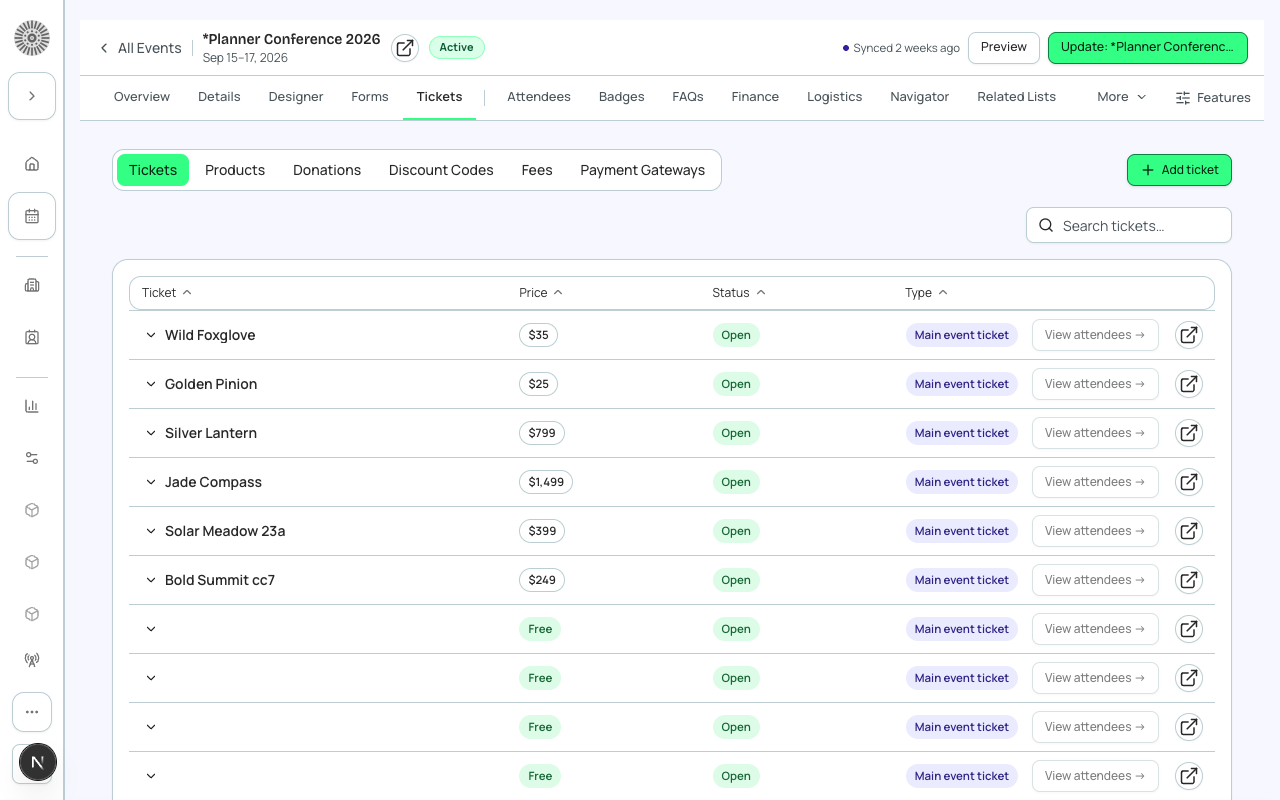
Sub-tabs
| Sub-tab | What it holds | Add button | Recommendation |
|---|---|---|---|
| Tickets | Items of type Main event ticket: the admission types for the event. | Add ticket | Start here. Every event that sells or confirms registrations needs at least one. |
| Products | Items of type Other: merchandise, workshop add-ons, meals. | Add product | Use for anything a registrant can buy in addition to admission. Attach a form to collect sizes or choices. |
| Donations | Items of type Donation: a gift the registrant can add at checkout. | Add donation | Use for a simple ask during registration. For full fundraising use the Fundraising features. |
| Discount Codes | Codes that reduce the price of tickets for this event. | Add code | See the Discount Codes section below. |
| Fees | Event fees (payment processing, tax). Appears only when Fees is enabled for your organization. | Add fee | See the Fees page. |
| Payment Gateways | Which payment gateway the event uses for tickets and for donations. | (none) | Required before any paid item can be purchased. |
The ticket list
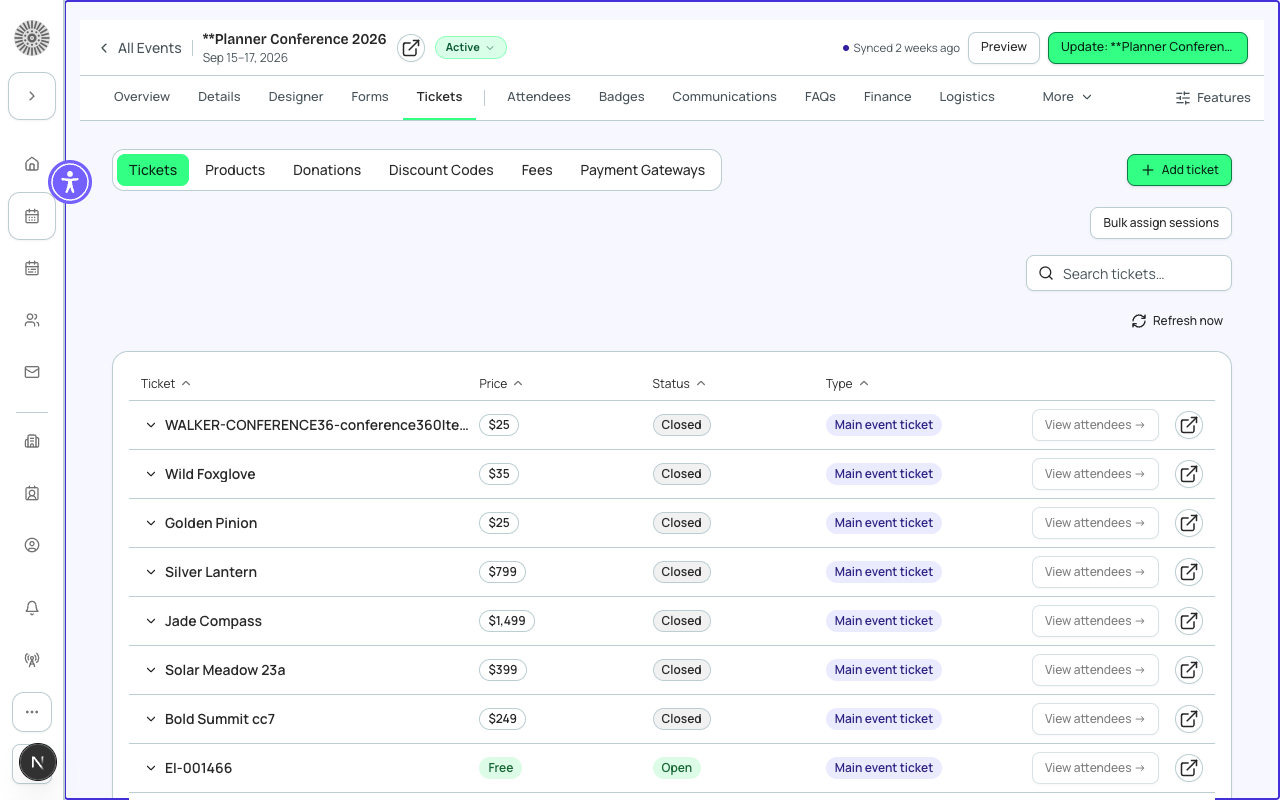
The list shows the tickets for the active sub-tab, 20 at a time with Show more. Search matches ticket name and type. Click any column header to sort.
| Column or cell | What it shows | Notes |
|---|---|---|
| Ticket / Product / Donation | The public item name (falls back to the Salesforce record number if the name is blank). | Click the row to expand it, or open the ticket to edit it. |
| Price | The price, or a Free chip when the Free box is on or the price is 0. 'No price' means nothing is set. | |
| Status pill | Open, Sold out or Closed. This pill is calculated for the list: Closed when the sales end date has passed, Sold out when the number sold has reached Quantity Available, otherwise Open. | It is a quick read of the ticket's state, not an editable field. The editable Status field is described below. |
| Type | Main event ticket, Donation or Other. | Shown unless your admin has hidden the field. |
| Sold / Capacity (expanded) | Sold shows 'sold / quantity' (or 'sold / Unlimited'). Capacity shows Quantity Available or Unlimited. | A blank Quantity Available is treated as unlimited. |
| Waitlist (expanded) | Off, On with the waitlist size, or On with Unlimited. | |
| Sort order (expanded) | A number you can type to change the order tickets appear on the registration page. Lower numbers come first. It saves when you leave the field. | Number your tickets 10, 20, 30 so you can insert one later without renumbering. |
| Sale window (expanded) | 'From <date>' or 'Until <date>' using the event timezone, when sale dates are set. | |
| View attendees | Opens the Attendees tab filtered to this ticket. | Use it to see who bought a ticket before you change or delete it. |
| Duplicate | Creates a copy of the ticket with its sale times, description, minimum and maximum, visibility, attendee-field settings and session links. | Duplicate an early-bird ticket to make the regular-price version, then change the price and dates. |
| Delete | Permanently deletes the ticket after you confirm. | If people have registered, set Sales end date or remove it from sale instead of deleting. |
If any item has a price above zero and no payment gateway is selected, a banner appears with a link to the Payment Gateways sub-tab. A paid item cannot be purchased until a gateway is set.
Walk-up ticket
An event has one walk-up ticket, and it must be free. If another ticket already has walk-up on, saving shows its name and a Move walk-up here action that turns walk-up off on the other ticket and on for this one. The only walk-up ticket of a published event that allows walk-ups cannot be turned off, and cannot be moved: turn walk-ups off for the event first.
Donation gateway
On the Payment Gateways sub-tab the Donation gateway list offers only gateways from the same provider as the payment gateway, and never the payment gateway itself. It stays unavailable until a payment gateway is chosen, and is replaced by a note when split donation payments is off for your organization. Changing the payment gateway to another provider asks you to confirm and clears the donation gateway.
Creating a ticket, product or donation
- Open the sub-tab that matches what you are adding and click Add ticket, Add product or Add donation. The New panel opens above the list.
- If your org has more than one Event Item record type, pick the Record Type first. Leave it on the default unless your admin tells you otherwise.
- Fill in the ticket fields (name, price or Free, quantity, sale dates and so on; see the field tables below). The fields shown are the ones on your organization's Ticket layout.
- Choose what attendee information the ticket collects in 'Attendee information collected by default' (not shown for donations).
- For tickets, optionally turn on Sell as a group. For donations, add the donation amounts. For products and donations, optionally add an image and attach a form.
- Click Save. The new item appears in the list straight away.
The Ticket fields card on each ticket shows the fields your administrator placed on the Ticket layout (Admin > Record Layouts, 'Configured by admin'). The tables below describe every standard ticket field; if a field is not on your layout you will not see it, and a field you cannot edit in Salesforce is greyed out.
Ticket fields: identity and visibility
| Field | What it does | Recommendation |
|---|---|---|
| Public Item Name | The name registrants see (for example General Admission). If the item is linked to a Salesforce Product, the Product's name is used. | Name tickets by who they are for (Student, Member, VIP), not by price, so you can change the price later. |
| Type | Main event ticket, Donation, Guest or Other. The sub-tab you add from sets it for you (Tickets = Main event ticket, Donations = Donation, Products = Other). | Do not change it after people have bought the item. |
| Short Description | A one-line summary shown with the item. | State what is included: 'Full 3-day pass with lunch'. |
| Description | Longer rich-text description. | Use it for what is and is not included, refund notes and eligibility. |
| Status | Planned, On Sale, Sold Out, Closed or Unavailable. Set it to On Sale when you are ready for people to purchase. Public ticket blocks in Page Designer and add-on offers in the attendee portal use this field; the attendee portal only offers add-on items whose status is On Sale. | Keep Planned while you configure. Switch to On Sale at launch. Use Unavailable to pull a ticket without deleting it. |
| Hidden | Hides the item from the event checkout. | Use it for tickets that should not be offered to the public. |
| Sort Order | The position on the registration page; lower numbers appear first. | Put the ticket you most want chosen first. |
| Visibility Rule / Visibility Control | Show the item only to people who match a Visibility Rule, or whose Contact has a matching Visibility Control value (Member, Non-Member, VIP or Press). | Use for member-only pricing. Requires the matching value to be set on the Contact. |
Ticket fields: pricing
| Field | What it does | Recommendation |
|---|---|---|
| Free | Marks the ticket as free so no price is needed. | Turn it on for free tickets instead of entering a price of 0. |
| Price | The price per unit. If a Product is linked, the Product's price is used. | Enter the price before tax; tax and fees are added at checkout. |
| Product and Price Book | Link a Salesforce Product, optionally with a specific Price Book (the Standard Price Book is used when blank). | Use when finance already manages prices in Salesforce Products. |
| Price Control | Dynamic pricing by Contact value: Member or Non-member. Values must match the Contact's Events Price Control field. | Create two tickets with the same name and different Price Control values for member and non-member rates. |
| Tax-Exempt | When on, no tax is applied to this item. When off, the tax configured for the event applies. | Turn on for any item that should never be taxed. |
| FMV Amount / FMV % | Fair market value of the item, as a flat amount or a percentage of the price. Leave one blank. | Record the fair market value of what the buyer receives, for example a gala dinner. |
Ticket fields: quantity, dates and waitlist
| Field | What it does | Recommendation |
|---|---|---|
| Quantity Available | How many of this ticket can be sold. Leave blank for unlimited (Forge shows Unlimited). The event's Total Capacity is rolled up from these numbers. | To cap the whole event, set Total Capacity on Event Info. To cap one tier, set the number here. |
| Minimum Quantity / Maximum Quantity | The fewest and most of this ticket one registrant can add to their cart. | Set Maximum Quantity to 1 for tickets that are one per person. |
| Default Quantity Selection | The number pre-filled in the cart; the registrant can change it. | Use 1 for the main ticket so registration is one click. |
| Capacity Threshold Enabled / Limit | When Yes, checkout tells the registrant how many tickets are left once the remaining count drops to the limit. | Turn it on with a limit of about 10 to create gentle urgency. |
| Sales Start / End Date and Time | The window when the ticket can be bought, in the event's timezone. Leave both blank to sell until the event ends. | For early-bird pricing create a ticket that ends on the early-bird cutoff and a second ticket that starts the next day. |
| Waitlist Enabled / Waitlist Capacity | When on and the ticket has no seats left, people can still register and are placed on the ticket's waitlist. Capacity limits the waitlist size; blank is unlimited. Not available for products or donations. | Use ticket-level waitlists when one tier sells out but others do not. A group ticket cannot also have a waitlist. |
Editing Quantity Available changes the event's Total Capacity in Salesforce. After you save, Forge may show 'Salesforce recalculated this event's Total Capacity from X to Y based on your ticket quantities' with a Set a different capacity action. If you want a fixed event-wide cap, set it again on Event Info.
Ticket fields: registration behavior
| Field | What it does | Recommendation |
|---|---|---|
| Require At Least One Session | When on, a registrant must pick at least one session to complete registration. | Use for conferences where a ticket is only useful with sessions selected. |
| Walk-up Registration | Marks a single free item per event as the ticket given to people registered on the spot at check-in. | Create one free 'Walk-up' ticket and turn this on for it only. |
| Disable Contact/Lead Matching | Turns off Lead/Contact creation for people who buy this item. | Leave off unless you intentionally keep these registrations out of your CRM. |
| Form (custom questions) | The form whose questions are asked of people who buy this ticket, in addition to the event's registration form. Assign it on the Forms tab with Use different forms per ticket type. Products and donations attach theirs on the item with Collect additional info. | Use a per-ticket form only for questions that apply to one ticket type, such as a student ID for a Student ticket. |
The payment gateway is set once for the whole event on the Payment Gateways sub-tab. Individual tickets cannot use a different gateway.
Attendee information collected by default
Every ticket, product and guest item has a card that sets which attendee fields registrants are asked for. Each field is Hidden, Optional or Required. It is not shown for donations.
| Field | Default | Recommendation |
|---|---|---|
| Full Name | Required | Leave Required. Forge and Salesforce use name and email to match people to Contacts. |
| Required | Leave Required unless the ticket is for people with no email address (for example children). | |
| Phone, Company, Title, Salutation, Address, Country, Postal Code, Dietary Preference | Hidden | Turn on only what you will use. Every extra required field lowers completion. Use Optional when you want the data but cannot afford to lose registrants. For anything else, add a question on a form. |
Sell as a group
Available on Main event ticket items when your Salesforce package has the Group Size field. Turn on Sell as a group and enter Seats per group (2 or more), for example a table of 8. One purchase then covers that many seats and checkout adds one cart line instead of several. It cannot be combined with the ticket waitlist.
Selling a Table in Seat Blocks
On a block ticket, turn on 'Allow splitting a table between buyers' to let several buyers share one table. A buyer takes part of the table (for example 5 of 10 seats), the seats are held while they check out, and the rest stays open for the next buyer. Each buyer pays the table price divided by the seats on the table, rounded to the cent. A buyer who abandons checkout frees the seats so the table reopens.
Donations
| Field | What it does | Recommendation |
|---|---|---|
| Donation Amounts | The suggested amounts shown as buttons at checkout. Add an amount with Add amount and remove with the x. Only numbers and decimal points are allowed, with no spaces; duplicate amounts are removed. | Offer 3 to 5 amounts and let the middle one be the amount you most want. |
| Image and Alt Text | Optional picture shown with the item. JPG or PNG up to 2 MB. Alt text is required whenever an image is set. | Use a photo of the cause the gift supports. |
| Collect additional info | Attach a form to ask for extra information, for example dedication or tribute details. Choose an existing form or create one inline. | Use for 'in honor of' notes. Mark the form required only if the gift cannot be processed without it. |
Donation items also need a donation gateway, set on Payment Gateways. If you leave it on 'No gateway (uses primary)' the primary gateway is used, but Overview still reminds you to choose one.
Products
Products use the same fields as tickets (name, price, quantity, minimum and maximum, sale dates, sort order). They also support an Image with Alt Text and Collect additional info, so you can ask for a shirt size or meal choice when the product is purchased. Waitlists are not available for products.
Sessions on a ticket
The ticket detail page lists the sessions linked to that ticket. A session is offered only to registrants whose ticket is linked to it.
| Setting | What it does | Recommendation |
|---|---|---|
| Assign Sessions | Search and add sessions to the ticket, or Add all. Existing links stay unless you remove them. | A new session is linked to every ticket by default. Narrow it here for VIP-only or add-on sessions. |
| Required (per session) | The registrant must take this session with the ticket. | Use for a mandatory opening session or workshop. |
| Price and Free (per session) | Charge extra for a session on this ticket, or mark it free on this ticket. | Use for paid workshops that are free for VIP ticket holders. |
| Visibility (per session) | Limits which audience (such as Member or VIP) can see the session for this ticket. | Use with member and VIP segments. |
| Bulk assign sessions | On the ticket list, select several tickets and several sessions and link them all at once. Sessions can be selected by day, and Unscheduled groups sessions without a date. Progress and any failures are reported. | Use after importing a long agenda. |
Discount Codes
The Discount Codes sub-tab lists the codes for the event and lets you add, edit, duplicate, activate or deactivate and remove them inline. Changes save when you leave a field. A code can also be linked to a ticket from the ticket's own Discount Codes card (Link a code, Remove, Create new code).
| Field | What it does | Recommendation |
|---|---|---|
| Code | The text registrants enter at checkout. | Use a short, memorable code without spaces, such as EARLY25. |
| Scope | Event applies the code to every ticket. Ticket applies it to one ticket you choose. | Use Event for sitewide promotions and Ticket to discount a single tier. |
| Type and Value | Percent (%) or Amount ($). A percent cannot exceed 100 and the value must be positive. | Use Percent for promotions and Amount for a fixed voucher. |
| Usage limits (code / user) | How many times the code can be used in total (Salesforce tracks claimed and remaining uses). Leave blank for no limit. | Cap it for limited promotions, for example the first 50 uses. |
| Valid from / Valid to | The dates the code works. | Always set an end date on promotional codes. |
| Restrict to tickets | Limit the code to the tickets you tick. | Use when a code should work on Student and Member tickets but not VIP. |
| Audience segments, Valid from (override) / Valid to (override) | Further restrict by audience segment or override the date range. | Use for member-only codes. |
| Priority, Exclusive, Group, Auto-apply | Order codes are applied in (lower first), whether a code can combine with others, a grouping label, and automatic application. They appear only when your org's Salesforce discount object supports them. | If you do not see them, your org does not support them yet; do not look for another place to set them. |
| Eligibility | Opens the code's eligibility page to limit the code to specific events and ticket types. Nothing selected means all events and ticket types are eligible. | Use to share one code across several events but only for chosen ticket types. |
Creating a discount code needs permission in Salesforce (the Payments permission set). Without it the Add code button is disabled and a message explains why.
Payment Gateways
| Field | What it does | Recommendation |
|---|---|---|
| Tickets & Products gateway | The gateway used to charge for tickets and products on this event. | Pick the gateway for the account that should receive the money. Free events do not need one. |
| Donation gateway | The gateway used for donation items. 'No gateway (uses primary)' falls back to the Tickets & Products gateway. | Choose a separate gateway only if donations go to a different account, such as a foundation. |
A gateway that is not connected in Salesforce shows a warning: payments routed there will fail until it is connected. Connect gateways under Admin > Payment Gateways.
| Forge | SF Object | SF Field |
|---|---|---|
| Ticket / Item name (Public Item Name) | conference360__Event_Item__c | conference360__Item_Name__c |
| Type (stored as 'Main event ticket' / 'Donation' / 'Other') | conference360__Event_Item__c | conference360__Type__c |
| Price | conference360__Event_Item__c | conference360__Price__c |
| Free flag | conference360__Event_Item__c | conference360__Free__c |
| Status | conference360__Event_Item__c | conference360__Status__c |
| Quantity Available | conference360__Event_Item__c | conference360__Quantity_Made_Available__c |
| Sales start / end | conference360__Event_Item__c | conference360__Sales_Start_Date__c / conference360__Sales_End_Date__c |
| Sort order | conference360__Event_Item__c | conference360__Sort_Order__c |
| Donation Amounts | conference360__Event_Item__c | conference360__Donation_Amounts2__c |
| Seats per group | conference360__Event_Item__c | conference360__Group_Size__c |