Event Tour
Page Designer
The Designer tab is where you design the public page for an event: the page prospective registrants land on, with your branding, content and ticket selection. It has two sub-tabs, Website (Page Designer, the drag-and-drop page builder) and Custom Content (extra pages and tabs you write yourself), and a UI Theme picker that decides which kind of event page the event uses at all. Everything you do in the builder is previewed on the canvas as you work.
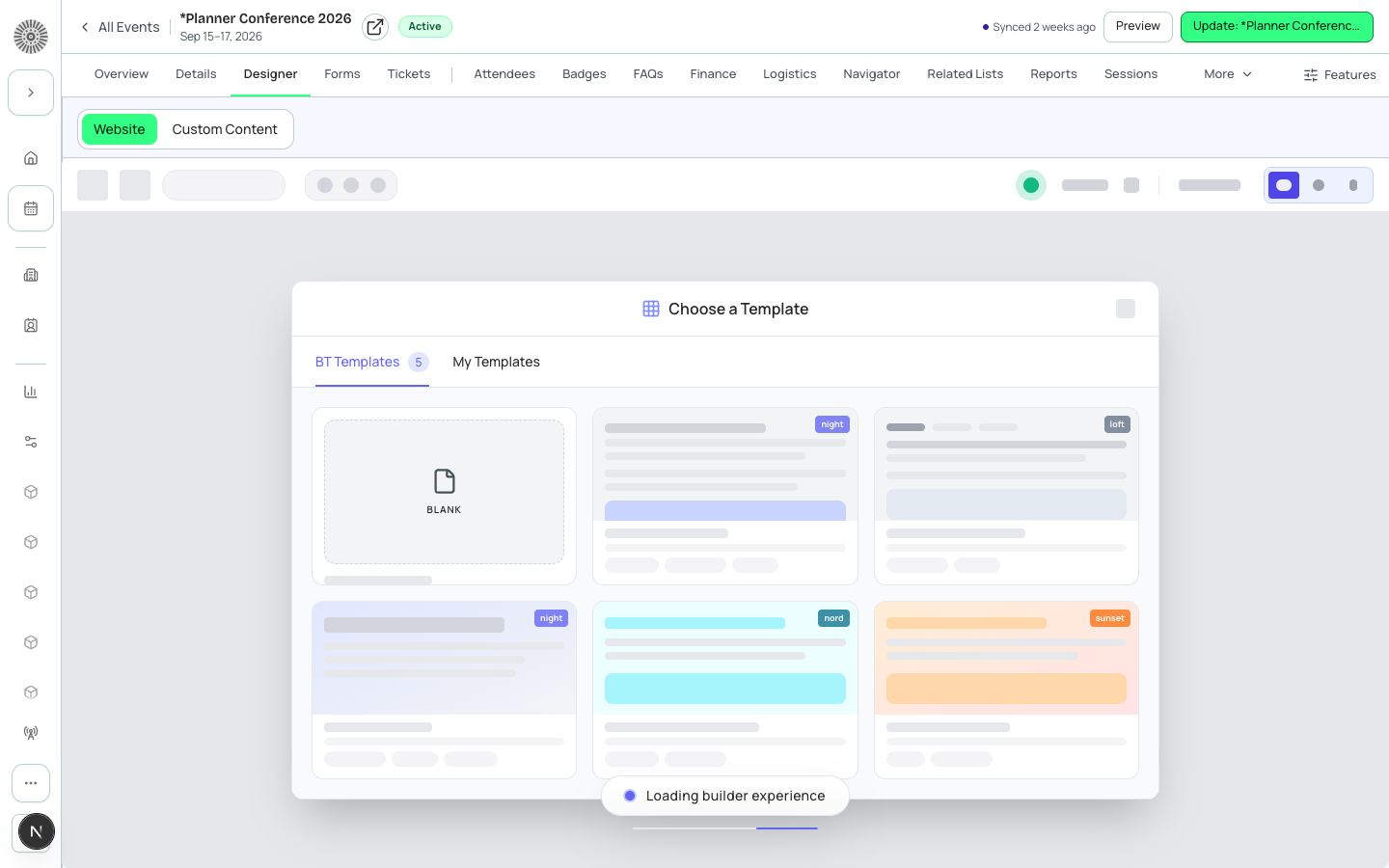
Quick path: set UI Theme to Page Designer, open the Website tab, start from a template, edit the Hero, make sure a Ticket Pricing (or Register Button) block is on the page, run the accessibility check, preview mobile, then share the event's page link.
Before you open Page Designer
| Requirement | What happens if it is missing | What to do |
|---|---|---|
| UI Theme must be Page Designer | An event on another theme opens its overview with the note 'Set UI Theme to Page-Designer to use Page Designer.' | Change UI Theme at the top right of the Designer tab (see below). Creating an event with Save & Open Page Designer always sets it for you. |
| The event must have a preview URL | The tab shows 'Publish the event to open Page Designer' and explains that Page Designer is available once the event has a published preview URL. Salesforce only stamps the page URL when the event is published. If the URL is not in the supported format the tab says 'Preview URL is not in the supported events site format'. | Publish the event. Publishing needs a start date, Active status, and at least one ticket (Donation, Guest and Product tickets do not count). If you must fix the URL, set the event's Preview URL or Event Page URL in Salesforce to a published site path like /en/{org}/g/{group}/{event}/overview. |
| Your Forge user must be linked to a Salesforce user | The tab says 'Page Designer isn't available for your account'. The builder signs you in as yourself, not as the admin who connected the org. | Sign in with Salesforce, or ask an admin to link your account. |
| Your profile needs access to the Website section | You see an access-denied card instead of the designer. | Ask an admin to grant Website access to your profile. |
If Salesforce cannot be reached the tab says 'Page Designer is temporarily unavailable' with Retry loading Page Designer. If the builder cannot load it says 'Failed to load page designer' with Retry and Open in new tab. The builder is shown in an embedded frame; Open in new tab and its own fullscreen button give you more room.
An RTL warning appears when your Forge interface language is right-to-left (Hebrew or Arabic), because the builder's own interface is not translated or mirrored.
UI Theme picker
UI Theme (top right of the Designer tab) sets which kind of public page the event uses. Changing it saves immediately to the event's UI Experience field in Salesforce ('Saved'). The list is read from your org and is split into Page Designer and Legacy options. An event that never had a value is shown as the legacy Tabbed theme.
| Option | What it is | Recommendation |
|---|---|---|
| Page Designer | The drag-and-drop builder. You control the section order, layout, colors and fonts. | Choose this for any event where branding or layout matters. It is the only theme with a visual editor. |
| Dynamic | A fixed page layout, with page sections you switch on or off (see Legacy themes below). It also uses its own checkout layout; every other theme, including Page Designer, uses the standard checkout. | Use it if you already have Dynamic events and want to keep checkout the same. |
| Tabbed | A fixed layout; you cannot rearrange it. | Keep it for existing events you do not want to rebuild. |
| Simple | A fixed layout; you cannot rearrange it. | Keep it for existing simple events. |
| BYO-CSS | A fixed layout; the name stands for bring-your-own CSS. | Use only if someone on your team maintains the custom CSS. |
| Full-Width | A fixed full-width layout. It is deprecated. | Do not choose it for new events. |
If the picker says 'Page Designer is using the Dynamic theme until your admin updates the UI Experience field', or shows the message about adding a 'Page Designer' value (API name Page-Designer) to the UI Experience picklist, a Salesforce admin must add that picklist value on the Event object, or give the connected user Modify Metadata permission.
Website tab (Page Designer)
How a page is built
A page is a stack of sections. Each section holds columns, and each column holds blocks. Drag blocks, columns and sections to reorder them; copy and paste styling between blocks of the same type; use undo and redo (the last 30 steps, kept while the tab is open). On phones, columns always stack into a single column. The Header block must be in the first section and the Footer block in the last, and the builder will not let you drag them out of place.
Blocks
Each block either shows live event data or content you type. Data blocks stay empty if the event has nothing to show, so check the source if a block looks blank.
| Block | What it shows | Notes and recommendations |
|---|---|---|
| Header | The top bar of the page. It links to the event cart and hosts the language selector. | Must be the first section. Keep it so visitors can switch language and reach the cart. |
| Footer | Footer link columns and your organization's logo. | Must be the last section. |
| Hero | Large heading, text and up to two buttons. | Put it first under the header. When both buttons are shown they are centered side by side. |
| Event Banner | The event's banner image and a status label (Completed, Sold out, Upcoming, Closed). | Upload a banner on the event first; otherwise it shows a placeholder. |
| Event Title / Event Date & Time | The event name; start and end dates, time zone, with multi-day events grouped. | Use instead of retyping, so the page follows the event if dates change. |
| About Event | The event's description from Salesforce. | Shows nothing when the description is empty. |
| Event Countdown | Live countdown to the event start, with an option to hide it once the event has started. | Use for early-bird urgency. |
| Ticket Pricing / Simple Pricing Card | Ticket types with prices. | Keep it on the page unless you link out with a Register Button. |
| Simple Checkout - Modern Design | Inline registration on the page, for free tickets only. Paid tickets use the full-page checkout. | Use for free events; for paid events use Ticket Pricing plus Register Button. |
| Register Button | A button into the event's checkout. There is no URL to type; the destination follows the event. | Place one in the hero and one near the bottom. |
| Sessions Schedule | Sessions by day, in the event's time zone, with tracks. | Sessions without a start date are not shown. Fill in start dates on every session. |
| Speakers | Speaker photos, names and titles. | Only speakers whose visibility is 'Shown on Listing' appear. |
| Sponsors | Sponsor logos or names. | Only sponsors with status Confirmed appear. A confirmed sponsor with no logo shows its name. |
| Simple Location Card | Venue with Open Map, Directions and Website buttons. | Fill in the venue on the Location tab first. |
| FAQ | The event's FAQs in the order set on the FAQs tab, grouped by category, or questions you type in the builder. | Set Questions from to Event FAQs to show the FAQs you maintain on the FAQs tab (the Event landing template does this), or Written here to type questions in the builder. Pages saved before this option keep Written here. With Event FAQs and none added yet, visitors see nothing and the builder shows 'No FAQs yet' with Edit in Manage. If Salesforce cannot be reached the block says 'FAQs are not available right now'. |
| Downloads | The event's files with a public link, each with a file-type icon and badge. | Maintain the files on the Event content tab; a file with no public link is not listed. Shows 20 files, then Show more. With no files, visitors see nothing and the builder shows 'No files yet' with Edit in Manage. |
| Info Cards | Up to four icon cards with a title and description; can show live counts such as attendees, speakers, sessions, sponsors or tickets. | Use for quick facts like '3 days / 40 sessions'. |
| Contact Us | A form that sends a message to the organizer, with the event name as the subject. | Check where replies go before publishing. |
| Social Share Button | Share buttons for the page. | Place beside the registration button. |
| Tabs | The only block that can hold other blocks, as tabbed panels. | Use to keep a long page short. |
| Title, Text, Paragraph, Rich Text, Button, Image, Video, Icon, Icon Box, Icon List | Content you type or upload. | Give every image alt text, and every button a label (the accessibility check flags both). |
Site settings: colors, fonts and styling
Site settings apply to the whole page. They have four groups: Color scheme, Typography, Styling (borders and similar) and Custom CSS (one block of raw CSS added to the page). Typography includes font families and named font-size tokens (H1, H2, H3, Body Large, Body Small, Caption, or Custom): change a token once and every block that uses it updates. Changing the theme re-colors the existing blocks to the new palette, and some of a block's own style overrides are reset so it follows the theme.
| Field | What it does | Recommendation |
|---|---|---|
| Color scheme | The page's color palette. | Set your brand colors here first, then style individual blocks only when they must differ. |
| Typography | Font families, font-size tokens and weights. | Change the token (for example H2) instead of setting font sizes block by block. |
| Styling | Border and related styling. | Set once for consistency. |
| Custom CSS | Raw CSS injected into the page. | Use only for small fixes, and test the page on desktop and mobile afterwards, since invalid CSS affects the whole page. |
Templates
Choose a Template (Bold Conference, Tabbed Conference, Healthcare Research Conference, AI Event Webinar, Charity Gala, October Lights Fest or Simple Checkout Modern Design) or open My Templates for ones your team saved from a finished page. Applying a template replaces the current layout and pauses autosave until you save again.
Start from the template closest to your event, replace the text and images, then Save as template so the next event starts from your branded version.
Saving and shared designs
There is no separate draft or Publish step in the builder: saving updates the page design the event uses, and the public page picks it up shortly afterwards (public pages are cached for up to about ten minutes). Autosave starts after your first manual Save. Undo and redo history lives only in your browser tab and is lost when you close it. Leaving the builder asks you to confirm so you do not lose unsaved work. If the design is shared by several events, you are asked whether to save for all events, make a copy just for this event, or start from a template.
Because saving changes the live design, edit shared designs carefully and make a copy for this event when only one event should change. Two people editing the same design at once will overwrite each other: the last save wins.
Accessibility check
The builder scans the page and lists problems with their exact location, for example 'Section 2 (Hero) > Column 1 > image 1'. It checks images for alt text, buttons for a label, and text for contrast below 4.5:1 (for gradient backgrounds it checks every color stop and reports the worst). Each finding can be fixed with one click, which picks the nearest accessible color.
Run the check before every launch. Fix alt text and contrast first, since they are the most common failures.
Mobile preview and responsive behavior
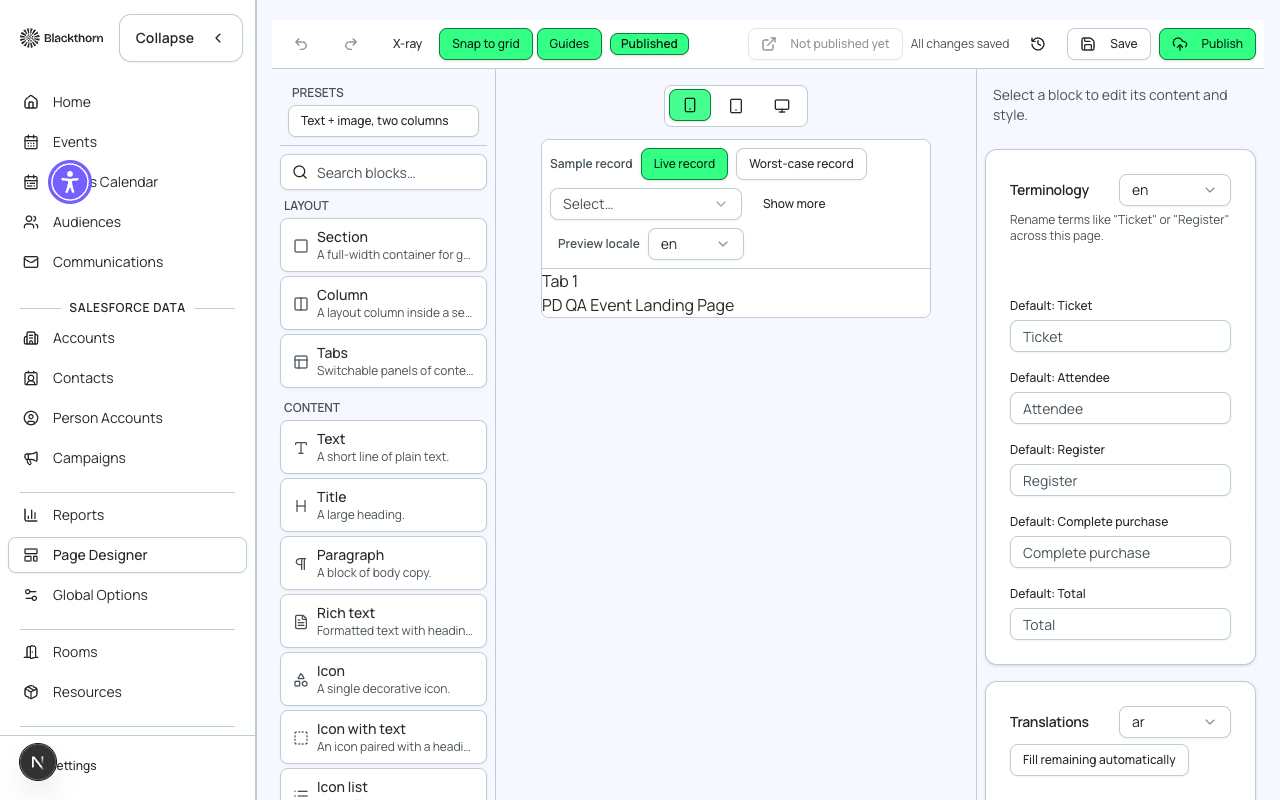
Switch the canvas between desktop, tablet and mobile views. The breakpoints are desktop at 1024 pixels and wider, tablet from 768 to 1023, and mobile below 768. Spacing scales down automatically (to about 70% on tablet and 50% on mobile), and multi-column sections always collapse to one column on small screens. There is no per-block 'hide on mobile' and no per-section control over column collapse.
Always check the mobile view before you share the link. Keep the Register Button and ticket block near the top so they are reachable without scrolling far on a phone.
Languages
Page text can be translated per language. The public header's language selector only offers languages that have translations, while the builder lets you pick any target language. Translations you enter always win; for missing text, the live page may fill gaps with machine translation, except Rich Text blocks, which are never machine-translated.
Embedding the page on your own website
The site settings include an Embed section that builds a copy-and-paste snippet which shows the event page in a frame on your own site. Layout presets are full, fixed and auto; you can also choose which events the snippet listens for (content size changed, route changed, form submitted, app ready) and a loader (none, skeleton or custom) shown while the page loads.
Auction Blocks
| Block | What it renders | Key settings |
|---|---|---|
| Place bid | An inline bid form for one auction item. Shows the current (or starting) bid, updates live, and asks the bidder to confirm. Bidders who have not verified their email see a Register to bid link instead. Hidden for catalog-only auctions and for closed or sold items. | Auction, item |
Custom Content tab
Custom Content lets you add extra pages to the event, written with a rich text editor. Sections appear as extra pages on your event website and, when Display Location includes Navigator, as tabs in the Navigator mobile app. The list shows Name, Display Location and Last updated. Drag a row to reorder; the order is saved to Salesforce (Sort Order) and sets the Navigator tab-bar order. Edit and Delete work on each row; delete permanently removes it from Salesforce after confirmation. A new section is created with the New button.
| Field | What it does | Recommendation |
|---|---|---|
| Name | The section's title and its tab label. Required ('Name is required' if blank). | Use short names such as Agenda, Travel or Sponsors. |
| Display Location | Webapp (the event website), Navigator (the mobile app) or Both. | Choose Both for content attendees need before and during the event. Choose Navigator for on-site-only information. |
| Navigator app icon | An icon picker, shown only when Display Location includes Navigator. It appears next to the tab in the Navigator tab bar and defaults to a grid icon. | Pick an icon that matches the content (a map for Travel) so the tab bar is easy to scan. |
| Content | The body, with a rich text editor. HTML is supported. Paste a YouTube or Vimeo URL, or use the toolbar's Video button, to insert a clickable video link that opens in a new tab. Use the Upload image button to add images; external image links are not supported, and pasting images directly is rejected. | Upload images through the editor. Use a video link rather than an embed for long videos. |
Legacy themes (Dynamic and others)
For events that use a theme other than Page Designer, the Legacy view (the website designer's older tab) previews the event's templates and lets you manage its page. Templates shows when it was last updated and where the preview comes from, with Reload preview, Full screen, and a Desktop or Mobile preview toggle; the event is marked Live or Draft. Page sections lets you pick which sections show on the Dynamic UI: each switch is tagged Salesforce managed or Local only.
Page sections need the event to be linked to an Event Settings record. If it is not, the panel says 'This event is not linked to an Event Settings record. Assign one in Salesforce to manage Dynamic UI sections.' If the preview host blocks embedding, use Full screen. If the preview domain is unavailable, check that the Events Webapp managed package is configured in Salesforce.
Troubleshooting
| You see | Likely cause | Fix |
|---|---|---|
| A block is empty on the public page | The event has no data for it, or the data is hidden (for example a Speaker not set to 'Shown on Listing', or a Sponsor that is not Confirmed). | Fix the data on its tab, not in the designer. |
| Session missing from the schedule | The session has no start date. | Add a start date. |
| Changes are not visible on the public page | The public page is cached for a few minutes, or autosave has not run yet. | Choose Save, wait a few minutes, and hard-refresh. |
| 'Publish the event to open Page Designer' | The event has no published preview URL. | Publish the event (needs a start date, Active status and one ticket). |
| 'Failed to load page designer' | The embedded builder could not load. | Choose Retry, Dismiss the bar, or Open in new tab. |